
Introduction
Picture this. It’s 11 PM on a Sunday. You’re trying to relax, but your phone keeps buzzing with new orders. Orders you can’t fulfill until Monday morning. Customers are messaging, expecting fast replies. And you’re just… exhausted.
Sound familiar?
Running a WooCommerce store is exciting until you realize it never actually closes. Unlike a physical shop with a door you can lock, your online store is open 24/7 by default. That sounds great in theory. In practice, it creates a whole set of problems.
A WooCommerce open/close schedule gives your store clear business hours. It sets expectations with customers, gives you back your personal time, and helps you run a smoother operation overall.
In this post, you’ll learn exactly why scheduling your store’s open and closed times is one of the smartest things you can do and how to set it up without touching a single line of code.
Let’s get into it.
The Real Problem: No Schedule Means No Control

Here’s the thing. Most WooCommerce store owners don’t think about store hours until something goes wrong.
Maybe a customer places an order at 2 AM expecting same-day delivery. Maybe your kitchen prep business gets flooded with Saturday orders that you can’t handle until Monday. Or maybe you run a made-to-order product shop and orders keep rolling in even when you’re fully booked.
Without a clear open/close system, you’re constantly playing catch-up.
What Happens Without Store Hour Management?
- Customer frustration rises. Shoppers don’t know when to expect their orders. That leads to negative reviews and refund requests.
- You burn out faster. There’s no mental separation between work time and personal time.
- Order errors increase. Accepting orders you can’t fulfill creates fulfillment delays and unhappy customers.
- Your brand looks unprofessional. No communication about availability makes your store feel unreliable.
According to WooCommerce’s official research, customer experience is the number one factor in repeat purchases. If customers don’t know when you’re open, they can’t trust you. And without trust, they won’t come back.
The good news? This is 100% fixable and it’s easier than you think.
The Solution: Give Your WooCommerce Store Real Business Hours
Imagine walking into a café and there’s no sign on the door, no hours listed anywhere. You’d feel uncertain, right? You wouldn’t know if they’d be open tomorrow. You might not come back.
Your WooCommerce store works the same way.
When you add a proper WooCommerce open/close schedule to your store, everything changes. Customers know when to order. You control when orders come in. And you stop feeling like you’re on-call around the clock.
The easiest way to do this is with the Open Close Store for WooCommerce plugin by StackWC.
What This Plugin Lets You Do
Here’s a quick look at what you get:
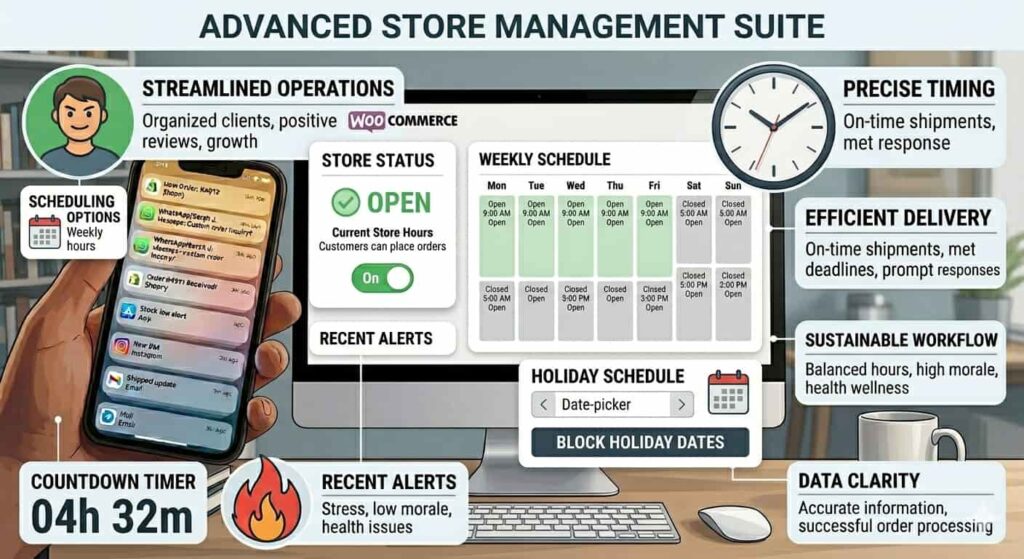
- Set weekly business hours:- define exactly when your store accepts orders each day of the week
- Create custom shifts:- run a lunch rush from 11 AM 2 PM and a dinner rush from 5 – 9 PM
- Schedule holiday closures:- block out holidays, vacations, or maintenance windows in advance
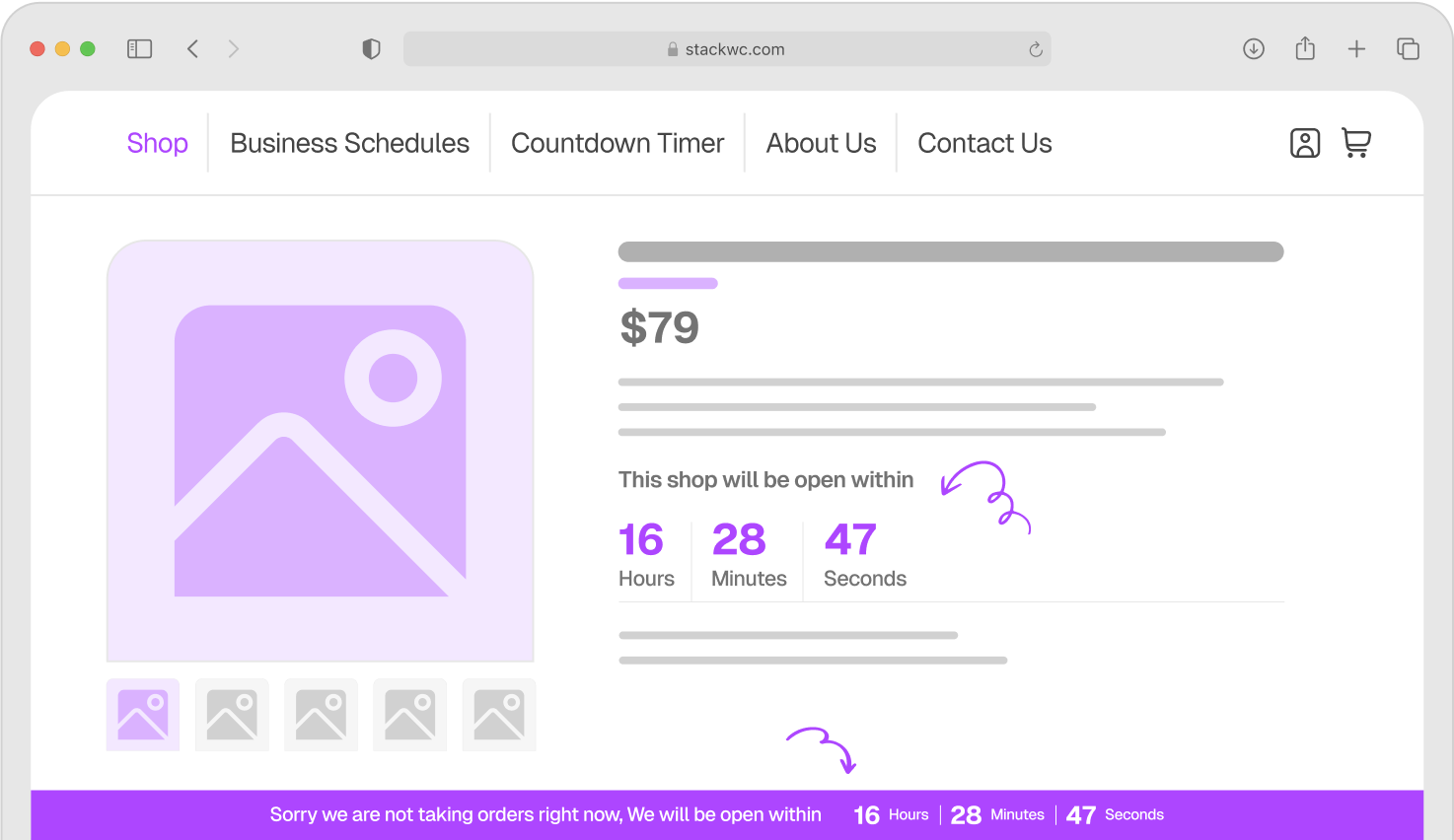
- Display countdown timers:- show customers exactly when you’ll be open next
- Add custom messages:- tell visitors “We’re closed right now, but we open at 9 AM tomorrow!”
- Enable pre-orders:- let customers place orders outside your hours, but with clear expectations
- Support multiple time zones:- great for stores serving customers in different regions
Why This Approach Works Better Than Manual Methods
Some store owners try to manage this manually. They disable their shop, remove products, or just hope customers figure it out. That creates confusion and lost sales.
With a dedicated scheduling tool, everything is automated. Your store opens and closes on its own. You don’t have to remember to do anything. It just works.
You also build customer trust by being transparent. When someone visits and sees “We open again in 3 hours 24 minutes,” they don’t feel lost. They know what to expect. That’s the kind of experience that turns first-time buyers into loyal customers.
How to Set Up Your WooCommerce open/close Schedule: Step-by-Step
Ready to get this working for your store? Here’s exactly how to do it. No coding required.
Step 1: Install the Plugin
Head to Open Close Store for WooCommerce and grab the plugin. Install it through your WordPress dashboard like any other plugin upload, activate, done.
Step 2: Set Your Weekly Hours
Go to the plugin settings and define your open hours for each day of the week. You can set different hours for Monday vs. Saturday, or mark certain days as fully closed.
Step 3: Configure Your Closed Message
Write a friendly message that customers see when your store is closed. Something like: “We’re taking a break! We’ll be back open tomorrow at 9 AM. See you then 👋”
Step 4: Enable the Countdown Timer (Optional but Recommended)
Turn on the countdown timer to show customers how long until you open next. This small feature does a huge job. It reassures visitors and reduces “Where are you?” messages significantly.
Step 5: Configure Pre-Order Settings (If Needed)
If you want to allow orders outside your hours (but with clear expectations), enable the pre-order feature. Choose whether to accept orders or simply display a notice.
Step 6: Test Your Store
Preview your store as a customer. Visit during “closed” hours to confirm the message shows correctly. Check the timer. Make sure everything looks polished and clear.
That’s it! Your WooCommerce store now has real, professional business hours. 🎉Want a visual walkthrough? Check out Tutsflow for free step-by-step WordPress and WooCommerce tutoria
Real-World Examples: Who Actually Needs This?
You might be thinking, “Does this really apply to my store?” Let’s look at a few different scenarios.
1. The Local Food or Bakery Business
Sarah runs a home bakery through WooCommerce. She bakes fresh every Tuesday through Saturday. Sundays and Mondays? She rests.
Before using a store schedule, she’d get orders on Sunday nights that she couldn’t fulfill until Tuesday. Customers would message asking for updates. She’d spend her day off managing expectations instead of recharging.
After setting up a proper WooCommerce open/close schedule, her store automatically shows a “Closed opens Tuesday at 8 AM” message on weekends. Customers still browse, but they know what’s happening. Orders have dropped on off-days, but fulfillment complaints have dropped even more.
2. The Made-to-Order Product Shop
James sells custom-printed merchandise. His production team works Monday through Friday, 8 AM – 5 PM. He was getting orders at midnight that required same-day turnaround.
He set specific order windows using the Open Close Store plugin. Now, orders placed after 3 PM are automatically shown a “Next business day processing” message. He also enabled pre-orders for customers who want to order ahead.
His order errors dropped significantly within the first month.
3. The Service-Based WooCommerce Store
Priya runs a small consulting business using WooCommerce to sell service packages. She’s in India but has clients in the US and UK.
With multi-time-zone support and custom shifts, she can clearly communicate when she’s available to start new projects. Clients from different countries see messages relevant to her actual hours. No more confusion about response times.
Common Questions About WooCommerce open/close Schedules
Yes, absolutely. You can configure the plugin to accept pre-orders during closed hours. Customers place the order but see a clear message that it’ll be processed when you reopen. It’s a great middle ground.
No, displaying a closed message doesn’t hurt your SEO. Your product pages remain indexed and visible. The schedule only affects the ordering functionality and the messages customers see.
The Open Close Store for WooCommerce plugin is designed to be compatible with the vast majority of WooCommerce-compatible themes. If you ever run into an issue, StackWC’s support team is available to help.
Yes! You can control scheduling at a granular level. Some store owners show certain products only during specific hours — perfect if you sell both regular items and made-to-order products with different lead times. The Open Close Store for WooCommerce plugin gives you that flexibility without any custom code.
Conclusion
You’ve worked hard to build your WooCommerce store. You deserve to run it on your terms not your customers’ terms.
Adding an WooCommerce open/close schedule isn’t just about turning your shop on and off. It’s about running a professional, trustworthy business that communicates clearly with customers. It’s about protecting your time, reducing burnout, and creating an experience that makes people want to come back.
Here’s one final tip: even if you run a fully automated store with no manual processing, displaying your “active hours” for support and communication builds massive trust. Customers love knowing when they can expect a response.
Ready to take back control of your store hours? Try Open Close Store for WooCommerce today backed by a 14-day money-back guarantee. No risk, fully supported, and no coding needed.