

Introduction
Adding hundreds of products manually to your WooCommerce store? There’s a better way. Whether you’re launching a new store, migrating from another platform, or updating your catalog, knowing how to import WooCommerce products in bulk saves you countless hours.
In this guide, I’ll walk you through the complete process to import WooCommerce products, from preparing your data to troubleshooting common issues. By the end, you’ll be importing products like a pro.
Table Of Contents
Using the Native WooCommerce Importer
WooCommerce includes a built-in product importer that’s perfect for most import needs. Here’s how to use it.
Accessing the Importer
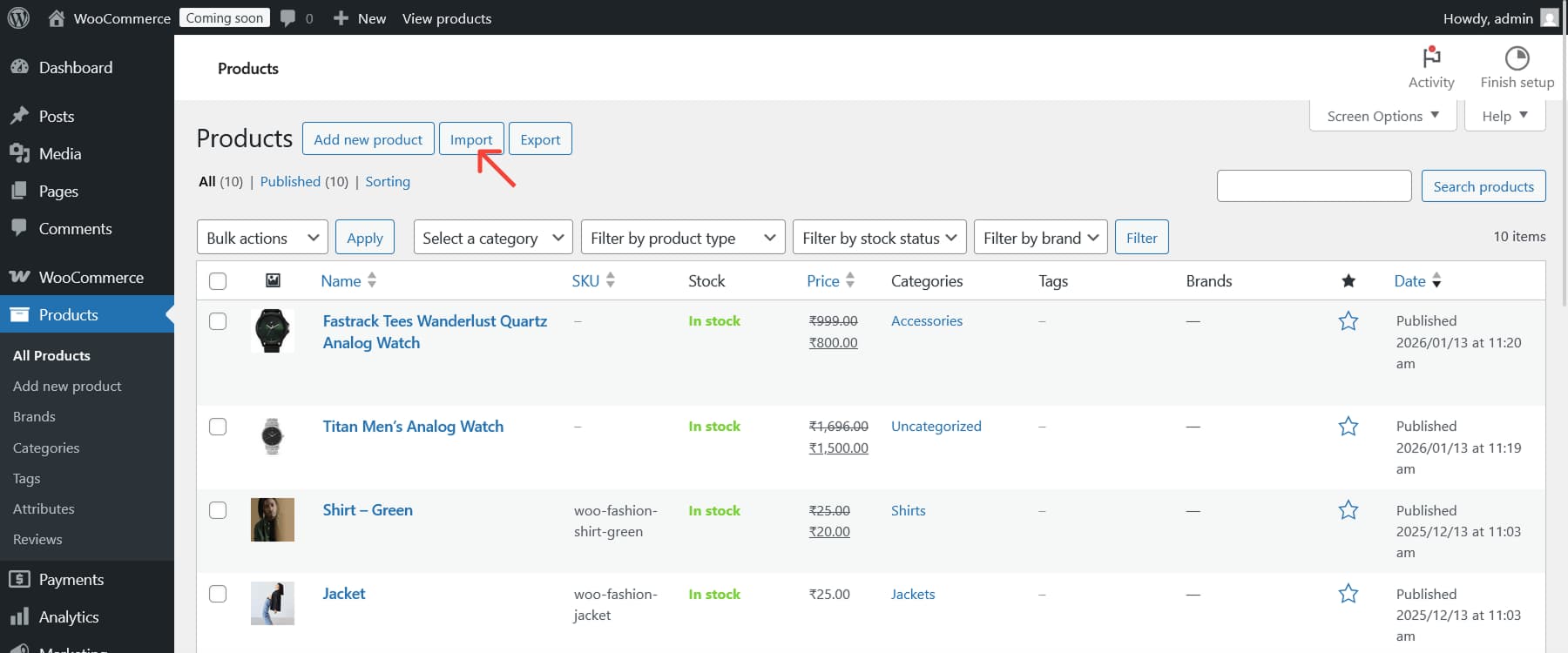
Log into your WordPress dashboard and navigate to Products > All Products. Click the Import button at the top of the page. You’ll see an upload screen where you can select your CSV file.
Running Your First Import
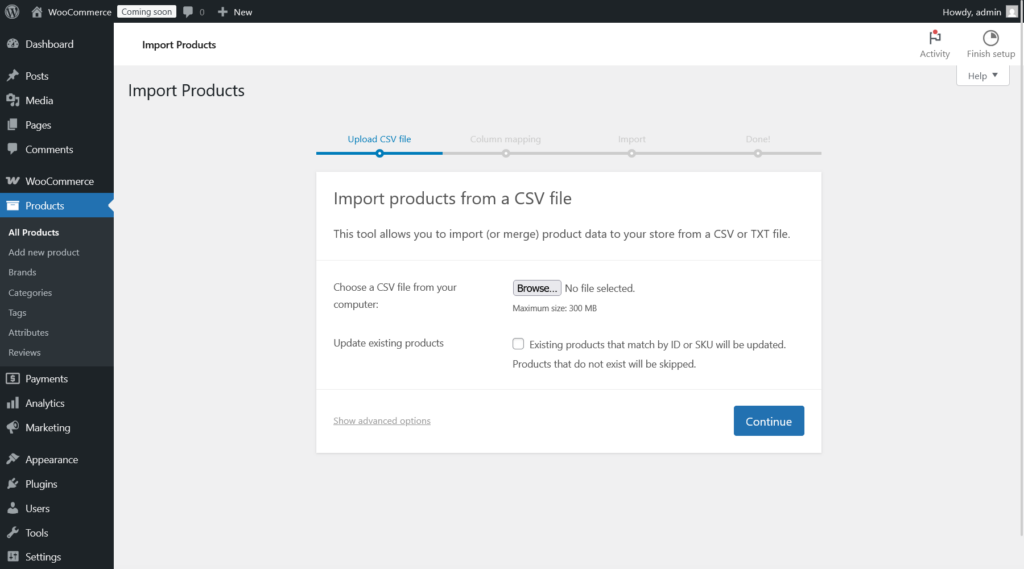
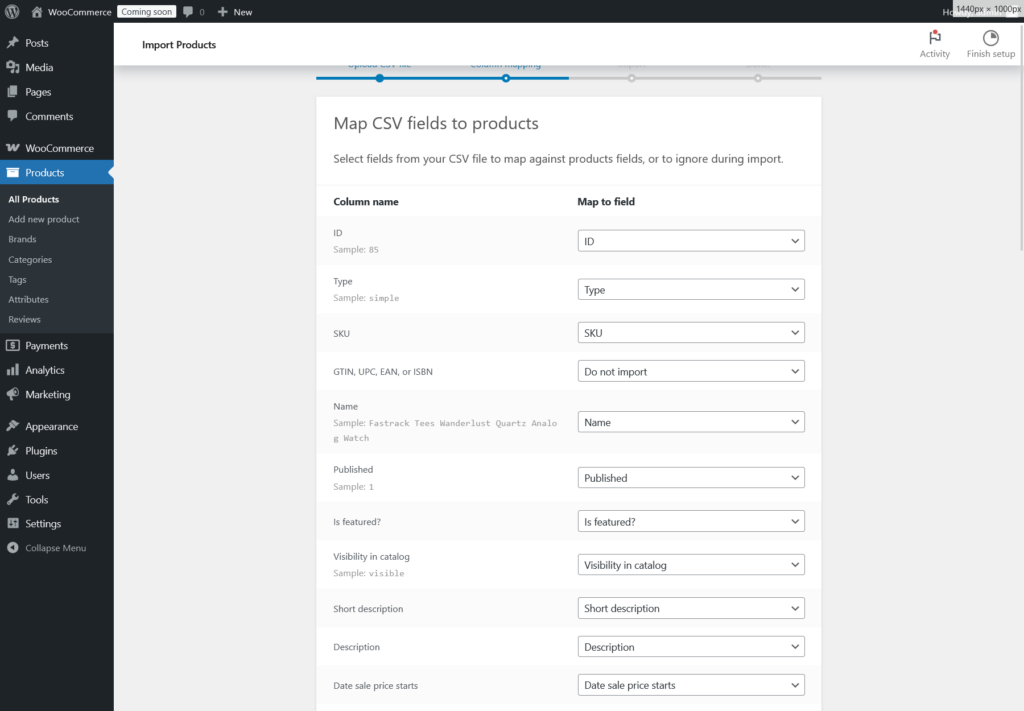
Click “Choose File” and select your prepared CSV. You can choose whether to update existing products or skip them during import.
Preparing Your CSV File
The success of your import WooCommerce products depends entirely on having properly formatted data. Here’s what you need to know.
Essential Column Headers
Your CSV must include specific headers that WooCommerce recognizes:
- Name – Product title
- SKU – Unique product identifier
- Description – Full product description
- Short description – Brief summary
- Regular price – Standard price
- Categories – Comma-separated category names
- Images – Product image URLs (comma-separated)
- Stock – Quantity available
- In stock? – Stock status (1 for yes, 0 for no)
Formatting Tips
Use UTF-8 Encoding: This preserves special characters. In Excel, save as “CSV UTF-8.” Google Sheets handles this automatically.
Handle Images Correctly: Include full URLs to product images. The first URL becomes the featured image. Ensure images are accessible online before importing.
Category Structure: Use the greater-than symbol for category hierarchy: Electronics > Laptops > Gaming Laptops creates a three-level structure.
Clean Your Data: Remove extra spaces, ensure prices don’t include currency symbols, and use periods (not commas) for decimals.
Importing Variable Products
Variable products (like t-shirts with multiple sizes and colors) require special formatting.
Structure Your CSV
Variable products need a parent row plus variation rows:
- Parent Product Row: Set Type to “variable” and include shared information like name, description, and categories
- Variation Rows: Set Type to “variation” and include the parent’s SKU in the “Parent SKU” column
Example Structure
Parent: Blue T-Shirt (Type: variable)
Variation 1: Blue T-Shirt – Small (Type: variation, Parent SKU: TSHIRT-BLUE)
Variation 2: Blue T-Shirt – Medium (Type: variation, Parent SKU: TSHIRT-BLUE)
Variation 3: Blue T-Shirt – Large (Type: variation, Parent SKU: TSHIRT-BLUE)
Each variation row should include variation-specific pricing, SKU, and stock levels.
Common Import Errors and Solutions
Even with careful preparation, you might encounter these issues:
Images Not Loading
Problem: Image URLs don’t import or show broken images.
Solution: Verify URLs are publicly accessible. Try opening them in your browser. Ensure you’re using complete URLs with https://. Reduce image file sizes if your server is timing out.
Duplicate Products
Problem: Import creates duplicate products instead of updating existing ones.
Solution: Always include SKUs or product IDs in your CSV. WooCommerce uses these to identify existing products during updates.
Missing Required Fields
Problem: Error messages about missing data.
Solution: Ensure every product has a name, SKU, and price. Check the error log to identify which field is missing and add it to your CSV.
Encoding Issues
Problem: Special characters appear as garbled symbols.
Solution: Save your CSV with UTF-8 encoding. This is crucial for preserving accents, symbols, and non-English characters.
Enhancing Your Products After Import
Once you import WooCommerce products, you’ll want to optimize them for better user experience and higher conversions. Here are some powerful enhancements worth considering.
Adding Custom Product Information Tabs
After importing your basic product data, you might want to display additional information in an organized way. The Product Tabs for WooCommerce plugin helps you create custom tabs on product pages.
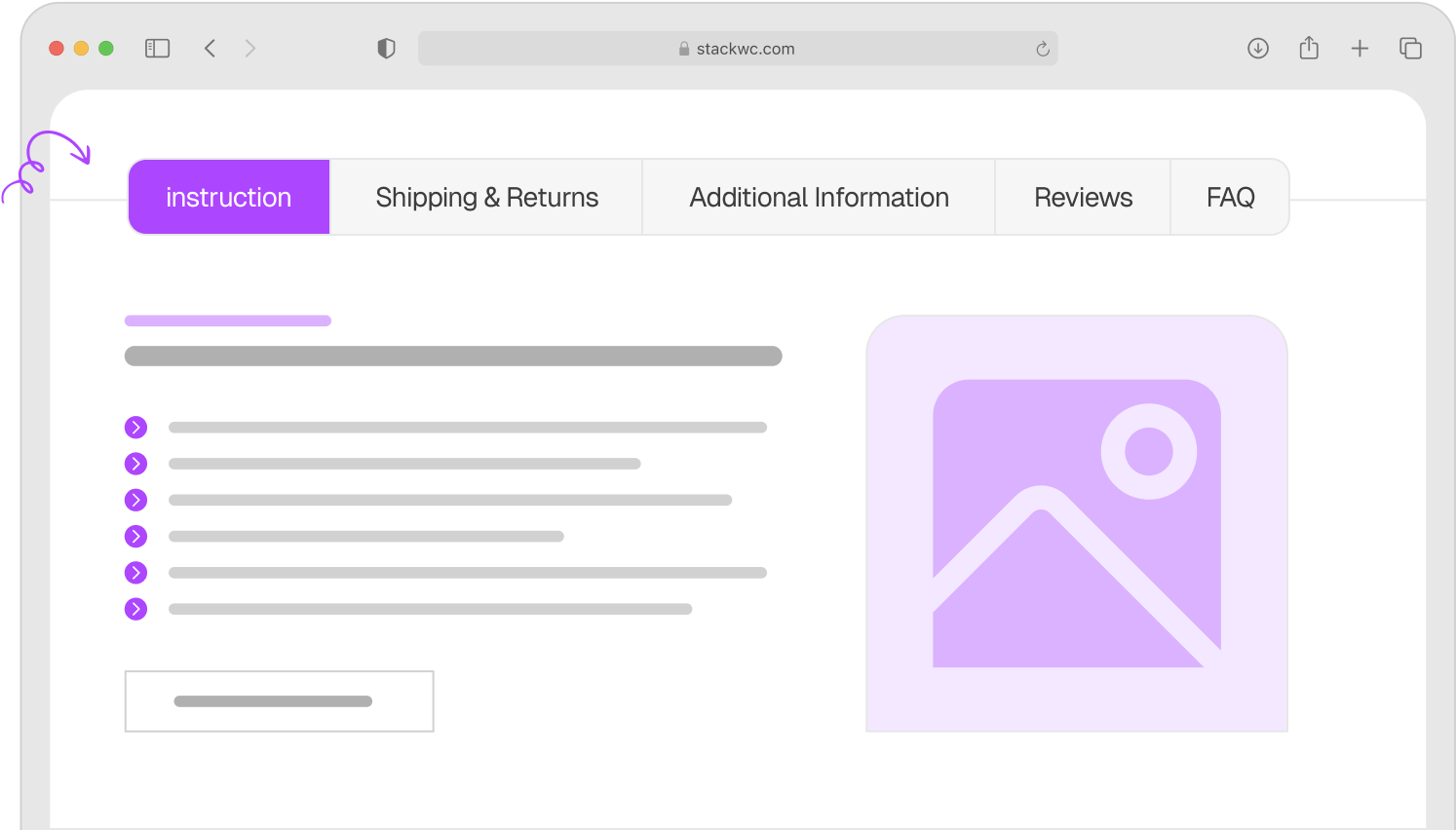
This is especially useful when you’ve imported products with detailed specifications, shipping information, or warranty details. Instead of cramming everything into the description, you can organize content into separate tabs like “Specifications,” “Shipping Info,” “Size Guide,” or “Care Instructions.”
Custom tabs make your product pages cleaner and help customers find the information they need without scrolling through lengthy descriptions. This works particularly well for products with technical details or those requiring additional context.
Implementing Quick Purchase Options
If you’ve imported a catalog of products that customers typically buy quickly, like accessories, consumables, or frequently purchased items, consider streamlining the checkout process.
The Quick Buy Now Button for WooCommerce plugin adds a direct “Buy Now” button to your product pages. When customers click this button, they skip the cart and go straight to checkout.
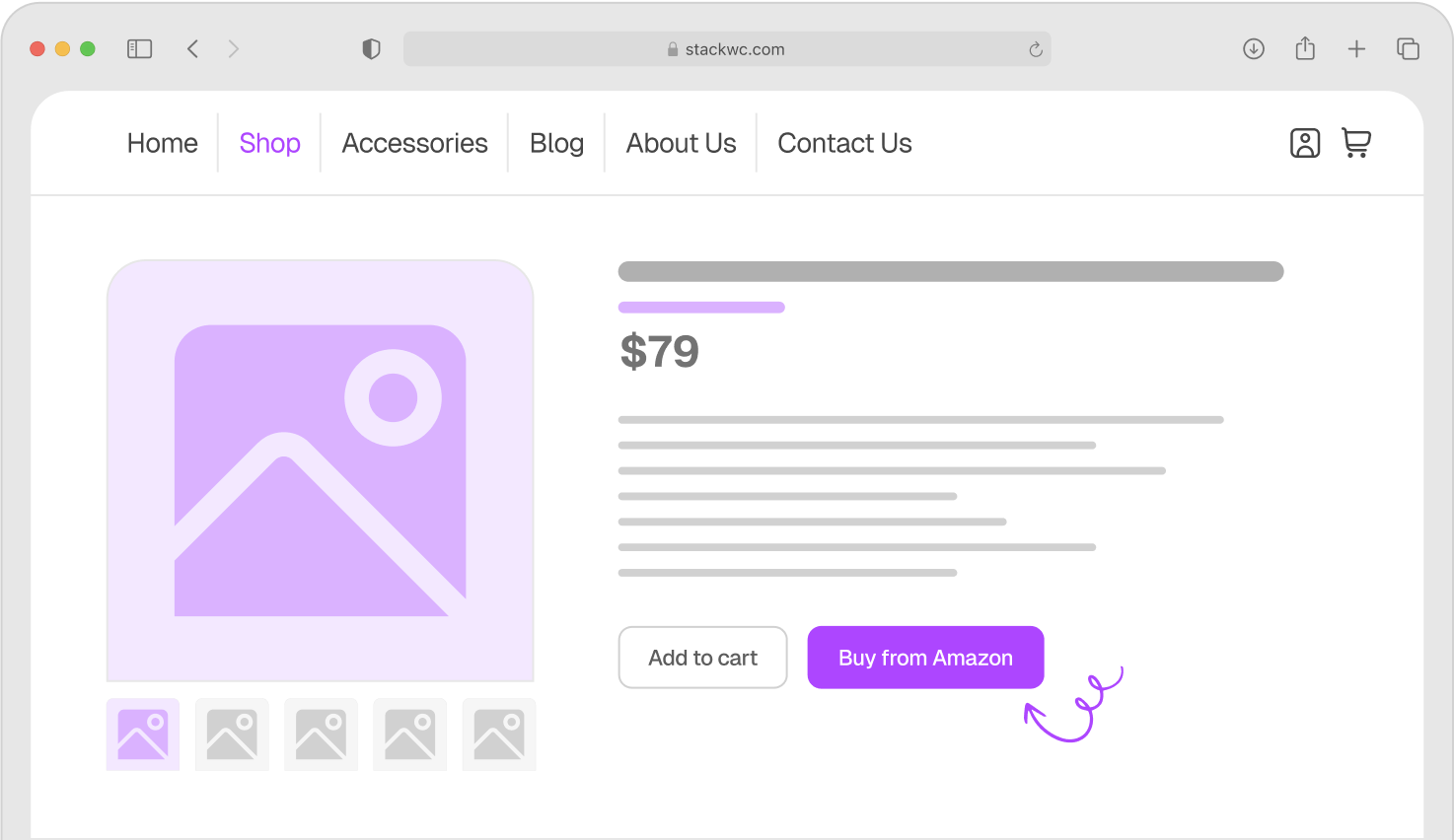
This feature significantly reduces friction for impulse purchases and works well alongside your standard “Add to Cart” button. Customers who know exactly what they want appreciate the faster path to purchase.
Managing Store Hours for Physical Locations
If you’ve imported WooCommerce products for a store that has physical operating hours or accepts orders only during specific times, managing availability becomes important.
The Open Close Store for WooCommerce plugin lets you set store hours and display when you’re open or closed. You can prevent orders during closed hours, show countdown timers until opening, and even set different schedules for different days.
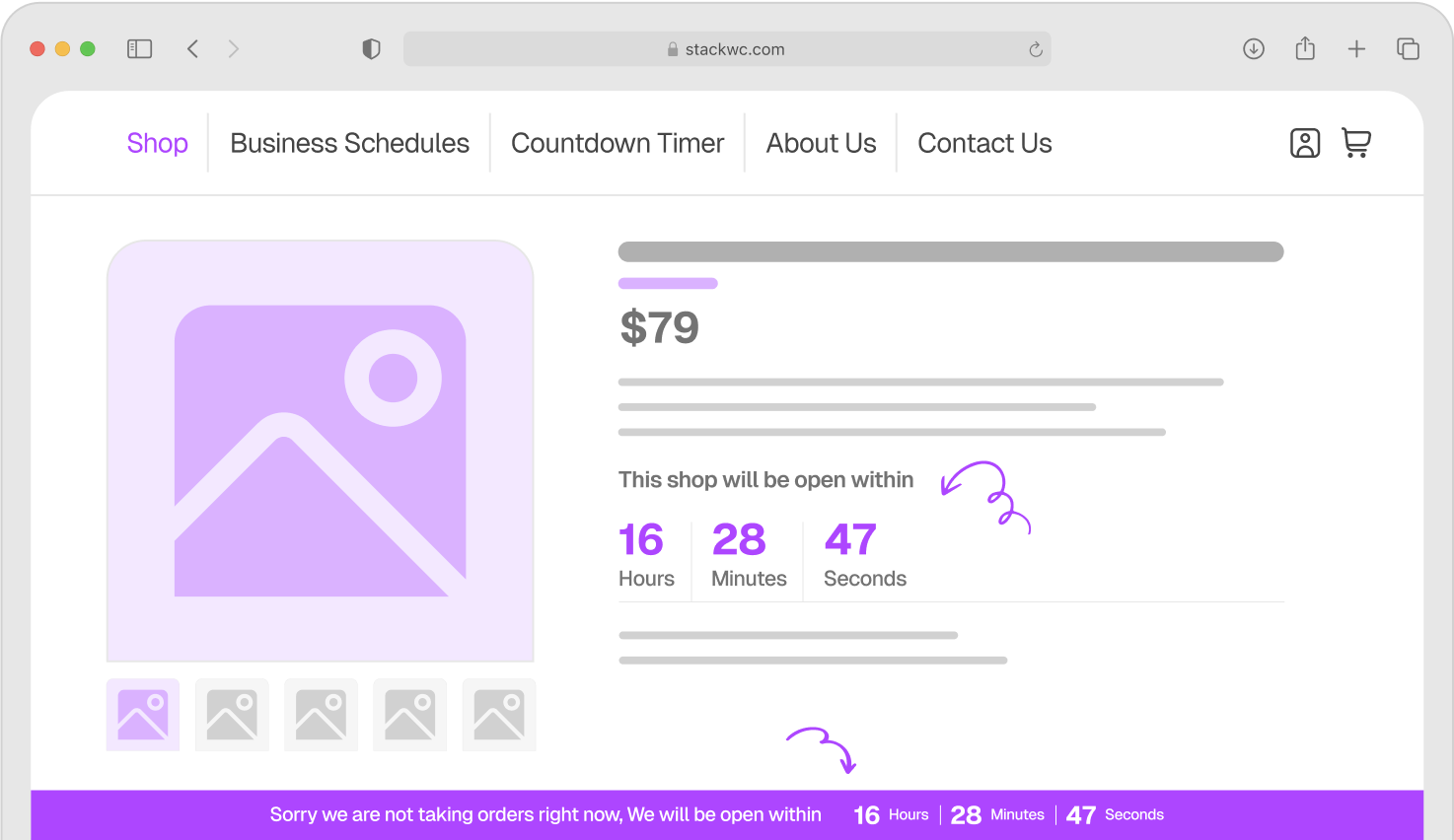
This is particularly valuable for restaurants, bakeries, local shops, or service-based businesses where order fulfillment depends on business hours. After importing your menu items or service products, you can ensure customers only order when you’re able to fulfill those orders.
Setting Up Order Notifications
After importing hundreds or thousands of products, you’ll want to stay on top of incoming orders.
The Order Notification for WooCommerce plugin helps you receive instant notifications for new orders.
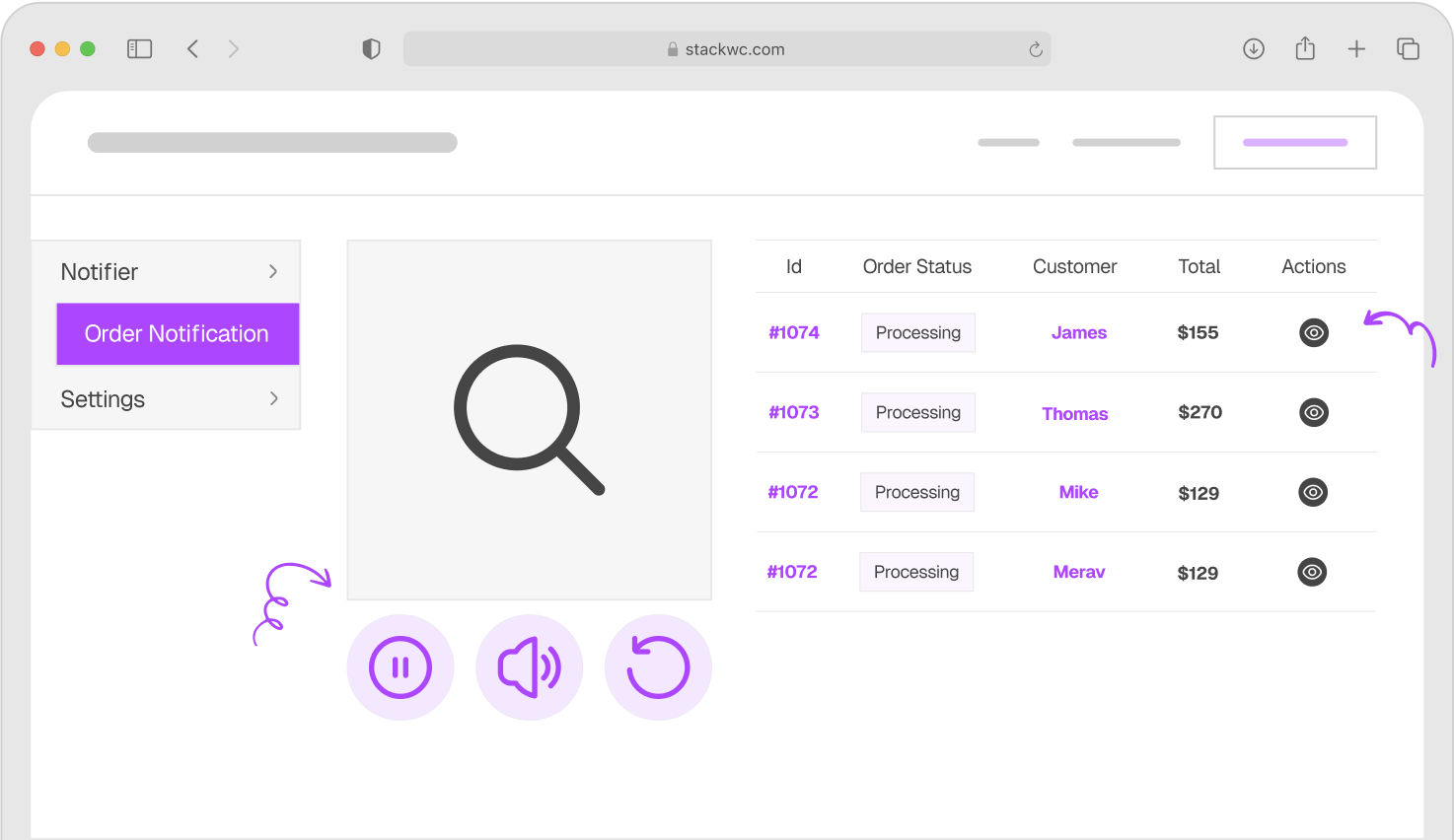
Real-time order alerts ensure you never miss a sale, especially during your initial launch period when monitoring order flow is crucial. You can customize alert sounds, choose notification types, and ensure your team responds quickly to customer purchases.
This becomes especially important if you’ve just imported a large catalog and are testing which products gain traction. Immediate alerts let you monitor sales patterns and inventory needs as your store goes live.
For more detailed guides on optimizing your WooCommerce store after importing products, visit the StackWC blog.
Best Practices
Follow these tips for smooth, successful imports:
Start Small
Always test with 5-10 products first. Verify they import WooCommerce products correctly before running your full catalog. This catches formatting issues early when they’re easy to fix.
Backup First
Before any import, back up your database. If something goes wrong, you can restore your store to its previous state.
Use Unique SKUs
Every product needs a unique SKU. Never reuse SKUs, even for discontinued products. This prevents inventory confusion and enables accurate product updates.
Optimize Images
Resize and compress images before importing. Products don’t need images larger than 2000px. Use descriptive filenames like “blue-cotton-tshirt.jpg” instead of “IMG_1234.jpg” for better SEO.
Break Large Imports into Batches
Importing thousands of products at once can overwhelm your server. Limit batches to 200-500 products depending on complexity. Products with multiple images should be in smaller batches
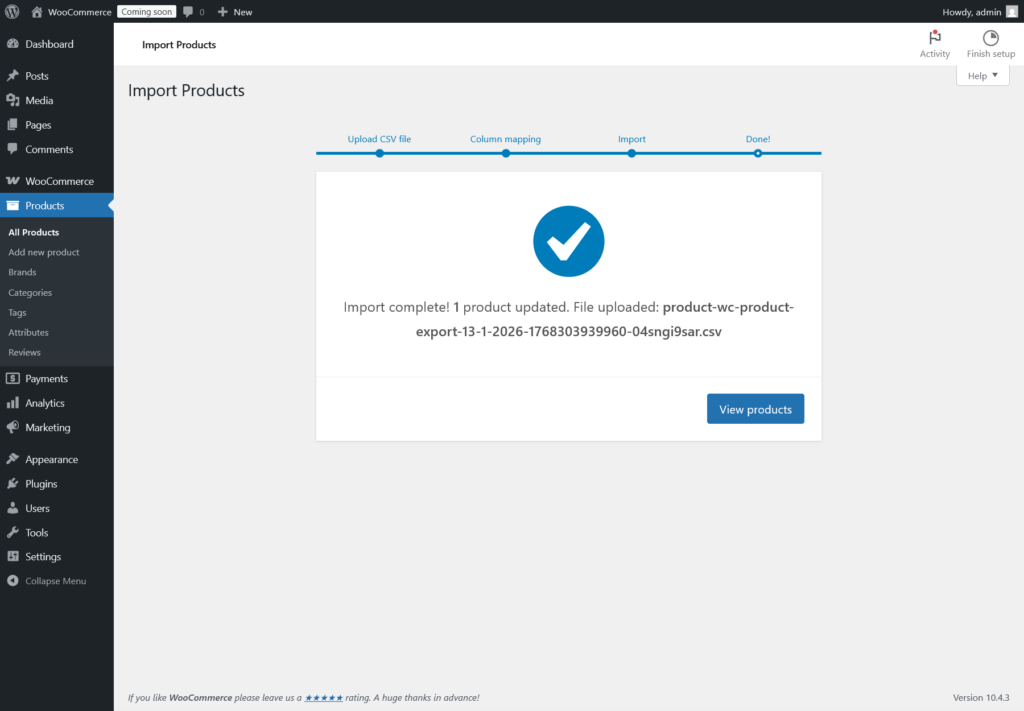
Yes. WooCommerce includes a built-in importer that handles CSV files without requiring additional plugins. You only need plugins for advanced features like automated scheduling or specialized integrations.
WooCommerce uses CSV (Comma-Separated Values) files, which are compatible with Excel and Google Sheets.
Create a parent product row with Type set to “variable,” then add variation rows with Type set to “variation” and the parent’s SKU in the Parent SKU column.
Check that image URLs are publicly accessible and properly formatted. Large images can cause timeouts. Reduce file sizes before importing.
Yes. Include product IDs or SKUs in your CSV, and choose “Update existing products” during import.
Conclusion
Importing products into WooCommerce transforms a potentially overwhelming task into a manageable process. The native importer handles most scenarios beautifully, and with properly formatted CSV files, you can add or update hundreds of products in minutes.
Remember to start with small test batches, maintain clean data, and always back up before major imports. These fundamentals prevent most issues and make troubleshooting simple when problems arise.
Ready to enhance your WooCommerce store further? Explore the specialized tools at StackWC plugins designed specifically for WooCommerce store owners.