

Introduction
You open your dashboard on a Monday morning. There are 12 orders waiting but three of them are for a product you ran out of last Friday. Now you’re writing apologetic emails instead of shipping packages.
Sound familiar?
Advanced WooCommerce inventory management is one of those topics that every store owner knows they need, but few actually master. And that gap? It costs real money.
In this post, you’ll learn practical, actionable techniques to take full control of your WooCommerce inventory management. We’re talking smarter stock tracking, better scheduling, fewer oversells, and more sales without the chaos.
Whether you’re running a food shop, a boutique clothing store, or a digital-first brand, these strategies will help. Let’s dig in.
The Real Cost of Poor WooCommerce Inventory Management
Here’s the thing most store owners don’t realize how much bad inventory control is actually hurting them. It’s not just about running out of stock. It goes much deeper than that.
Think about what happens when you oversell. A customer orders. You can’t fulfill it. They get frustrated. You lose their trust. Worse, they might leave a negative review that scares off future buyers.
Then there’s the flip side: overstocking. You’ve tied up hundreds or thousands of dollars in products sitting in a warehouse. That money could be working for you elsewhere.
According to the National Retail Federation, inventory distortion which includes both stockouts and overstock costs retailers around $1.75 trillion globally each year. That’s not a small business problem. That’s everyone’s problem.
For WooCommerce store owners specifically, the challenge is even more nuanced. You’re often managing:
- Products with multiple variations (sizes, colors, materials)
- Seasonal demand spikes and quiet periods
- Flash sales that drain stock unexpectedly
- Suppliers with inconsistent lead times
- No dedicated inventory team just you
Without a system, things fall apart fast. The good news? You don’t need to overhaul everything overnight. A few smart techniques can make a huge difference.
The Solution: Smarter WooCommerce Inventory Management
WooCommerce has solid built-in inventory tools, but they only take you so far. Advanced inventory management means layering smart strategies on top of those basics. Here’s how.
1. Enable and Refine WooCommerce’s Built-In Stock Settings
Start with the foundation. Go to WooCommerce → Settings → Products → Inventory and make sure these are turned on:
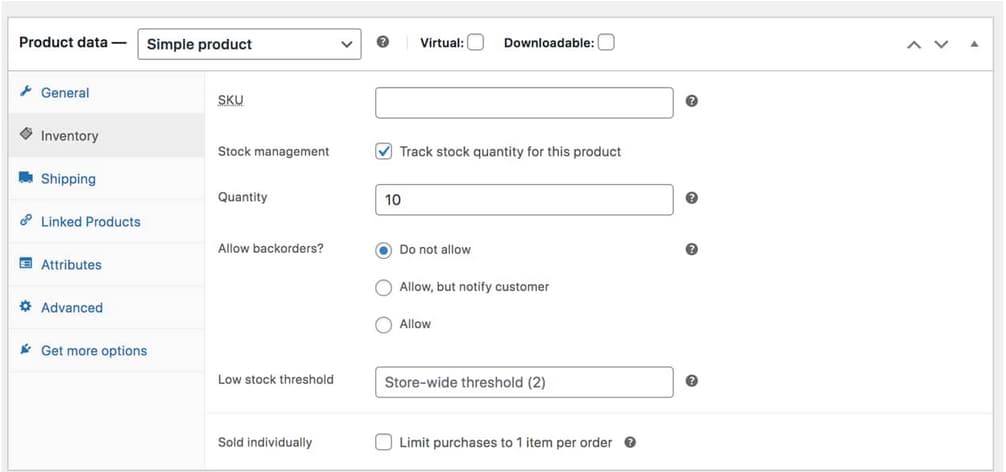
- Manage stock lets WooCommerce track quantities automatically
- Hold stock (minutes) reserves items for customers mid-checkout
- Low stock threshold notifications alerts you before you run out
- Out of stock visibility controls whether sold-out items show on your store
These settings are free and often ignored. Setting them up properly saves you from many common headaches.
2. Use Stock Statuses Strategically
Don’t just mark products “out of stock” and leave them there. Use WooCommerce’s stock status options intentionally:
- In stock available and ready to ship
- Out of stock unavailable, hidden or shown with a notice
- On backorder allows orders even when stock is zero
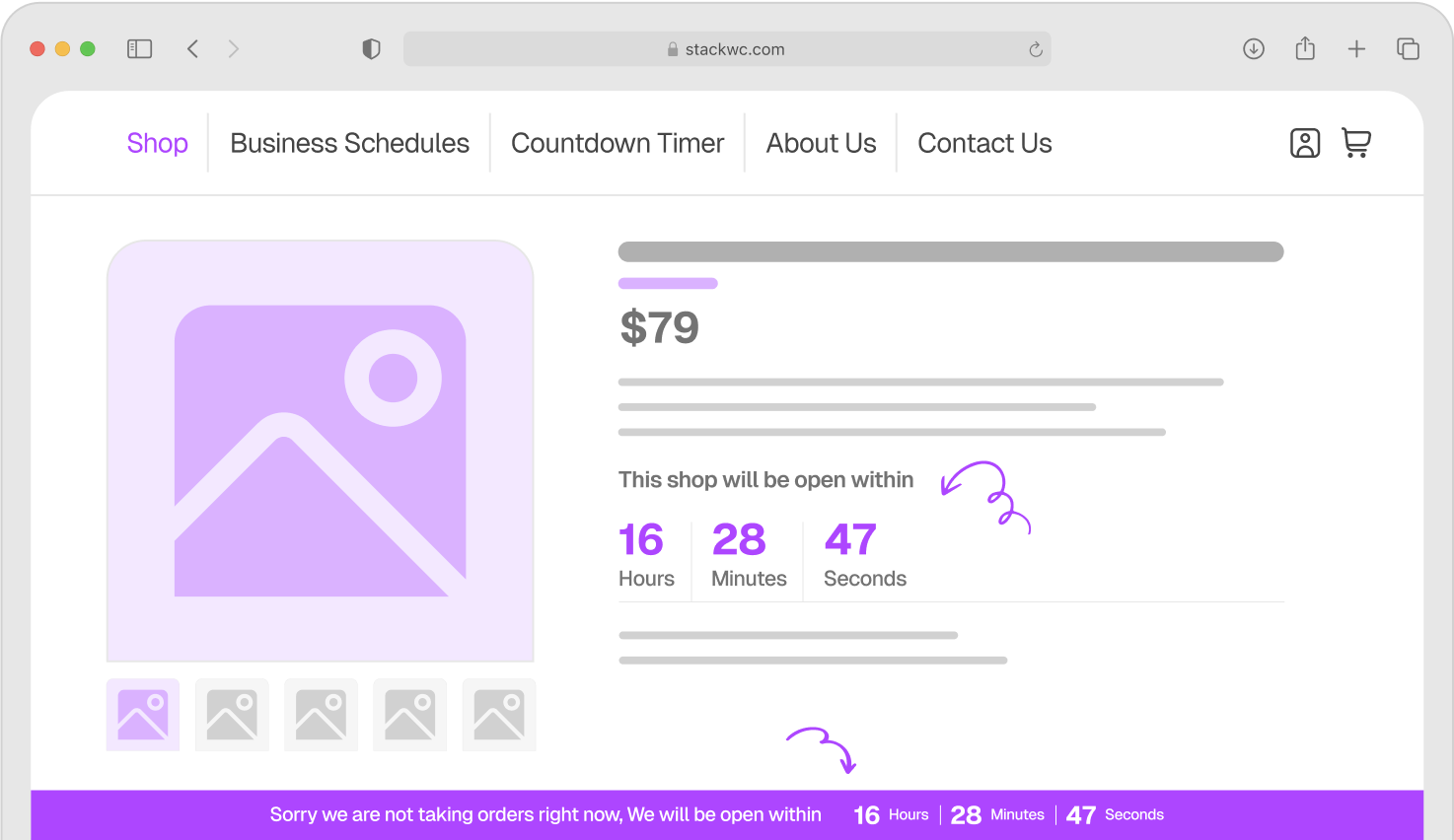
The “on backorder” option is powerful if you communicate clearly with customers. Pair it with a pre-order message using a plugin like Open Close Store for WooCommerce to show custom messages during limited availability windows or off-hours ordering periods.
3. Set Reorder Points for Your Best-Sellers
A reorder point is the stock level that triggers a new purchase order. For example: when Product A hits 10 units, you order 50 more.
To calculate yours:
- Average daily sales × lead time in days = reorder point
- Add safety stock if your supplier is unreliable
This simple formula keeps your bestsellers available without over-buying.
4. Manage Inventory by Product Variation
If you sell products with sizes or colors, manage stock at the variation level, not just the product level. Go to each product’s Variations tab and tick “Manage stock?” for each variant individually. This prevents a “sold out” size from blocking orders for other available sizes.
5. Use Categories and Tags to Spot Patterns
Tag your products by season, supplier, or product type. Then filter your stock reports by these categories to spot trends. Which supplier’s items sell fastest? Which seasonal lines overstock every year? Data like this shapes smarter buying decisions.
Step-by-Step: How to Set Up Advanced Inventory Management in WooCommerce
Ready to apply what you’ve learned? Here’s how to get started today no coding needed.
Step 1: Enable Stock Management Globally Go to WooCommerce → Settings → Products → Inventory. Enable “Manage stock” and configure your low stock and out of stock thresholds.
Step 2: Enable Stock at the Product Level Open each product. Under the Inventory tab, tick “Track stock quantity for this product.” Enter current stock levels and set a low stock threshold.
Step 3: Enable Variation-Level Stock (If Applicable) For variable products, go to the Variations tab. Expand each variation and enable “Manage stock?” Enter quantities per variation.
Step 4: Calculate and Set Your Reorder Points Use the formula: average daily sales × supplier lead time. Note these in a spreadsheet or your ordering system so you’re alerted before running low.
Step 5: Set Up Low Stock Email Alerts Go to WooCommerce → Settings → Emails and configure the “Low stock” and “No stock” emails. Add your email address so you’re notified automatically.
Step 6: Add Pre-Order or Custom Messaging for Out-of-Stock Items Install Open Close Store for WooCommerce to display custom store-wide or product-level messages when inventory is limited. Perfect for letting customers know when restocks are coming.
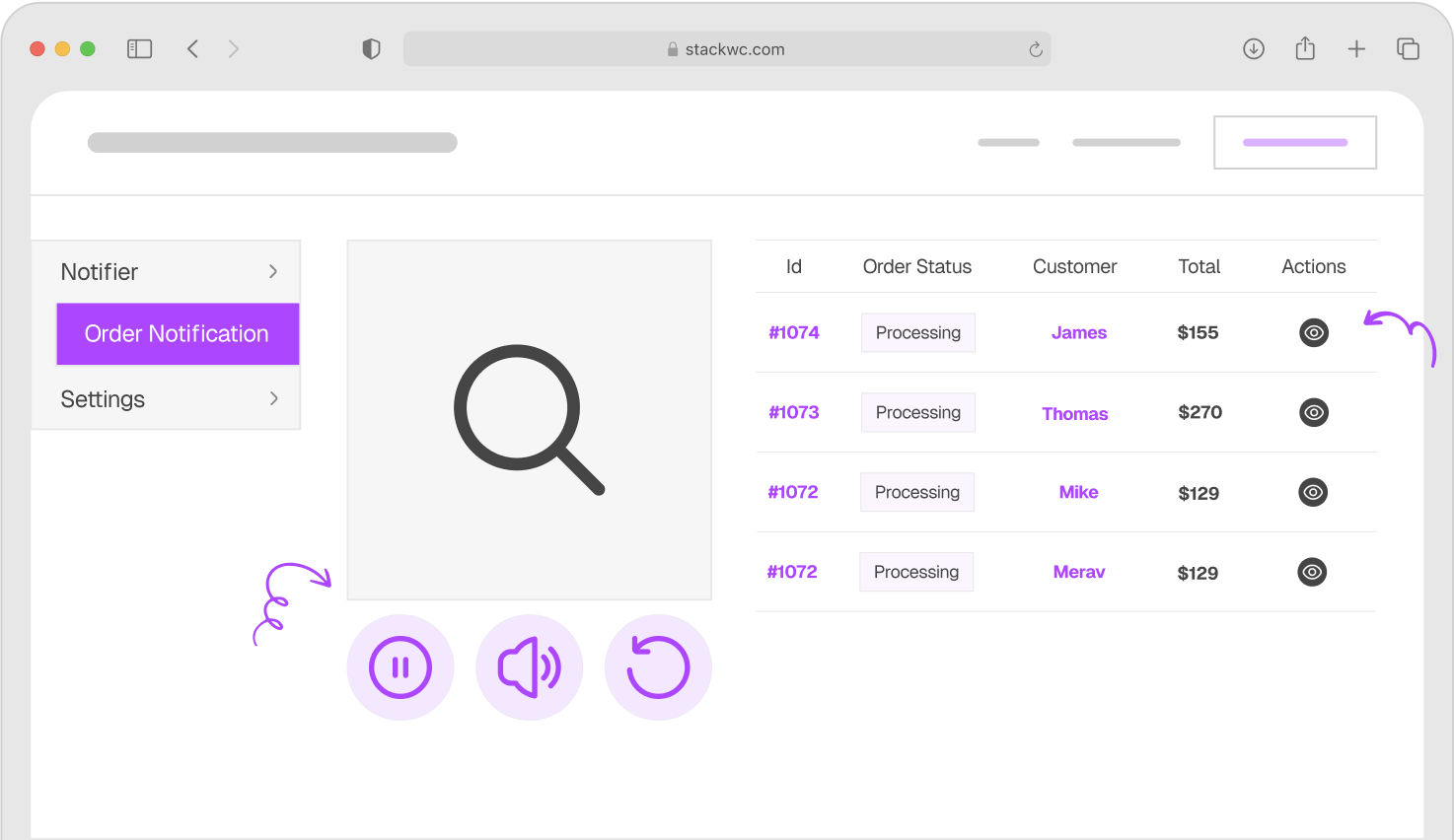
Step 7: Monitor Live Orders in Real Time Install Order Notification for WooCommerce to get instant audio alerts for new orders. This helps you spot sudden demand spikes before they drain your stock unnoticed.
Real-World Examples: How Different Stores Use These Techniques
Example 1: The Handmade Jewellery Shop
Sarah runs a small handmade jewellery store. She makes each piece in batches of 10. Using variation-level stock management, she tracks each ring size separately. When a size hits 2 units remaining, she gets a low stock email and starts her next batch.
She also uses Open Close Store for WooCommerce to show a custom message like “Back in stock in 5–7 days order now and we’ll ship when ready!” during restock periods. This turns a potential lost sale into a pre-order.
Result? She rarely loses a sale due to stockouts anymore.
Example 2: The Specialty Food Store
Marco sells artisan hot sauces. His inventory fluctuates heavily around the holidays. Before implementing reorder points, he’d run out of his top seller every December right when demand peaked.
Now he calculates his reorder point based on November–December daily averages. He orders 6 weeks ahead. He also monitors his real-time orders more closely during the holiday rush using Order Notification for WooCommerce, which sends him audio alerts the moment an order comes in even on his phone.
Result? Zero stockouts last holiday season. Revenue up 23% year over year.
Example 3: The Clothing Boutique
Priya sells women’s fashion. She stocks 40+ styles, each in 4 sizes. Without variation-level tracking, she was constantly overselling size Small while ignoring surplus in size Large.
After enabling per-variation stock management and tagging products by season, she identified that her “summer florals” category always overstocked by March. She shifted her buying calendar by 3 weeks and reduced dead stock by 30%.
Common Questions About WooCommerce Inventory Management
Yes as long as you have stock management enabled at the product level. WooCommerce reduces stock quantities automatically when an order is placed and paid for, or when it moves to “processing” status, depending on your settings.
Backorders let customers order out-of-stock items without a specific delivery promise. Pre-orders typically come with a clear availability date and custom messaging. You can create a pre-order-style experience using WooCommerce’s backorder setting combined with custom messages via Open Close Store.
Absolutely. WooCommerce lets you track stock at the individual variation level so a red shirt in size M and a blue shirt in size L can each have their own separate stock count.
WooCommerce uses the “Hold stock” setting to temporarily reserve items during checkout. Set this to 15–60 minutes so items aren’t double-sold while someone’s completing payment.
Conclusion: Take Control of Your WooCommerce Inventory Today
Good inventory management isn’t about perfection it’s about having the right systems so problems don’t surprise you. When you track stock at the variation level, set smart reorder points, and use real-time tools to monitor your store, you spend less time putting out fires and more time growing your business.
One final tip: review your inventory data at least once a month. Look for patterns. What’s always overstocked? What sells out too fast? Small adjustments made regularly add up to big improvements over time.
Ready to stop losing sales to stockouts and keep customers happy even when stock is limited? Try Open Close Store for WooCommerce to manage custom messages, pre-order periods, and availability windows with a 14-day money-back guarantee. No risk, fully supported, no coding needed.
And if you want real-time visibility into your incoming orders, Order Notification for WooCommerce has you covered the moment a sale hits.
Looking for more step-by-step WooCommerce guides? Check out Tutsflow for free tutorials built for store owners just like you.