

Managing a WooCommerce store means juggling countless products, and sometimes you need to get all that data out of WordPress, whether you’re backing up your catalog, migrating to a new site, or editing hundreds of products at once in a spreadsheet. The good news? Exporting WooCommerce products is easier than you might think! In this guide, we’ll walk you through everything you need to know about exporting your product data, from using WooCommerce’s built-in tools to understanding what information gets included in your export file. Whether you’re managing 50 products or 5,000, you’ll learn the exact steps to export your catalog quickly and confidently. Let’s get your product data working for you!
Table Of Contents
Why Export WooCommerce Products?
Exporting your WooCommerce products isn’t just about backing up data. You might need to:
- Migrate your store to a new platform or hosting provider
- Create product backups before major updates
- Bulk edit products in spreadsheet software like Excel
- Share your catalog with suppliers or marketplaces
- Analyze inventory and pricing strategies
Whatever your reason, WooCommerce makes the export process straightforward. Let’s dive into the methods!
Method 1: Using the Built-In WooCommerce Exporter
WooCommerce includes a native export tool that works perfectly for most store owners. Here’s how to use it:
Step-by-Step Instructions
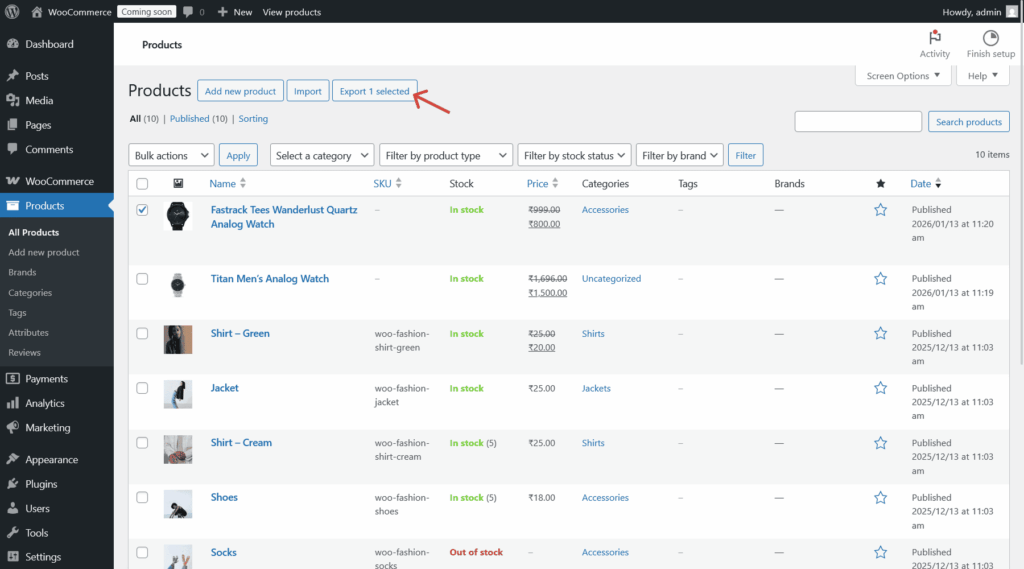
Step 1: Log into your WordPress dashboard and navigate to Products > All Products.
Step 2: Click the Export button at the top of the page.
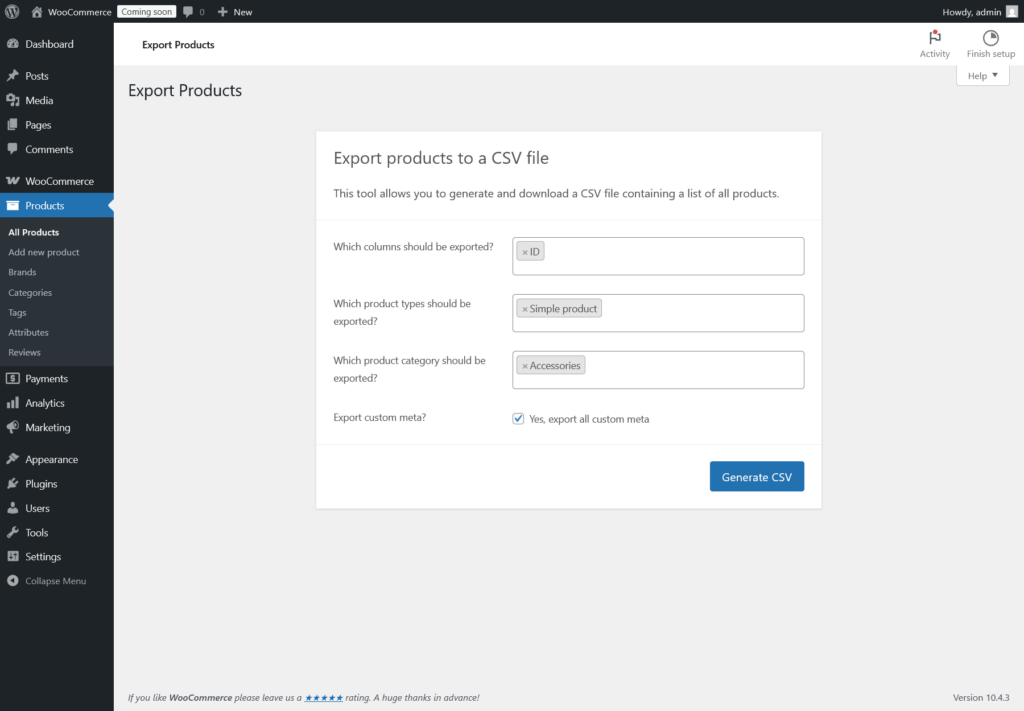
Step 3: Choose which columns to export. You can select all columns or customize based on your needs (name, SKU, price, stock status, categories, etc.).
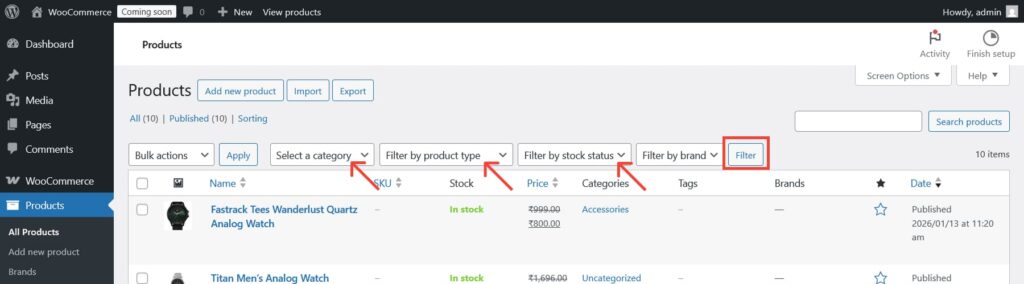
Step 4: Apply filters if needed. You can export specific categories, product types, or custom date ranges.
Step 5: Click Generate CSV, and your file will download automatically.
The exported CSV file contains all your product data in a spreadsheet format that you can open with Excel, Google Sheets, or any CSV editor. Pretty simple, right?
Method 2: Export Products with Plugins
For more advanced export needs, plugins offer additional flexibility and automation options.
When to Use Export Plugins
Consider using a plugin when you need to:
- Schedule automatic exports
- Export to formats beyond CSV (XML, JSON)
- Include custom fields and metadata
- Sync with external platforms
While there are many export plugins available, the built-in WooCommerce exporter handles most standard use cases effectively. If you’re managing product variations or need advanced filtering, check out solutions like the WooCommerce Product Export plugin that provide enhanced customization options.
For store owners dealing with complex product catalogs, having the right tools makes all the difference. You might also want to explore how to import products back into WooCommerce after making your edits.
What Data Gets Exported?
Your WooCommerce product export typically includes:
- Product names and descriptions
- SKUs and product IDs
- Pricing (regular price, sale price)
- Stock quantities and management settings
- Product categories and tags
- Images (URLs, not the actual files)
- Attributes and variations
- Shipping dimensions and weight
- Custom fields and metadata
Important note: Product images are exported as URLs, not the actual image files. You’ll need to handle images separately if migrating to another platform.
Understanding WooCommerce Export File Formats
When exporting your WooCommerce products, choosing the right file format can make a big difference in how easily you can work with your data. While WooCommerce’s built-in exporter uses CSV by default, various plugins and tools offer additional format options.
Let’s explore the most common export formats and when to use each one:
Available Export Formats
CSV (Comma-Separated Values) is the standard format for WooCommerce exports. It’s lightweight, universally compatible, and works seamlessly with spreadsheet applications like Excel and Google Sheets.
XML (Extensible Markup Language) is preferred for complex data structures and system integrations. It’s commonly used when syncing with marketplaces or transferring data between different platforms.XLS/XLSX (Excel Format) offers native Excel compatibility with support for formulas, formatting, and multiple worksheets in a single file.
| Format | Best For | Pros | Cons |
| CSV | General exports, bulk editing, platform migrations | ✅ Lightweight and fast ✅ Universal compatibility ✅ Easy to edit in any spreadsheet tool ✅ Works with most import tools | ❌ No formatting preservation ❌ Single sheet only ❌ Can have encoding issues with special characters |
| XML | System integrations, marketplace syncing, complex data | ✅ Preserves hierarchical data structure ✅ Excellent for automated processes ✅ Handles complex product relationships ✅ Industry standard for integrations | ❌ Not human-friendly to read ❌ Requires technical knowledge ❌ Larger file sizes ❌ Limited spreadsheet support |
| XLS/XLSX | Excel users, formatted reports, multi-sheet data | ✅ Native Excel compatibility ✅ Supports formulas and formatting ✅ Multiple sheets in one file ✅ Better for presentations | ❌ Larger file size than CSV ❌ Less universal compatibility ❌ Can corrupt with very large datasets ❌ Proprietary format |
Which Format Should You Choose?
Choose CSV if: You’re doing standard exports, bulk editing products, or migrating between platforms. This is your everyday workhorse format and what WooCommerce uses by default.
Choose XML if: You’re integrating with third-party systems, syncing with marketplaces like Amazon or eBay, or need to preserve complex product relationships and hierarchies.
Choose XLS/XLSX if: You prefer working exclusively in Microsoft Excel, need to create formatted reports for stakeholders, or want to use Excel formulas for calculations.
Pro tip: For most WooCommerce store owners, CSV is the perfect choice. It’s what the built-in exporter uses, and it’s compatible with virtually every import tool you’ll encounter. Stick with CSV unless you have a specific reason to use another format!
Common Export Issues and Solutions
Problem: Export file is incomplete or missing products
Solution: Check your server’s PHP memory limit. Large catalogs may require increased memory allocation in your hosting settings.
Problem: Special characters appear as gibberish
Solution: Ensure your CSV editor uses UTF-8 encoding when opening the file.
Problem: Export times out
Solution: Export products in batches by using category or date filters instead of exporting everything at once.
Best Practices for Product Exports
Back up regularly: Export your products monthly or before major store changes. Think of it as insurance for your hard work!
Test small batches first: If you’re new to exporting, start with a few products to understand the CSV structure before exporting your entire catalog.
Keep organized: Name your export files with dates (e.g., “products-export-2026-01-10.csv”) so you can track versions easily.
Document custom fields: If you use custom product fields, note which columns they correspond to in your export. This makes re-importing much easier.
Verify after export: Open your CSV file and spot-check a few products to ensure data exported correctly, especially pricing and inventory numbers.
Enhance Your Product Pages After Export
Once you’ve exported and reviewed your product data, you might notice opportunities to improve how products are presented to customers. Product information is crucial, but presentation matters just as much!
If you’re looking to add more detailed product information—like sizing charts, care instructions, or technical specifications—consider using custom product tabs. The Product Tabs for WooCommerce plugin lets you create unlimited custom tabs on your product pages using a block editor. This is especially helpful after an export when you realize certain product categories need consistent additional information.
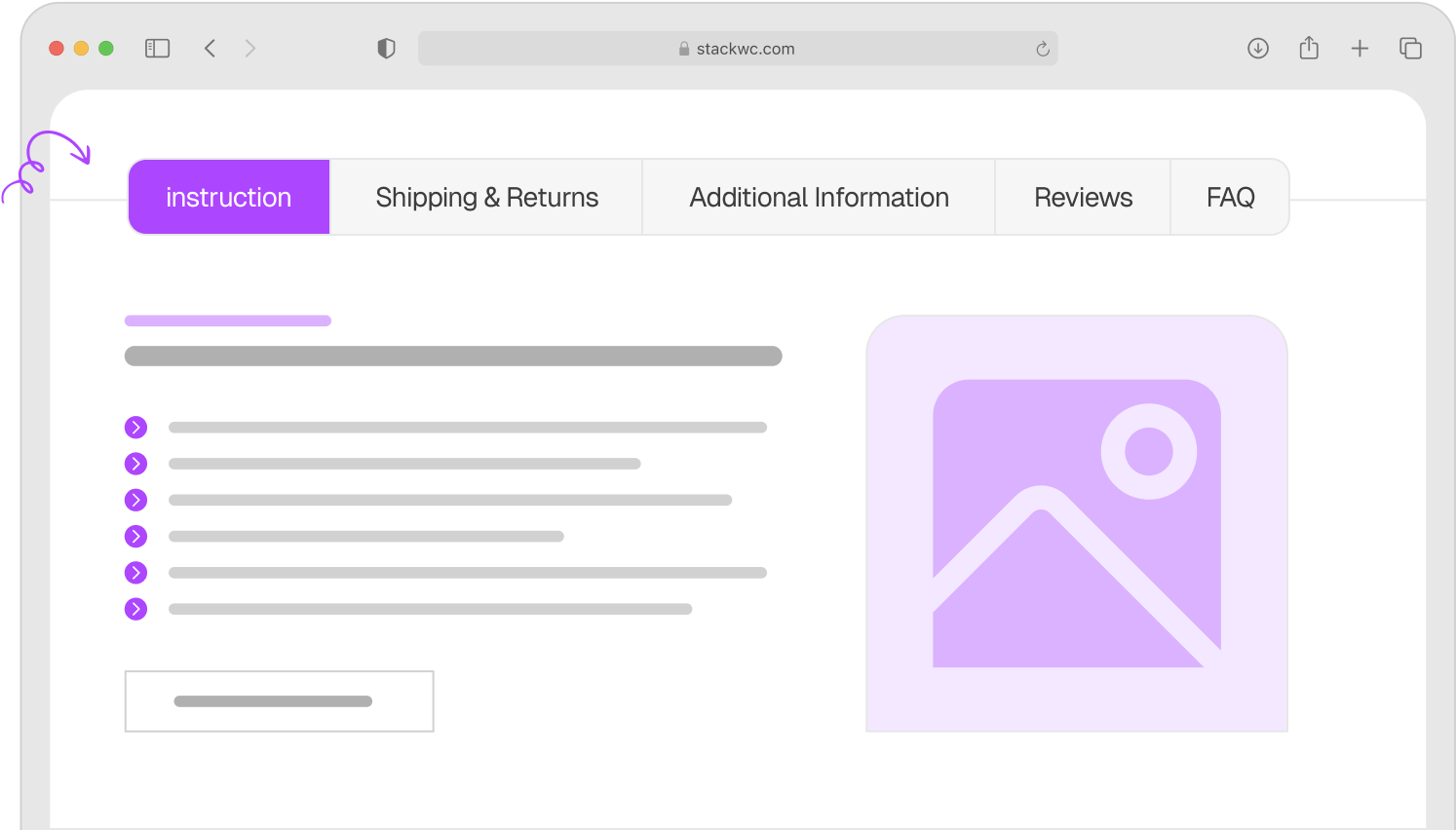
For instance, if your CSV export reveals you have 200 clothing items, you could create a universal “Size Guide” tab for all apparel products without editing each one individually.
Speed Up the Checkout Process
While reviewing your exported product catalog, you might identify your best-selling items or products with high margins. These are perfect candidates for streamlined purchasing!
The Quick Buy Now Button for WooCommerce allows customers to bypass the cart and purchase immediately—perfect for impulse buys and returning customers who know exactly what they want. After analyzing your export data, you can strategically enable quick buy options on your top performers to reduce cart abandonment.
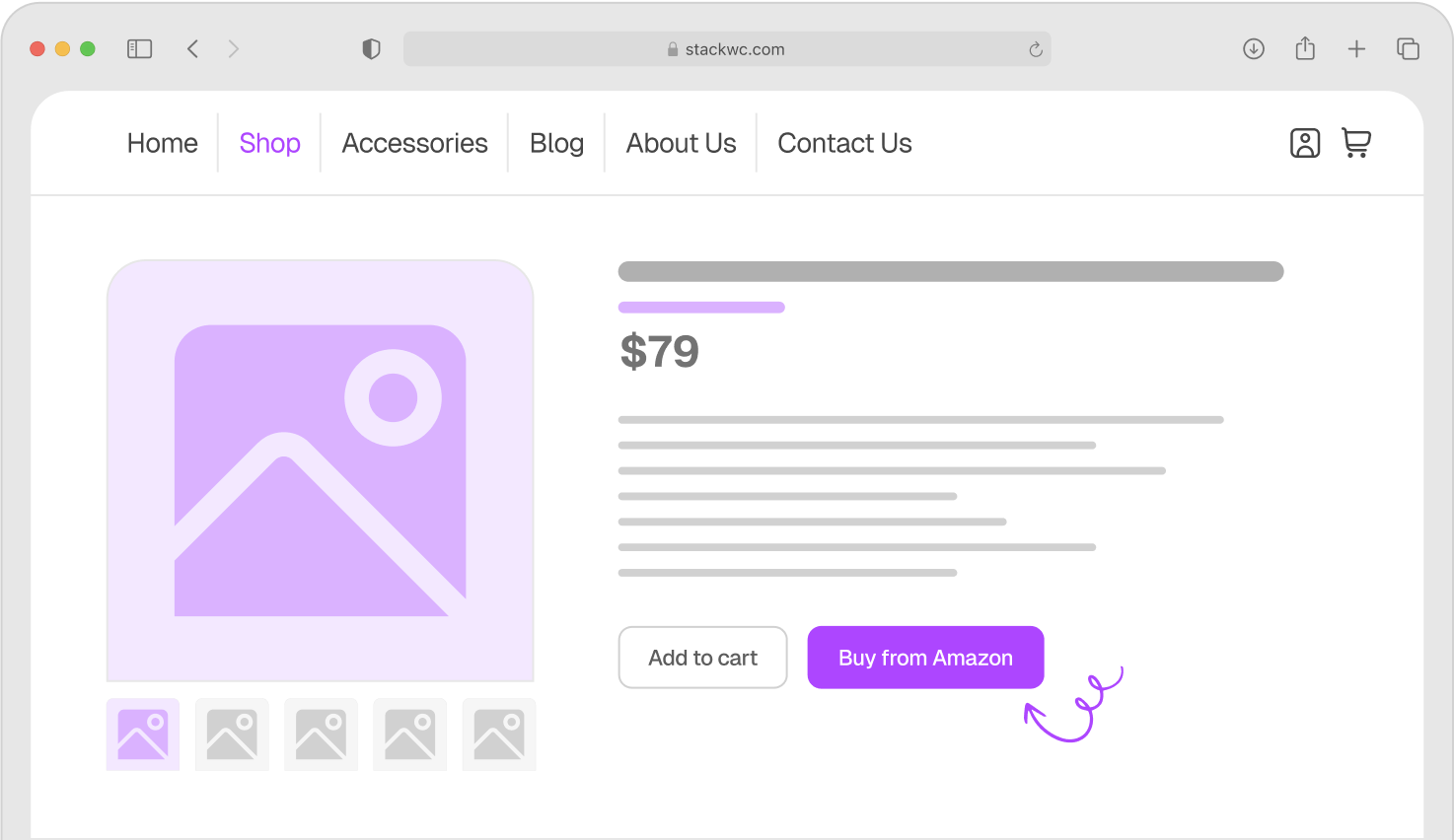
This is particularly effective for stores with simple products (non-variable items) that don’t require extensive customization.
Manage Store Hours and Availability
After exporting your products, you might be planning maintenance, inventory updates, or scheduled sales events. Managing when your store accepts orders is crucial during these times.
The Open Close Store for WooCommerce plugin lets you control your store hours just like a physical shop. You can schedule automatic opening and closing times, enable preorders during closed hours, or instantly close your store while you’re updating product data from your export.
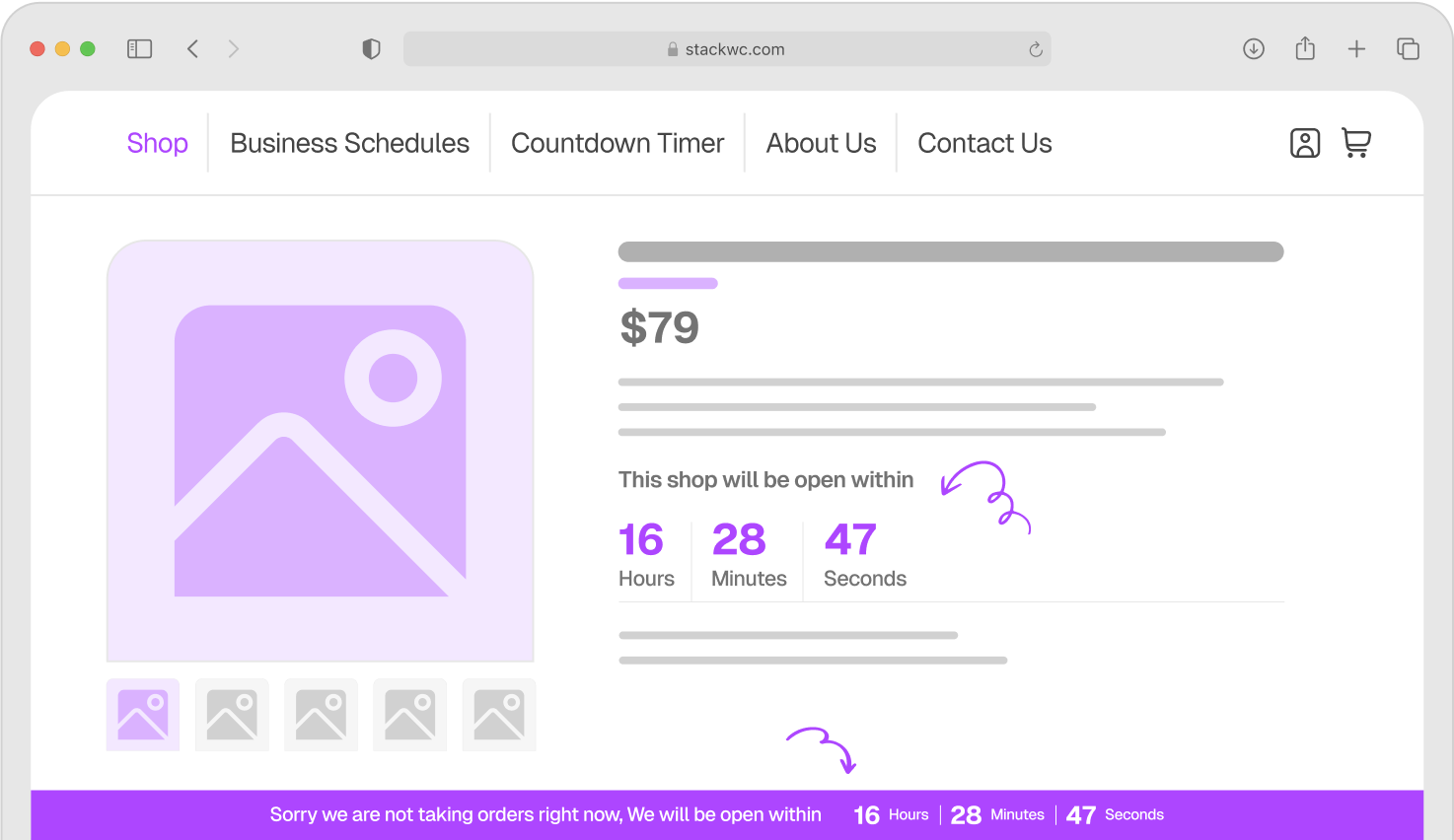
This is incredibly useful when you’re doing bulk product updates—close the store temporarily, import your edited CSV file, verify everything looks correct, then reopen. No risk of customers ordering products with outdated information!
Plus, if you’re running a local business or want to create urgency with limited-time availability, store hours can actually boost conversions by adding scarcity.
Frequently Asked Questions
Yes! WooCommerce includes a built-in export tool at no extra cost. Simply go to Products > All Products and click the Export button. No premium plugins required for basic exports.
WooCommerce exports products as CSV (Comma-Separated Values) files, which you can open in Excel, Google Sheets, or any spreadsheet application.
Product images are exported as URLs pointing to where they’re stored on your server, not as actual image files. If you’re migrating stores, you’ll need to transfer the images separately or use a migration plugin.
Yes! Variable products and their variations are included in the export. Each variation appears as a separate row in your CSV file with all its specific attributes.
The built-in WooCommerce exporter doesn’t support scheduling, but several plugins offer automated export functionality if you need regular backups sent to cloud storage or email.
Wrapping Up
Exporting WooCommerce products doesn’t have to be complicated. Whether you’re using the built-in tool for simple exports or exploring plugins for advanced needs, you now have the knowledge to handle your product data confidently.
The native WooCommerce exporter covers most scenarios perfectly, while plugins add extra power when you need it. Start with the basics, and scale up as your store grows.