
Have you ever wondered if your WooCommerce store is safe from hackers?
It’s a scary thought. You’ve worked hard to build your online business. You’ve added products, set up payments, and started getting customers. But here’s the thing: cybercriminals don’t care about your hard work. They’re constantly looking for vulnerable stores to attack.
The good news? You don’t need to be a tech expert to protect your store. In this post, you’ll learn simple, practical ways to reinforce your WooCommerce security and keep your business safe from cyberattacks. We’ll cover everything from basic protections to smart automation that helps you stay secure without spending hours on technical tasks.
Let’s make sure your store stays protected.
Table Of Contents
The Real Threat to WooCommerce Stores
Think your small store isn’t a target? Think again.
Hackers don’t just go after big companies. In fact, small and medium-sized WooCommerce stores are often easier targets because they have weaker WooCommerce security. According to recent data, over 43% of cyberattacks target small businesses, and 60% of those businesses close within six months of an attack.
Here’s what happens when a store gets hacked:
Customer data gets stolen. Payment information can be compromised. Your store’s reputation takes a massive hit. You might face legal issues and fines. Sales drop because customers lose trust.
The worst part? Many store owners don’t realize they’ve been hacked until it’s too late. Hackers can steal data quietly in the background while your store appears to run normally. By the time you notice something’s wrong, the damage is already done.
It’s frustrating when you’re trying to run a business and have to worry about invisible threats. But ignoring WooCommerce security isn’t an option anymore. Your customers trust you with their personal and payment information. Protecting that trust is part of running a responsible online business.
How to Protect Your WooCommerce Store
Keep Everything Updated
The easiest way hackers break into stores? Outdated software.
WordPress, WooCommerce, themes, and plugins all release updates regularly. These updates often fix WooCommerce security vulnerabilities. When you skip updates, you’re leaving doors open for attackers.
Here’s what you need to update:
- WordPress core (the main software)
- WooCommerce plugin
- Your theme
- All installed plugins
- PHP version on your hosting
Set a reminder to check for updates weekly. Most updates take just a few clicks. If you’re worried about updates breaking your site, test them on a staging site first.
Use Strong Passwords and Two-Factor Authentication
Weak passwords are like leaving your store’s keys under the doormat.
Don’t use “password123” or your business name. Create unique passwords that mix uppercase letters, lowercase letters, numbers, and symbols. Better yet, use a password manager to generate and store complex passwords.
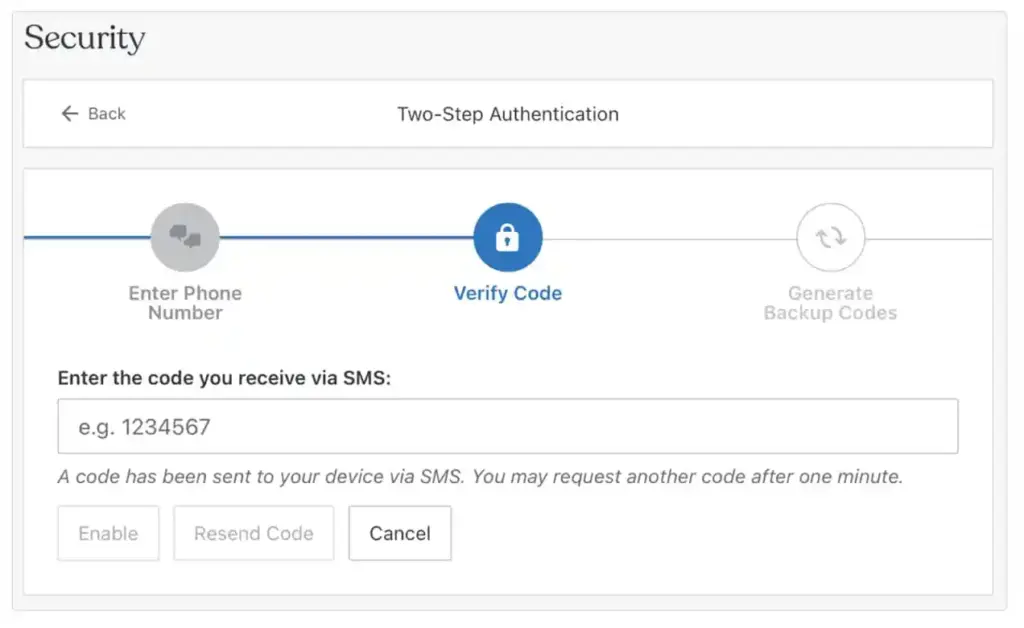
Two-factor authentication (2FA) adds another layer of protection. Even if someone steals your password, they still can’t log in without the second verification step. Install a 2FA plugin like WP 2FA or Wordfence to set this up in minutes.
Install a Security Plugin
A good security plugin is like hiring a security guard for your store.
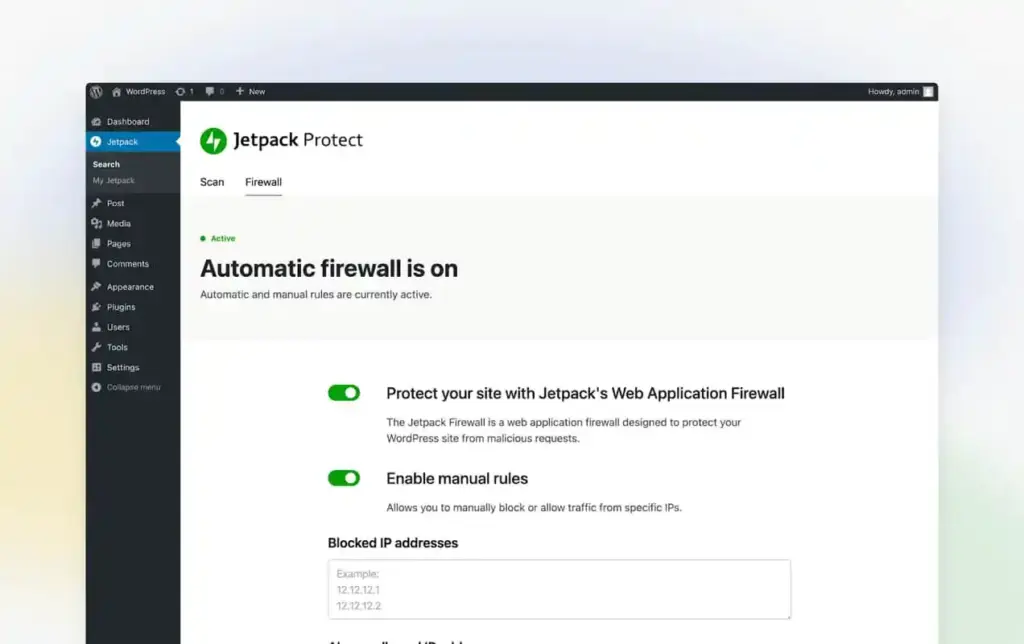
Popular options include Wordfence, Sucuri, and iThemes Security. These plugins monitor your site for suspicious activity, block malicious traffic, and scan for malware. Many offer firewall protection that stops attacks before they reach your site.
The free versions work well for most small stores. But if you handle a lot of sensitive customer data, consider upgrading to premium versions for enhanced protection.
Secure Your Login Page
Your WordPress login page is a common target for brute force attacks.
Hackers use automated tools to try thousands of password combinations until they find the right one. Here’s how to stop them:
- Change your login URL from the default wp-admin
- Limit login attempts (lock accounts after several failed tries)
- Add CAPTCHA to your login form
- Use a security plugin to block suspicious IP addresses
These simple changes make it much harder for automated attacks to succeed.
Choose Secure Hosting
Not all hosting is created equal.
Cheap hosting might save you a few dollars, but it often comes with weak WooCommerce security. Look for hosts that offer SSL certificates, regular backups, malware scanning, and DDoS protection. Managed WordPress hosting providers like SiteGround, Kinsta, or WP Engine include these features automatically.
Your hosting is your store’s foundation. Don’t cut corners here.
Implement SSL Encryption
That little padlock in your browser’s address bar? That’s SSL encryption.
SSL (Secure Sockets Layer) encrypts data between your customer’s browser and your server. This means payment information and personal data stay protected during transmission. Without SSL, you’re sending sensitive information in plain text that hackers can intercept.
Most hosting providers offer free SSL certificates through Let’s Encrypt. Install it, then make sure your entire site uses HTTPS instead of HTTP. WooCommerce actually requires SSL for processing payments, so this isn’t optional.
Regular Backups
Backups won’t prevent attacks, but they’ll save you when one happens.
Think of backups as your store’s insurance policy. If your site gets hacked, corrupted, or accidentally deleted, you can restore it to a previous version. Without backups, you might lose everything.
Set up automatic daily backups that save to an off-site location like Google Drive or Dropbox. Plugins like UpdraftPlus or BackupBuddy make this easy. Store at least 30 days of backups so you can restore to a point before any infection occurred.
Real-World Security Scenarios
The Restaurant Supply Store
Sarah runs a WooCommerce store selling commercial kitchen equipment. She ignored WooCommerce security updates for months because she was “too busy.” One morning, customers started calling about suspicious charges on their credit cards.
A hacker had exploited an outdated plugin to install malware. The malware captured customer payment data for three weeks before Sarah noticed. She lost $15,000 in chargebacks, spent $3,000 on emergency cleanup, and lost dozens of customers who never came back.
After the attack, Sarah installed Wordfence, enabled automatic updates, and set up daily backups. She hasn’t had a WooCommerce security issue since.
The Handmade Jewelry Shop
Mike sells custom jewelry online. He used the same simple password for everything: his store name plus “123.” A hacker used a brute force attack to crack his password in under an hour.
The hacker changed all his product prices to $0.01 and sent emails to Mike’s customer list promoting fake products. By the time Mike regained control, his email sender reputation was ruined, and his store looked completely unprofessional.
Mike now uses a password manager, enabled 2FA, and limited login attempts. He also started using Open Close Store for WooCommerce to automatically close his store during off-hours, reducing his vulnerability window.
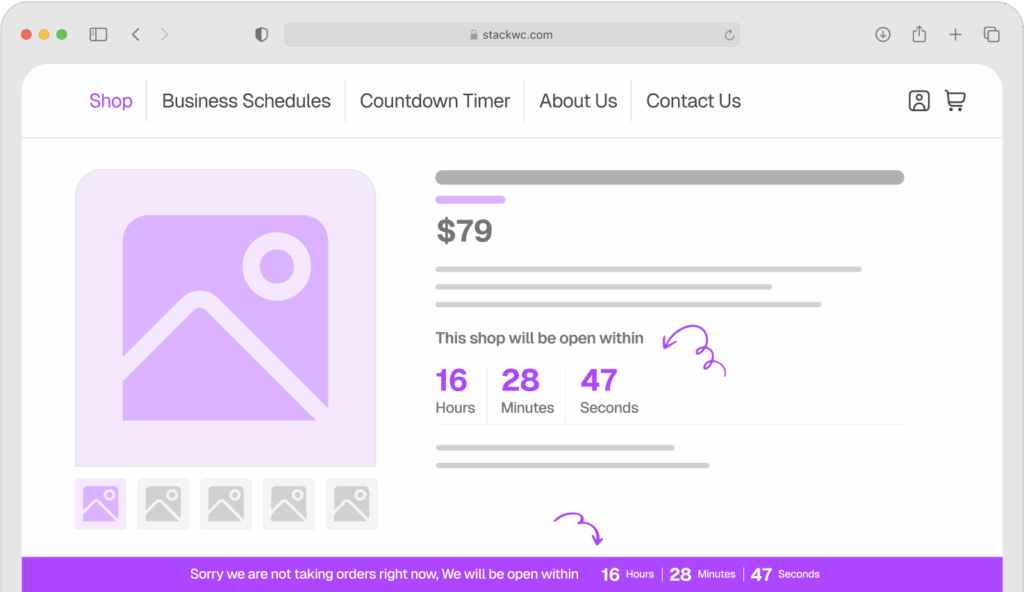
Open Close Store for WooCommerce
The Sports Equipment Retailer
Jessica’s store was running smoothly until her hosting company experienced a server failure. She lost three weeks of orders, customer data, and product updates. She had no recent backups.
Rebuilding from scratch cost her two months of lost sales and countless hours of work. Now she runs automated daily backups and stores them in three different locations. She also moved to managed WordPress hosting with built-in security features.
Step-by-Step Security Implementation
Step 1: Install a Security Plugin
Start with Wordfence or Sucuri. Go to Plugins > Add New in your WordPress dashboard. Search for your chosen plugin, click Install, then Activate. Run the initial setup wizard and enable the firewall.
Step 2: Enable SSL and Force HTTPS
Check with your hosting provider for a free SSL certificate. Once installed, go to Settings > General in WordPress. Change both your WordPress Address and Site Address from HTTP to HTTPS. Install the Really Simple SSL plugin to redirect all traffic to the secure version.
Step 3: Set Up Automatic Backups
Install UpdraftPlus from the plugin directory. Configure it to back up daily. Connect it to Google Drive or Dropbox for off-site storage. Test your backup by restoring it on a staging site.
Step 4: Strengthen Login Security
Install WP 2FA for two-factor authentication. Change your login URL using a plugin like WPS Hide Login. Enable login attempt limiting through your security plugin.
Step 5: Update Everything
Go to Dashboard > Updates and install all available updates. Set WordPress to auto-update for minor releases. Check for plugin and theme updates weekly.
Step 6: Remove Unused Plugins and Themes
Delete any plugins or themes you’re not actively using. Each inactive plugin is a potential security vulnerability. Go to Plugins > Installed Plugins, deactivate unused items, then delete them.
Step 7: Monitor Your Store Regularly
Set up Order Notification for WooCommerce to get real-time alerts about your store activity. This helps you spot suspicious orders or unusual patterns immediately. Check your security plugin’s logs weekly for blocked attacks or suspicious activity.
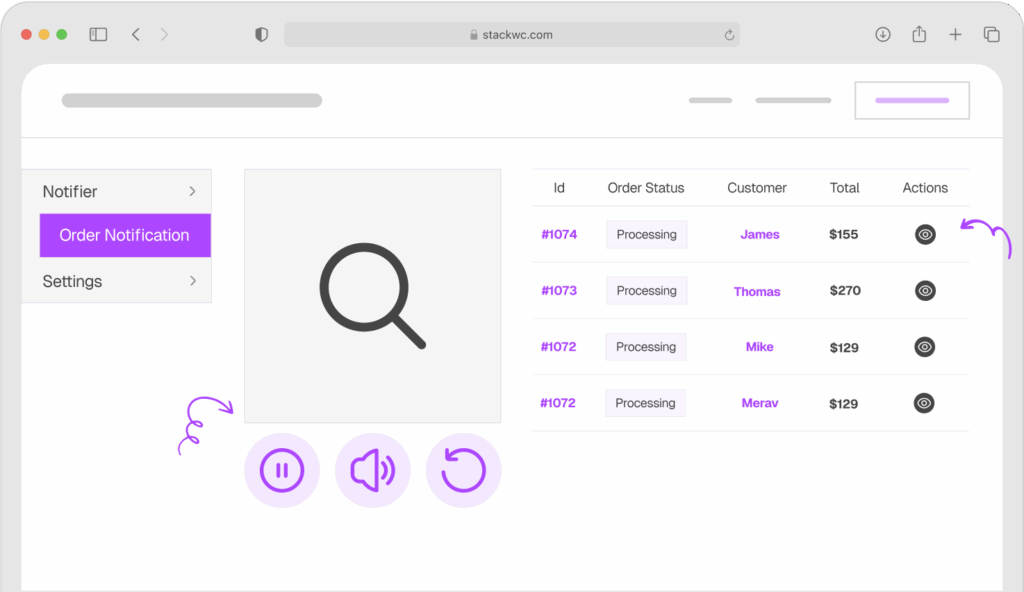
Order Notification for WooCommerce
Ready to strengthen your store’s security? These steps require no coding and take less than an hour to implement. Your customers’ trust is worth the time investment.
Common Security Questions
Yes, absolutely. Good hosting provides server-level security, but a security plugin protects your WordPress installation specifically. They work together to create layers of protection. Think of hosting security as your building’s locks, and your security plugin as your store’s alarm system.
Change your admin passwords every 60-90 days. Use unique passwords for different services. Never reuse your WordPress password on other sites. A password manager makes this easy to manage.
Free versions of Wordfence and Sucuri provide solid basic protection for most small stores. They include firewalls, malware scanning, and login protection. Premium versions add features like real-time threat intelligence and priority support, which might be worth it as your store grows.
First, don’t panic. Change all your passwords immediately. Take your store offline using maintenance mode. Contact your hosting provider. Scan your site with Sucuri or Wordfence. Restore from a clean backup if available. If you can’t clean it yourself, hire a WooCommerce security professional. Prevention is always cheaper than cleanup.
Conclusion
Protecting your WooCommerce store from cyberattacks isn’t complicated.
You don’t need to be a technical expert. You just need to take a few smart, practical steps. Keep everything updated, use strong passwords with 2FA, install a security plugin, enable SSL, and maintain regular backups. These basics will protect you from 95% of common attacks.
The small time investment now saves you from devastating losses later. Your customers trust you with their information. Honor that trust by taking WooCommerce security seriously.
Here’s one final tip: automate as much as possible. Use plugins that handle updates, backups, and monitoring automatically. This removes the human error factor and ensures consistent protection. Tools like Open Close Store for WooCommerce can help you manage your store’s operations more securely by controlling when your store is accessible.
Ready to secure your store and protect your customers? Start with a reliable security plugin and work through the steps above. Your store’s safety is worth 30 minutes of your time today.
Try these WooCommerce security measures risk-free. And when you’re ready to add professional store management features, all StackWC plugins come with a 14-day money-back guarantee. No risk, fully supported, no coding needed.