
Introduction
Your WooCommerce store might be attracting plenty of visitors, but are they actually completing their purchases? If you’re experiencing high cart abandonment rates, the problem likely lies in your checkout process.
The average cart abandonment rate hovers around 70%, meaning most shoppers leave without buying. A complicated, slow, or confusing checkout is often the culprit. The good news? Small optimizations can make a massive difference in your conversion rates.
In this guide, you’ll discover seven proven strategies to optimize your WooCommerce checkout and turn more browsers into buyers. Let’s get started.
The Real Cost of a Broken Checkout
Let’s talk about what’s really happening when customers abandon their carts.
Every abandoned cart is lost revenue. If you’re getting 100 potential sales per week and losing 70 of them, that’s a serious problem. According to the Baymard Institute businesses lose $18 billion in sales revenue each year due to cart abandonment.
Think about it like a physical store. Imagine someone walking in, filling their basket with products, getting to the register, and then just walking out. You’d want to know why, right?
Online, the reasons are clear. Unexpected costs. Complicated forms. Slow loading times. Lack of trust. No guest checkout option. Each friction point pushes customers away.
The impact goes beyond immediate sales. A bad checkout experience damages your brand reputation. Customers remember frustration. They tell friends. They leave negative reviews. They never come back.
Here’s the thing – your competitors are optimizing their checkouts. If yours is clunky, customers will simply buy elsewhere. The checkout page isn’t just a form. It’s your final sales pitch.
7 Proven Ways to WooCommerce Checkout Optimization
1. Enable Guest Checkout
Forced account creation is a conversion killer.
Many customers just want to buy and go. They don’t want another password to remember or another email list to join. When you force registration, you’re adding unnecessary friction.
How to fix it:
- Go to WooCommerce > Settings > Accounts & Privacy
- Check “Allow customers to place orders without an account”
- Save changes
That’s it. You’ve just removed a major barrier. You can still encourage account creation after purchase, but don’t make it mandatory.
2. Simplify Your Checkout Form
Long forms are exhausting. Every extra field you add decreases your conversion rate.
Ask yourself: do you really need their phone number? Their company name? A second address line? Strip your form down to absolute essentials.
Keep only these fields:
- Email address
- First and last name
- Street address
- City, state, ZIP code
- Payment information
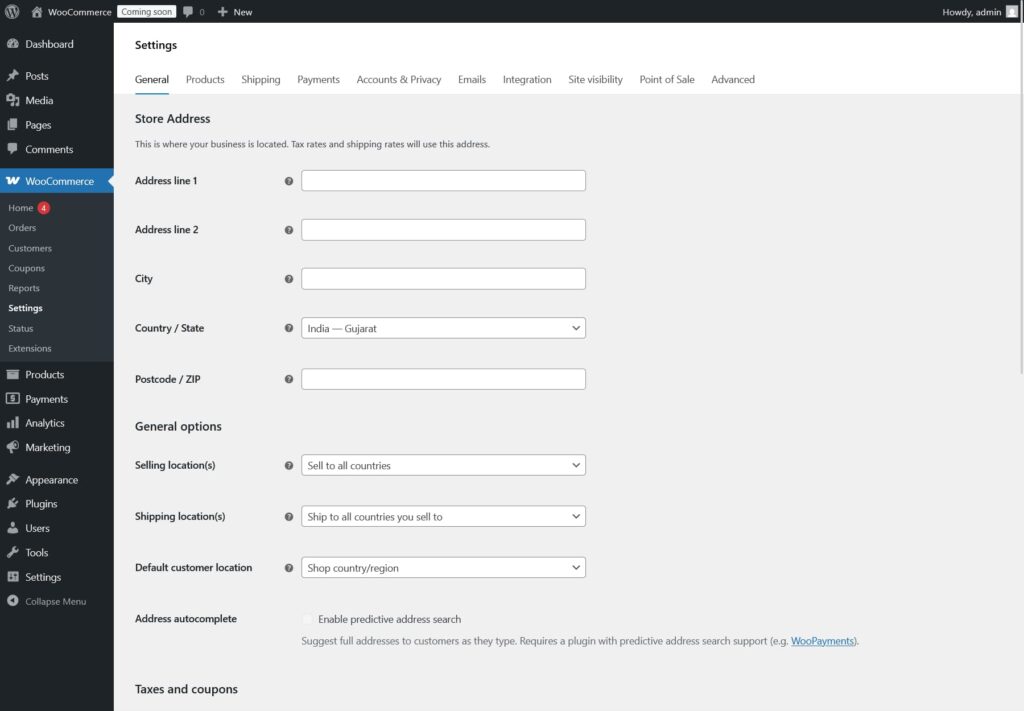
Pro tip: Use address autocomplete plugins. When customers start typing their address, autocomplete suggests the full address. It’s faster, reduces errors, and feels modern.
3. Add a Fast “Buy Now” Button
Here’s a powerful optimization most stores miss – letting customers skip the cart entirely.
Traditional checkout forces customers through multiple steps: add to cart, view cart, proceed to checkout, fill out form, complete purchase. That’s a lot of clicks.
A “Buy Now” button takes customers straight to checkout. One click. No cart page. No distractions.
This is perfect for impulse purchases, mobile shoppers, and returning customers who know exactly what they want. The Quick Buy Now Button for WooCommerce plugin adds this functionality instantly, with full customization options and no coding required.
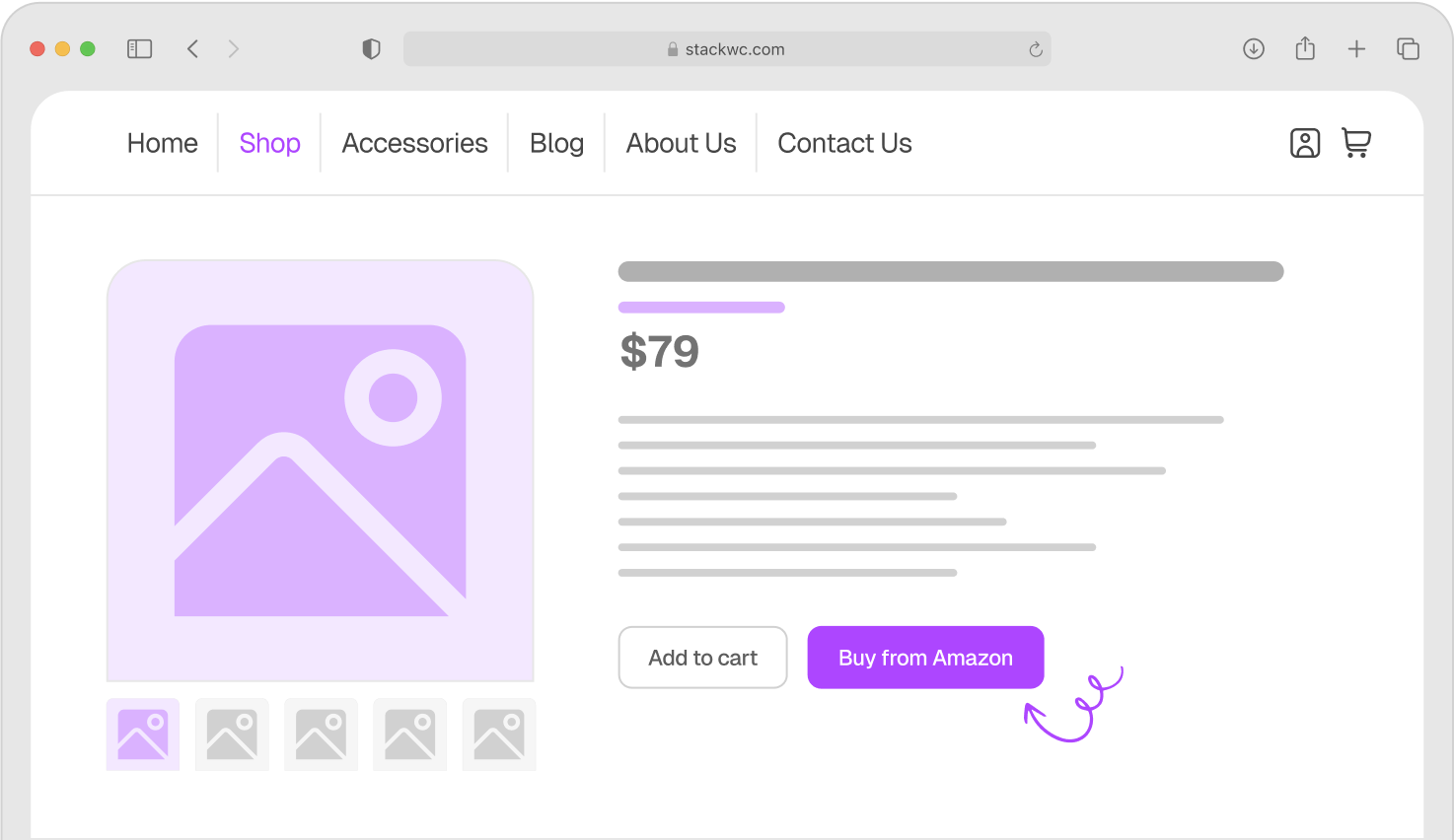
Quick Buy Now Button for WooCommerce
Why it works: Fewer steps mean fewer opportunities to abandon. It’s that simple.
4. Display Trust Signals Prominently
People hesitate at checkout because they’re worried. Is this site secure? Will my credit card be safe? Is this company legitimate?
Address these concerns directly on your checkout page.
Add these trust elements:
- SSL certificate badge (the padlock icon in the browser)
- Payment security logos (Visa, Mastercard, PayPal verified)
- Money-back guarantee statement
- Customer reviews or testimonials
- “Secure checkout” messaging
- Return policy link
Place these near the payment section where anxiety is highest. A simple “100% secure checkout” message with a padlock icon can significantly reduce cart abandonment.
Don’t forget to mention your satisfaction guarantee. At StackWC, we offer a 14-day money-back guarantee on all plugins because we know it removes purchase anxiety. Apply the same principle to your products.
5. Optimize Checkout Page Speed
A slow checkout page kills conversions. Period.
According to Google, 53% of mobile users abandon sites that take longer than 3 seconds to load. Your checkout page needs to be lightning fast.
Speed optimization steps:
- Use a quality hosting provider (avoid cheap shared hosting)
- Minimize plugins on the checkout page
- Optimize images (compress and resize)
- Enable caching (W3 Total Cache or WP Rocket)
- Remove unnecessary scripts and styles
- Use a lightweight checkout design
Test your checkout speed with Google PageSpeed Insights. Aim for a score above 90 on mobile.
Quick win: Disable unnecessary checkout fields and plugins you don’t actually use. Every element on the page adds loading time.
6. Show Clear Progress Indicators
Customers want to know where they are in the checkout process.
Multi-step checkouts work well, but only if you show progress. A simple indicator like “Step 2 of 3” or a visual progress bar reduces anxiety and abandonment.
Best practices for progress indicators:
- Show total steps upfront
- Highlight the current step
- Make it visual (progress bars work great)
- Keep step names simple (“Shipping” not “Shipping Information and Delivery Options”)
Think about it like a GPS. You wouldn’t start a road trip without knowing how far you have to go. Customers feel the same way about checkout.
7. Offer Multiple Payment Options
Limited payment options mean lost sales.
Different customers prefer different payment methods. Some love PayPal. Others want Apple Pay. Many still prefer credit cards.
Essential payment options to offer:
- Credit/debit cards (Visa, Mastercard, Amex)
- PayPal
- Digital wallets (Apple Pay, Google Pay)
- Buy now, pay later (Afterpay, Klarna)
WooCommerce supports all major payment gateways. Setting them up is straightforward through WooCommerce > Settings > Payments.
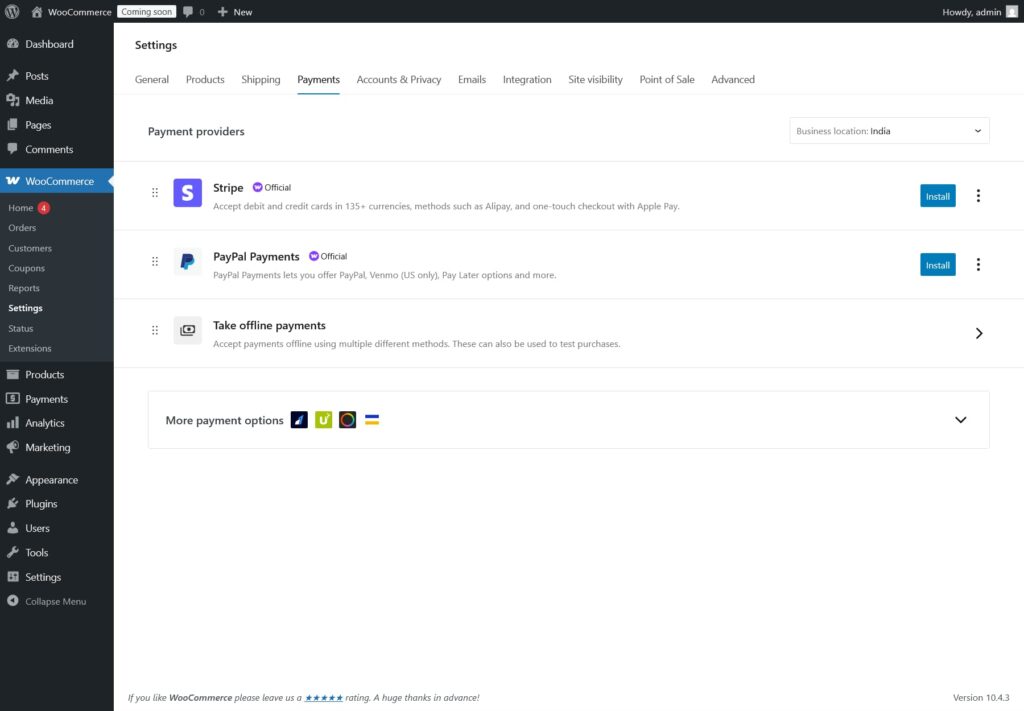
The data: Stores offering 3+ payment methods see up to 30% higher conversion rates compared to those offering only one option.
Real-World Examples and Use Cases
Let’s look at how different WooCommerce stores have applied these optimizations.
Example 1: Fashion boutique
A small clothing store was losing 75% of mobile customers at checkout. The problem? Their checkout required 18 fields, including optional ones for marketing preferences.
They simplified to 8 essential fields and added guest checkout. Conversion rate jumped from 25% to 42% in two weeks. That’s a 68% improvement.
Example 2: Digital products shop
A store selling online courses had a 4-step checkout process with no progress indicator. Customers kept refreshing or leaving because they didn’t know how long it would take.
They added a simple “Step X of 4” indicator and reduced steps from 4 to 2. Cart abandonment dropped from 72% to 58%.
Example 3: Handmade crafts store
A crafts seller noticed customers adding items to cart but never completing purchase on mobile devices. The checkout page took 8 seconds to load.
They optimized images, removed 6 unnecessary plugins, and upgraded hosting. Page speed improved to 2.3 seconds. Mobile conversions increased by 34%.
Example 4: Supplement store
A health supplement shop struggled with trust issues. No one knew if the site was secure.
They added SSL badges, a “30-day money-back guarantee” message, and customer testimonials on the checkout page. Conversions improved by 28% within a month.
These aren’t hypothetical scenarios. Real stores. Real results. Small changes. Big impact.
Step-by-Step Implementation Guide
Ready to optimize your checkout? Here’s how to start today.
Step 1: Enable guest checkout. Go to WooCommerce > Settings > Accounts & Privacy. Check “Allow customers to place orders without an account.” Save changes.
Step 2: Audit your checkout form. List every field currently required. Remove anything that’s not absolutely essential for completing the order.
Step 3: Test your checkout speed. Visit Google PageSpeed Insights. Enter your checkout page URL. Review recommendations and fix the biggest issues first.
Step 4: Add trust signals. Place security badges, your money-back guarantee, and customer reviews near the payment section. Make them visible without scrolling.
Step 5:Install a “Buy Now” button. The Quick Buy Now Button for WooCommerce plugin adds this feature with an intuitive setup process. The plugin’s premium versions allow you to choose the features that best fit your store’s needs.
Step 6: Set up multiple payment options. Go to WooCommerce > Settings > Payments. Enable at least PayPal and credit cards. Add digital wallets if your payment processor supports them.
Step 7: Test everything. Complete a purchase yourself on desktop and mobile. Watch for friction points. Ask friends to test. Fix issues immediately.
You don’t need to implement everything at once. Start with one or two optimizations this week. Measure results. Then tackle the next improvement.
Ready to reduce cart abandonment and increase sales? Start with the quick wins: guest checkout and form simplification. You’ll see results within days.
Common Questions and Answers
Not necessarily. You can still collect emails during guest checkout and offer opt-in for newsletters after purchase. Many customers who buy as guests will create accounts later when they see value in it.
At minimum, offer credit cards and PayPal. Ideally, add 1-2 more options like Apple Pay or Afterpay. More than 5 options can overwhelm customers, so focus on the most popular methods for your audience.
No. You keep both options. The standard “Add to Cart” button stays. The “Buy Now” button is an additional option for customers who want fast checkout. It gives choice without removing functionality.
Start with guest checkout and form simplification – they’re free and have the biggest impact. Then tackle page speed. Finally, add payment options and trust signals. Measure conversion rates after each change.
Conclusion
Checkout optimization isn’t complicated. It’s about removing friction and making it easy for customers to give you their money.
The seven strategies we covered – guest checkout, simplified forms, Buy Now buttons, trust signals, fast loading, progress indicators, and multiple payment options – address the most common abandonment triggers.
You don’t need a massive budget or technical expertise. Most improvements take minutes to implement and cost nothing. The ones that do require tools, like adding a Buy Now button, offer immediate ROI.
One final tip: Never stop testing. Customer expectations change. New payment methods emerge. Your checkout should evolve with them.