
What is WooCommerce:
Are you thinking about starting an online store but feeling overwhelmed by all the eCommerce platforms out there? You’re not alone. Many aspiring entrepreneurs struggle with choosing the right solution to sell products online without breaking the bank or needing advanced technical skills.
Many beginners search online to understand what is WooCommerce and whether it is the right ecommerce solution for their WordPress website.

WooCommerce has become the world’s most popular eCommerce platform, powering over 6 million online stores globally. But what exactly is WooCommerce, and why do so many business owners choose it over alternatives like Shopify or BigCommerce?
WooCommerce is a free, open-source WordPress plugin that transforms your regular WordPress website into a fully functional online store. Whether you want to sell physical products, digital downloads, subscriptions, or services, WooCommerce provides all the tools you need to accept payments, manage inventory, handle shipping, and grow your business.
This guide is perfect for complete beginners who want to understand WooCommerce and learn how to set it up. You don’t need any coding experience or technical background – we’ll walk you through everything step by step. We know it can be overwhelming, but don’t worry – by the end of this tutorial, you’ll have a clear understanding of WooCommerce and how to get started.
In this guide, you’ll learn:
- What WooCommerce is and why it’s the #1 choice for online stores
- The benefits and limitations of using WooCommerce
- How to set up WooCommerce on your WordPress site
- Alternative methods for getting started quickly
- Troubleshooting tips for common WooCommerce issues
What is WooCommerce and Why Do You Need It?
WooCommerce is a customizable, open-source eCommerce plugin built for WordPress. Launched in 2011, it was acquired by Automattic (the company behind WordPress.com) in 2015 and has since become the go-to solution for anyone wanting to sell online.
Think of WooCommerce as a toolkit that adds shopping cart functionality, product pages, checkout systems, and payment processing to your WordPress website. It seamlessly integrates with your existing WordPress site, allowing you to manage both your content and your store from one dashboard.
Key Benefits of WooCommerce:
To fully understand what is WooCommerce, it helps to look at how its flexibility and open-source nature benefit online store owners.
- Free and Open-Source: The core plugin is completely free, giving you full control over your store
- Flexibility: Customize every aspect of your store with themes and extensions
- WordPress Integration: Works perfectly with the world’s most popular content management system
- Scalability: Grows with your business from a few products to thousands
- Large Community: Access thousands of free and premium extensions, themes, and support resources
- No Transaction Fees: Unlike platforms like Shopify, WooCommerce doesn’t charge per-transaction fees
Potential Drawbacks:
- Self-Hosted: You’ll need to arrange your own hosting and handle technical maintenance
- Learning Curve: More complex than all-in-one solutions like Shopify for absolute beginners
- Extensions Cost Money: While the core is free, many advanced features require paid extensions
For more information, visit the official WooCommerce website
What to Do Before Installing WooCommerce
Before you install WooCommerce, you’ll need to make sure you have the right foundation in place. Here’s what you need to prepare:
1. WordPress Installation
WooCommerce only works with WordPress.org (self-hosted WordPress), not WordPress.com’s free plan. You’ll need a WordPress website up and running.
2. Web Hosting
Choose a reliable hosting provider that meets WooCommerce’s requirements. We recommend:
- Budget-Friendly: Bluehost or SiteGround (starting at $2.95/month)
- WooCommerce-Optimized: WP Engine or Kinsta (starting at $30/month)
- Requirements: PHP 7.4+, MySQL 5.6+, and HTTPS support
3. SSL Certificate
An SSL certificate (https://) is essential for securing customer data and payment information. Most hosting providers offer free SSL certificates through Let’s Encrypt.
4. Backup Your Site
Before installing any new plugin, create a complete backup of your WordPress site. Use plugins like UpdraftPlus or your hosting provider’s backup tools.
Method 1: Installing WooCommerce Manually (Step-by-Step)
This is the most common way to install WooCommerce and gives you full control over the setup process.
Step 1: Log Into Your WordPress Dashboard
Navigate to your WordPress admin area by going to yourwebsite.com/wp-admin and enter your login credentials.
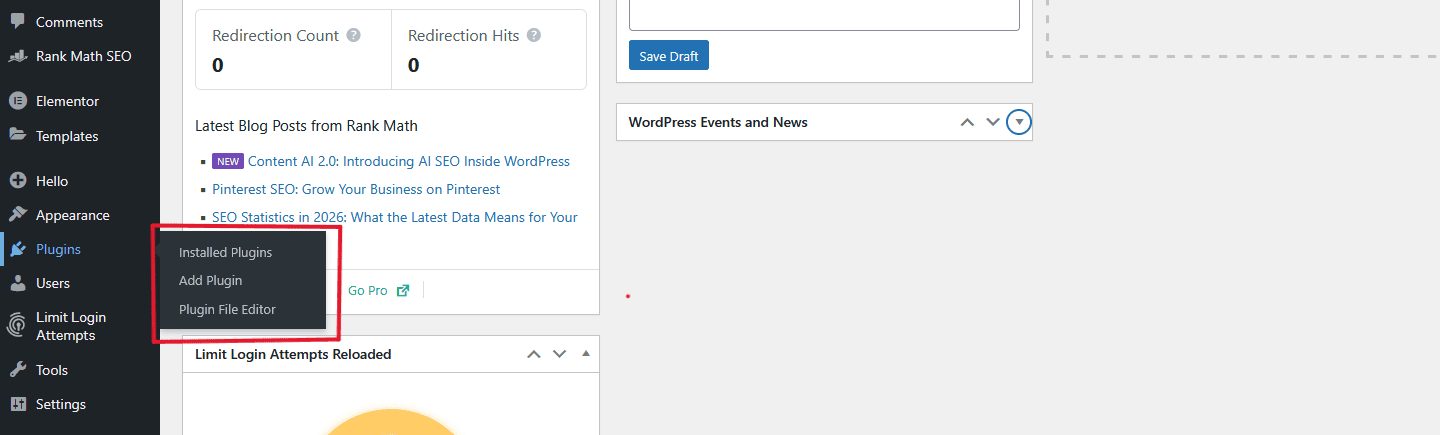
Step 2: Navigate to Plugins
From your WordPress dashboard, hover over “Plugins” in the left sidebar and click “Add New.”
Step 3: Search for WooCommerce
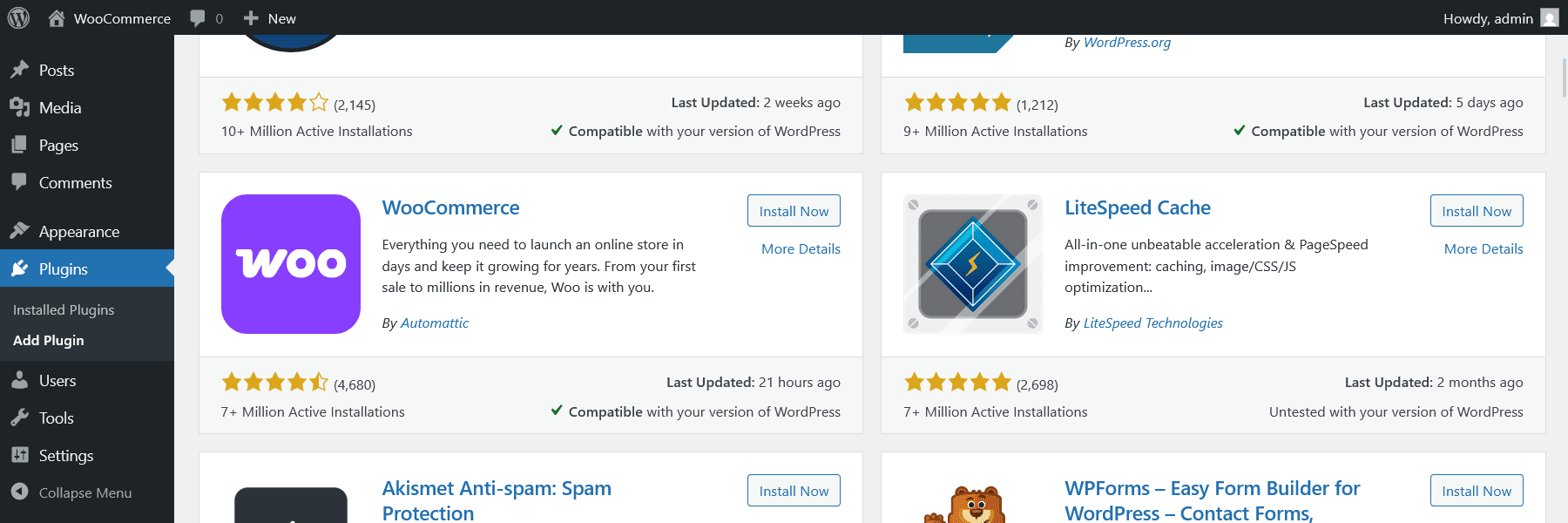
In the search bar at the top right, type “WooCommerce.” The official plugin by Automattic should appear first with millions of installations.
Step 4: Install and Activate
Click the “Install Now” button next to WooCommerce. Once installation is complete (usually takes 10-20 seconds), click “Activate.”
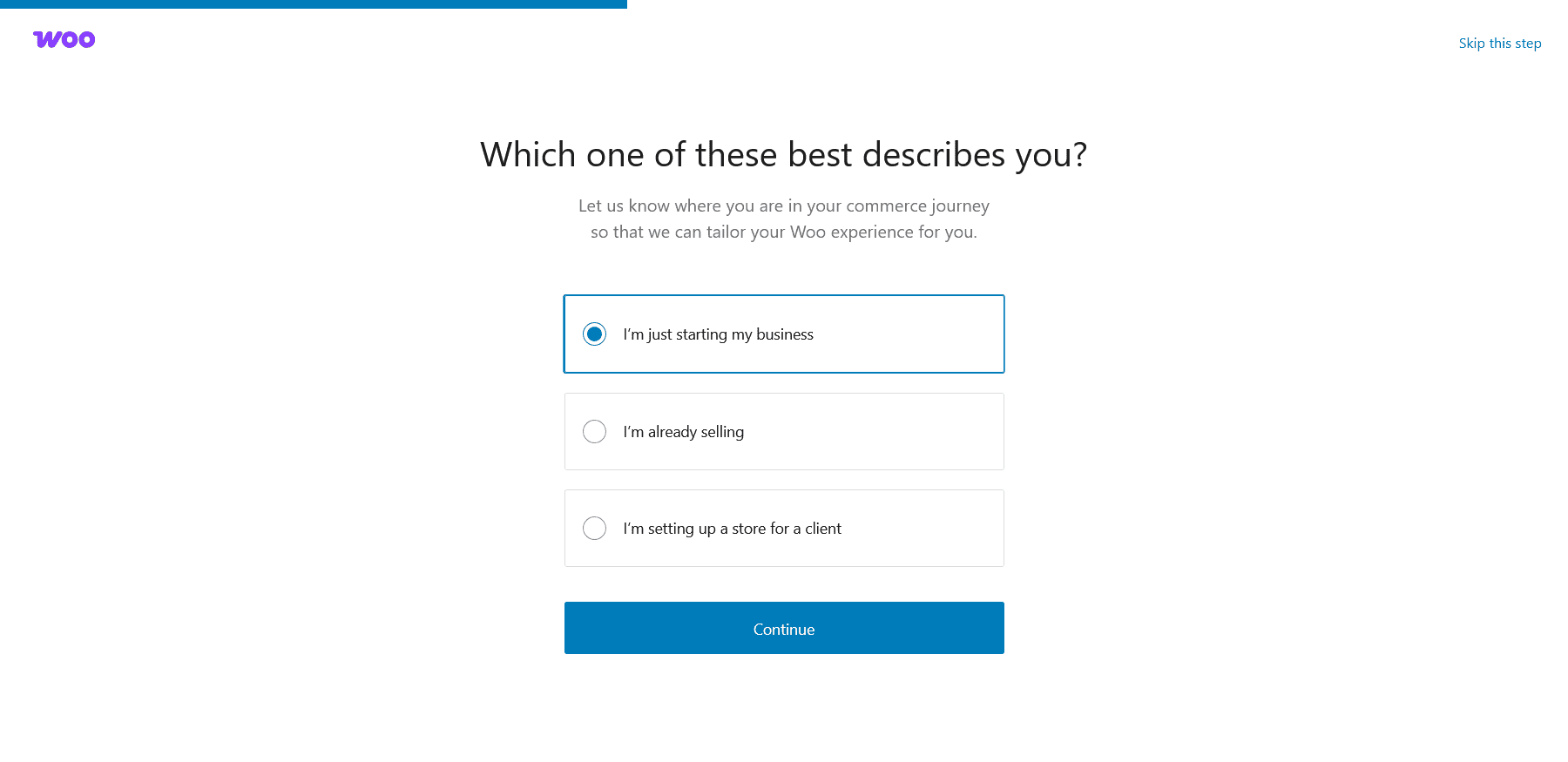
Step 5: Run the Setup Wizard
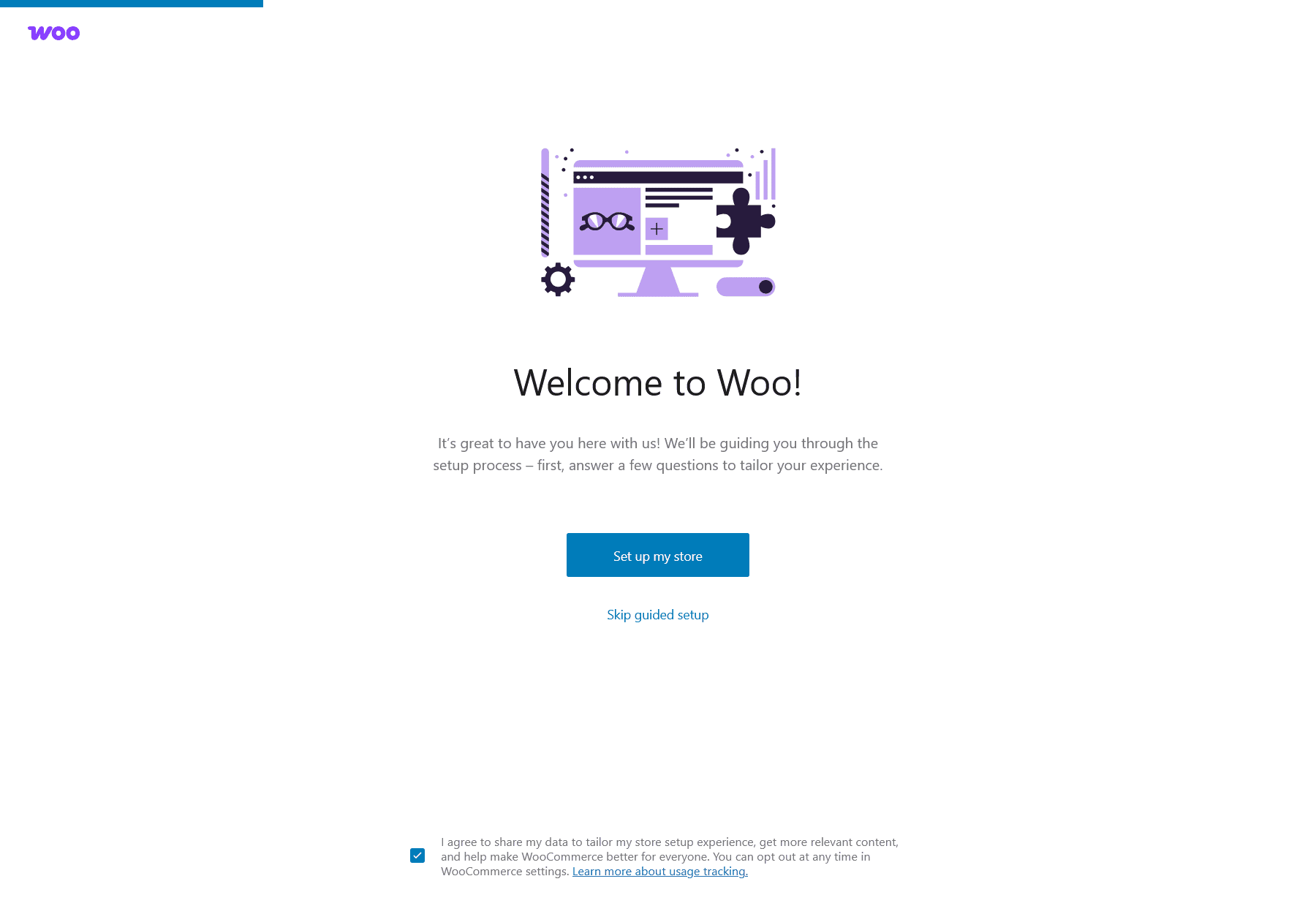
After activation, WooCommerce automatically launches its setup wizard. This wizard will guide you through:
- Store details (address, currency, product types)
- Payment setup (Stripe, PayPal, or other gateways)
- Shipping configuration (zones, rates, and methods)
- Tax settings (based on your location)
- Theme selection (optional WooCommerce-compatible themes)
Step 6: Configure Store Settings
Fill in your store information including:
- Business name and address
- What you plan to sell (physical products, digital downloads, etc.)
- Expected monthly sales volume
Step 7: Set Up Payments
Choose your payment methods. WooCommerce offers:
- WooCommerce Payments (built-in solution)
- PayPal
- Stripe
- Cash on Delivery
- Bank Transfer
For beginners, we recommend starting with PayPal and Stripe as they’re trusted by customers worldwide.
Step 8: Configure Shipping
Set up shipping zones and rates based on where you ship. You can add:
- Flat rate shipping
- Free shipping (with or without minimum order)
- Local pickup options
- Real-time carrier rates (with extensions)
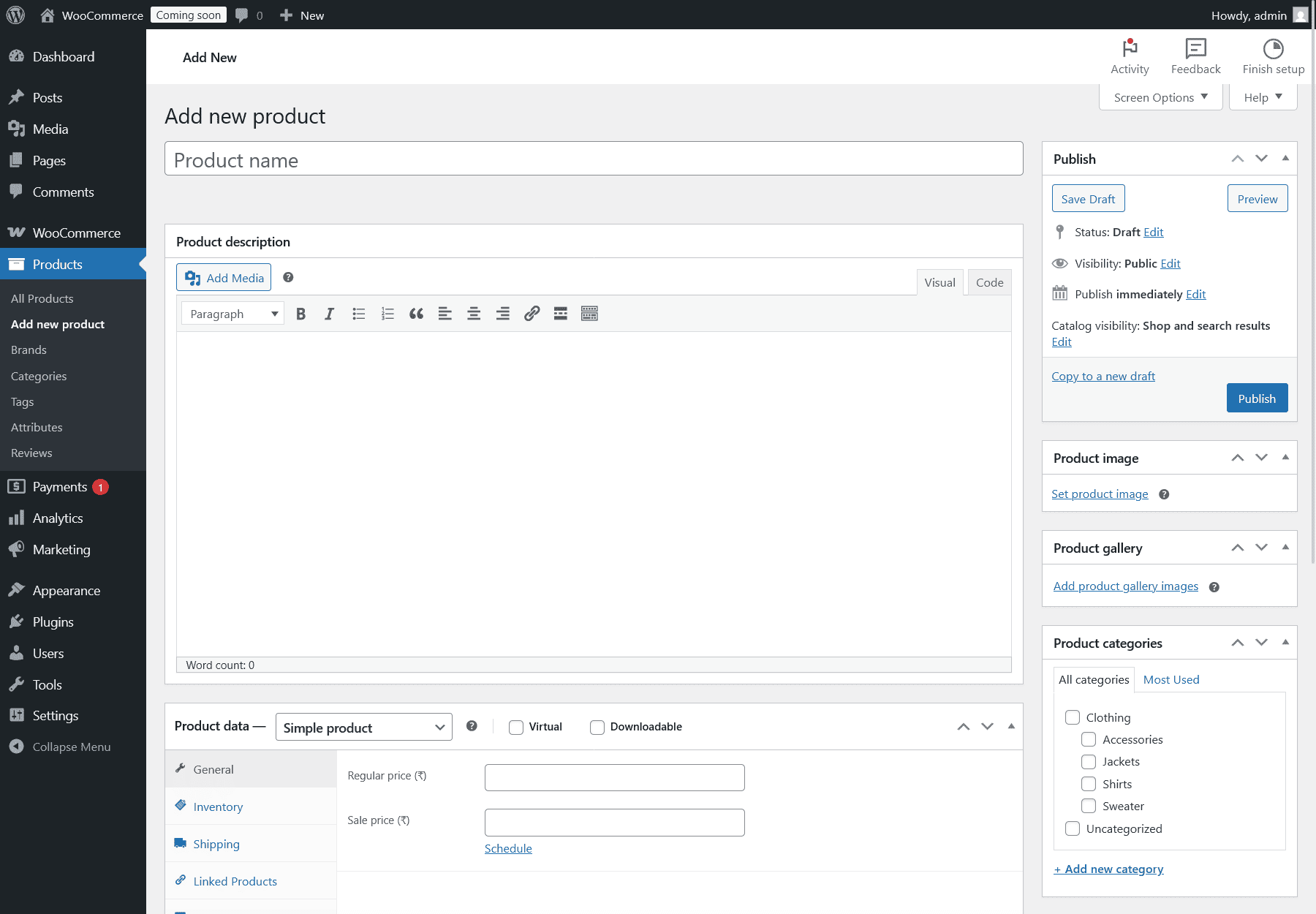
Step 9: Add Your First Product
After completing the wizard, go to Products > Add New to create your first product listing. Include:
- Product name and description
- Price and sale price
- Product images
- Inventory details
- Shipping information
Method 2: Using WooCommerce with Managed Hosting
For a faster, more streamlined experience, many hosting providers offer WooCommerce pre-installed or one-click installation.
Step 1: Choose WooCommerce Hosting
Providers like Bluehost, SiteGround, and WP Engine offer WooCommerce-specific hosting plans that include:
- WordPress pre-installed
- WooCommerce pre-configured
- Optimized server settings
- Automatic updates
- Enhanced security
Step 2: Sign Up and Select WooCommerce Plan
During signup, select “WooCommerce” or “Online Store” as your website type. The hosting provider will automatically install both WordPress and WooCommerce for you.
Step 3: Access Your Pre-Configured Store
Log into your WordPress dashboard using the credentials provided by your host. WooCommerce will already be installed and activated.
Step 4: Complete the Setup Wizard
Run through the same setup wizard as Method 1 to configure your store settings, payments, and shipping.
Comparison: Manual vs. Managed Hosting
- Manual: More control, cheaper hosting, requires more technical knowledge
- Managed: Faster setup, optimized performance, higher cost, less flexibility
For complete beginners, managed WooCommerce hosting can save hours of troubleshooting and provides peace of mind with automatic updates and backups.
Bonus: Enhancing Your WooCommerce Store
Once your basic WooCommerce store is set up, consider these quick wins to improve functionality:
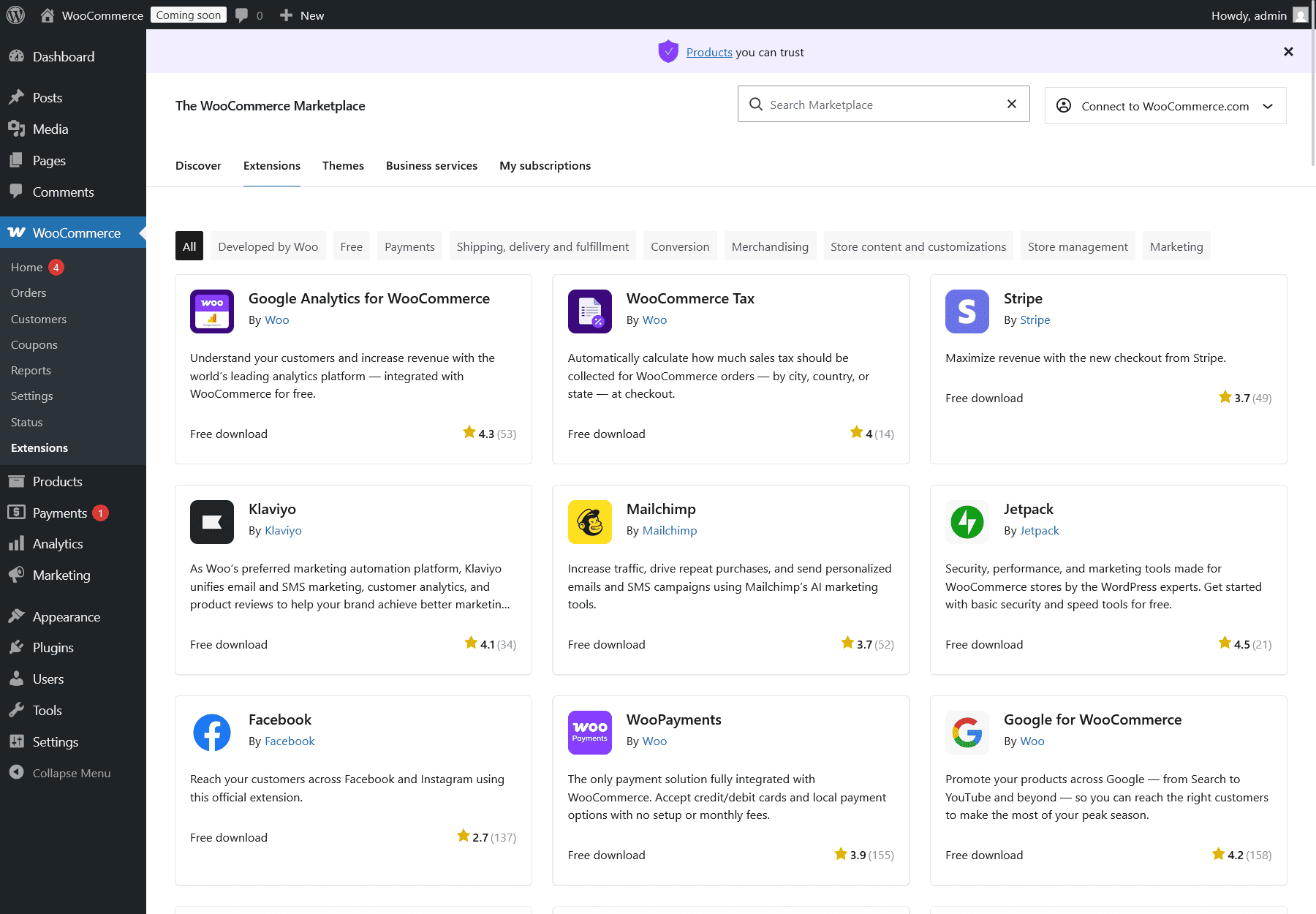
Install Essential Extensions:
- WooCommerce Subscriptions: For recurring revenue products
- WooCommerce Bookings: Perfect for service-based businesses
- Mailchimp for WooCommerce: Automate email marketing campaigns
Choose a WooCommerce Theme:
Select a theme specifically designed for WooCommerce from the WordPress theme directory or premium marketplaces like ThemeForest. Popular free options include Storefront (by WooCommerce) and Astra.
Optimize for Speed:
Install caching plugins like WP Rocket or W3 Total Cache to ensure your store loads quickly. Fast loading times improve conversion rates and SEO rankings.
How to Fix Common WooCommerce Issues
Even with careful setup, you might encounter some issues. Here are the most common problems and their solutions:
1. WooCommerce Pages Not Found (404 Error) Solution:
Go to Settings > Permalinks and click “Save Changes” without making any modifications. This refreshes WordPress permalinks and usually fixes the issue.
2. Checkout Page Not Working Solution:
Check if the checkout page exists (WooCommerce > Settings > Advanced). If it’s missing, go to WooCommerce > Status > Tools and click “Create default WooCommerce pages.”
How to Edit WooCommerce Checkout Page for Maximum Efficiency
3. Payment Gateway Not Appearing Solution:
Ensure your SSL certificate is properly installed and active. Most payment gateways require HTTPS. Also verify that the payment method is enabled in WooCommerce > Settings > Payments.
4. Slow Store Performance Solution:
Disable unnecessary plugins, optimize images using tools like Smush or ShortPixel, and implement caching. Consider upgrading to better hosting if problems persist.
5. Product Images Not Displaying Solution:
Regenerate thumbnails using the “Regenerate Thumbnails” plugin. Also check that your theme supports WooCommerce image sizes. Go to WooCommerce > Settings > Products to verify image dimensions.
For more troubleshooting help, visit the WooCommerce documentation.
WooCommerce FAQs
Yes, the core WooCommerce plugin is completely free. However, you’ll need to pay for web hosting, a domain name, and potentially premium extensions or themes. Basic setup costs typically range from $50-200 per year.
No, WooCommerce is specifically designed as a WordPress plugin and requires a WordPress installation to function.
WooCommerce can handle unlimited products. The actual limit depends on your hosting resources. Most shared hosting plans can manage stores with 1,000-5,000 products comfortably.
It depends on your needs. WooCommerce offers more flexibility and no transaction fees but requires more technical knowledge. Shopify is easier for beginners but has monthly fees and less customization. Read comparison: WooCommerce vs Shopify.
WooCommerce offers migration tools and plugins for importing products, customers, and orders from platforms like Shopify, Magento, and BigCommerce.
Conclusion
Congratulations! You now understand what WooCommerce is and how to set it up for your online store. We’ve covered everything from the basics of what WooCommerce offers to step-by-step installation methods and troubleshooting common issues.
Remember, building a successful online store takes time and experimentation. Start with the basics – install WooCommerce, add a few products, and test the checkout process. As you become more comfortable, explore extensions and customizations to enhance your store’s functionality.
The beauty of WooCommerce is its scalability. Whether you’re selling handmade crafts from home or building a multi-million dollar enterprise, WooCommerce can grow with your business.
Now that you know what is WooCommerce, you can confidently start building, managing, and scaling your online store using WordPress.