
Your customers are ready to buy. Their cart is full. But then the checkout takes forever, and they abandon their purchase. Sound familiar? Slow checkout is one of the biggest reasons people leave online stores without completing their orders. In fact, every extra second matters when it comes to converting browsers into buyers.
If you’re losing sales because your checkout feels clunky or takes too long, you’re not alone. Many store owners struggle with this exact problem. The good news? There are real, practical ways to make your checkout faster and smoother. In this post, we’ll walk through 10 proven strategies to speed up your WooCommerce checkout process. By the end, you’ll know exactly which changes will help your customers buy faster and help you increase your conversion rates.
Table Of Contents
The Real Cost of Slow Checkout
A slow checkout process is silently killing your sales. Here’s the thing: customers make split-second decisions during checkout. If the process feels long, complicated, or sluggish, they’ll leave. Research shows that nearly 28% of shoppers abandon their carts due to a lengthy or complicated checkout. That’s a huge chunk of potential revenue walking out the door.
Beyond abandonment rates, slow checkout also frustrates repeat customers. People want speed. They want simplicity. They want to buy in seconds, not minutes. Mobile shoppers are especially impatient—they’re often on lunch breaks or waiting in lines. Every extra click or page load feels like an eternity on a phone.
The impact compounds too. Slower checkouts mean lower conversion rates, which means less revenue. But it also damages trust. If your checkout feels clunky, customers might wonder if your store is secure or professional. Speed signals quality. It signals you care about their time. When you speed up checkout, you’re not just making things faster—you’re making customers happier and your business more profitable.
[IMAGE 2: Alt text “WooCommerce checkout process flowchart showing steps” – Create or source an infographic showing typical multi-step checkout flow vs. optimized checkout]
Solution: 10 Proven Ways to Speed Up WooCommerce Checkout
1. Use Quick Buy Now Button to Skip the Cart Page
Why it matters: Skipping the cart page entirely is the fastest way to checkout. Quick Buy Now buttons let customers go straight from product to payment in one click.
Here’s the problem: traditional shopping flows make customers add items to cart, then navigate to the cart page, review everything, and finally checkout. That’s multiple steps. Multiple pages. Multiple opportunities to get distracted or abandon.
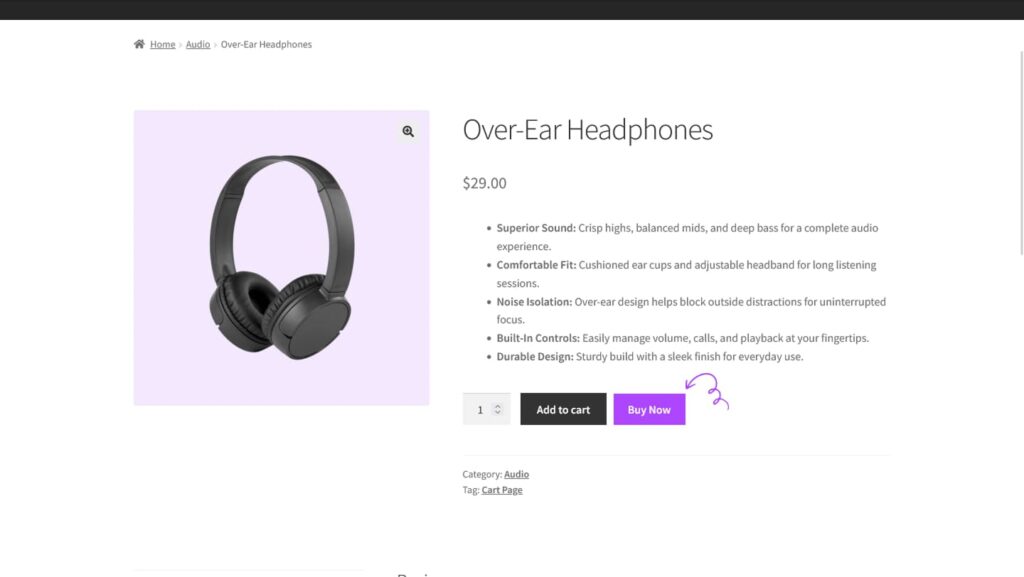
The Quick Buy Now Button eliminates this friction. Your customers see the product, click “Buy Now,” and go straight to checkout. No cart page. No extra navigation. Just product → checkout → done.
This is especially powerful because:
- Impulse buyers get what they want instantly
- Mobile shoppers save huge amounts of time
- Cart abandonment drops dramatically
- Conversion rates spike because checkout happens faster
The Quick Buy Now Button for WooCommerce plugin adds this functionality in minutes. No coding required. Your product pages will have both “Add to Cart” and “Buy Now” buttons. Let customers choose their path.
Ready to try? Quick Buy Now Button for WooCommerce comes with a 14-day money-back guarantee. No risk, fully supported, no coding needed.
2. Enable One-Page Checkout
Why it matters: Multi-step checkout flows force customers to click, wait, and navigate multiple pages. One-page checkout eliminates this friction instantly.
Your WooCommerce store likely has multi-step checkout by default. Customers fill in billing info, then shipping, then payment all on separate screens. This creates friction. One-page checkout puts everything on a single screen. Customers see all fields at once, fill what they need, and complete the purchase in one shot.
To enable one-page checkout:
- Go to WooCommerce Settings → Checkout
- Look for the “Checkout Pages” section
- Disable the option to show separate billing and shipping steps
- Save your changes
No coding needed. This simple change can reduce checkout time by 30–40 seconds per customer.
3. Minimize Form Fields
Why it matters: Every field a customer must fill is a potential drop-off point. Less data entry = faster checkout.
Here’s the problem: many stores ask for way too much information. Phone number, company name, delivery instructions, gift message, most of this isn’t essential. While you might want this data, forcing customers to fill it slows them down.
Ask yourself: do I really need this field right now? Can it wait until after the purchase? Many details can be collected post-purchase or made optional.
Go through your checkout form and:
- Remove optional fields that aren’t essential
- Make non-critical fields optional (billing address, company name, phone)
- Mark only required fields as mandatory
- Group related fields logically
This is one of the fastest wins. Fewer fields = faster checkout every single time.
[IMAGE 4: Alt text “Comparison of long checkout form vs. minimized checkout form” – Side-by-side comparison showing cluttered checkout vs. clean, minimal checkout with fewer fields]
4. Use Smart Address Autocomplete
Why it matters: Address autocomplete eliminates typing. Customers start typing their address and select it from a dropdown. Done in seconds.
Typing out full addresses is tedious. It’s slow on desktop, even slower on mobile. Smart address autocomplete uses real-time suggestion to fill in addresses automatically as customers type.
Tools like Address Validation plugins integrate with WooCommerce and tap into address databases. When a customer types “123 Main St,” the field suggests matching addresses. They click one, and boom, the full address, city, state, and zip populate instantly.
This speeds up checkout by 20–30 seconds on average, especially for mobile users. It also reduces typos and delivery issues.
Popular options include:
- WooCommerce Google Address Geocoding
- PostCode Anywhere
- Address Autocomplete for WooCommerce
Pick one that fits your budget and integrates smoothly with your store.
5. Offer Guest Checkout by Default
Why it matters: Forcing account creation before purchase is a major abandonment trigger. Guest checkout is faster and more flexible.
Many stores require customers to create an account to buy. But here’s the reality: most shoppers just want to complete their purchase quickly. Creating an account adds steps, requires password creation, and feels like extra work.
Guest checkout solves this. Customers enter their info and buy, no account needed. They can create an account after the purchase if they want to.
To enable guest checkout in WooCommerce:
- Go to WooCommerce Settings → Accounts & Privacy
- Check “Allow customers to place orders without an account.”
- Save changes
You can still encourage account creation post-purchase via email. But don’t force it upfront. Faster checkout wins.
6. Implement Express Checkout Options
Why it matters: Express checkout (Apple Pay, Google Pay, PayPal) lets customers pay in one tap using saved payment methods. It’s the fastest way to complete a purchase.
Express checkout buttons are game-changers for mobile users especially. Instead of typing credit card details, expiration dates, and CVV codes, customers tap their phone. Their saved payment info and address auto-fill. Purchase complete in seconds.
Most modern payment gateways support this:
- PayPal Express – Most popular, trusted, secure
- Apple Pay – Works on iPhones and iPads
- Google Pay – Works on Android devices and Chrome
- Shop Pay – Shopify’s payment option (if you use it)
Enable these in your payment settings:
- Go to WooCommerce Settings → Payments
- Select your payment gateway (Stripe, Square, PayPal, etc.)
- Enable “Express Checkout” or “Saved Payment Methods”
This single change can reduce checkout time by 50% or more for returning customers.
[IMAGE 5: Alt text “Apple Pay, Google Pay, and PayPal express checkout buttons” – Screenshot showing express payment options displayed at checkout]
7. Optimize Page Load Speed
Why it matters: A checkout page that takes 3+ seconds to load feels slow. Even a 1-second delay increases abandonment.
You can have the best checkout flow in the world, but if the page loads slowly, customers won’t wait. Loading delays compound frustration.
Optimize your checkout page speed:
- Compress images (use tools like TinyPNG)
- Remove unnecessary plugins and scripts
- Use a Content Delivery Network (CDN) like Cloudflare or WP Rocket
- Enable browser caching in your hosting control panel
- Minify CSS and JavaScript files
- Remove auto-playing videos or heavy media from checkout
Check your checkout speed with Google PageSpeed Insights or GTmetrix. Aim for under 2 seconds load time. Every 100ms improvement matters.
8. Simplify Payment Options (But Don’t Limit Them)
Why it matters: Too many payment options creates decision paralysis. Too few loses customers who want specific methods.
Offering 20 payment methods sounds good, but it actually slows things down. Customers see a massive list and have to choose. Decision paralysis kicks in.
Streamline to 3–5 core payment options:
- Credit/Debit cards (Stripe, Square, or PayPal)
- PayPal (for non-card payers)
- Apple Pay or Google Pay (for mobile)
- One local payment option (bank transfer, local wallet, etc.)
Remove payment methods that don’t get used. Check WooCommerce analytics to see which methods customers actually use. Kill the rest.
This reduces cognitive load and speeds up checkout dramatically.
9. Reduce Redirect and Confirmation Steps
Why it matters: Each extra redirect or confirmation page is a speed bump. Eliminate unnecessary redirects and get customers through faster.
Some checkout flows include security redirects (like 3D Secure), confirmation pages, or intermediate steps. While security is important, you can streamline this:
- Enable “frictionless” 3D Secure (skips confirmation for low-risk transactions)
- Skip thank-you pages and go straight to order confirmation page
- Avoid unnecessary email verification steps during checkout
- Use auto-advancing checkboxes instead of extra buttons
Each step cut is a few seconds gained. Multiply that by thousands of customers, and you’re looking at massive time savings.
10. Use Sticky Checkout Elements
Why it matters: When customers scroll on mobile, the checkout button disappears. Sticky checkout buttons stay visible, reducing friction.
Mobile checkout is tough. Customers scroll through form fields, and the checkout button scrolls out of view. They have to scroll back up to find it. Annoying.
Sticky checkout buttons (or progress bars) stay visible as customers scroll. The submit button never leaves the screen. It reduces confusion and keeps checkout top-of-mind.
You can implement this with:
- WooCommerce plugins (search “sticky checkout button”)
- CSS customization (if you’re comfortable editing theme files)
- Payment gateway features (some gateways offer this natively)
For most store owners, a simple plugin does the job without requiring coding.
[IMAGE 6: Alt text “Mobile phone showing sticky checkout button staying visible while scrolling” – Screenshot of mobile checkout with sticky/fixed button at bottom that remains visible]
Real-World Examples and Use Cases
Example 1: Fashion E-Commerce Store with Quick Buy Now
A mid-size fashion retailer noticed 35% of mobile visitors abandoned checkout. They installed Quick Buy Now Button for WooCommerce on clearance and sale items, implemented one-page checkout, and enabled Apple Pay and Google Pay. Result? Checkout time dropped from 4 minutes to 1.5 minutes. Mobile conversions increased 22% in the first month. Impulse purchases surged because the “Buy Now” button removed friction for quick decisions.
Example 2: Handmade Crafts Marketplace
A handmade goods seller was losing customers due to mandatory account creation and complicated checkout. They enabled guest checkout, simplified their form (removed company field and made phone optional), and added the Quick Buy Now button for smaller items. Cart abandonment dropped 18% immediately. They also reduced their payment options from 8 to 3. Fewer choices meant faster decisions. Checkout time improved, and revenue grew 12%.
Example 3: SaaS and Digital Products
A digital product store implemented sticky checkout buttons, optimized page load speed (reduced from 3.2s to 1.8s), and added Quick Buy Now buttons for single-item products. Customers reported checkout felt “snappier.” Conversion rate improved 8%. They also enabled express checkout, which became the default for 40% of customers. Return customers now complete purchases in under 30 seconds.
[IMAGE 7: Alt text “Graph showing conversion rate improvement after checkout optimization” – Bar chart or line graph showing increased conversion rates after implementing optimization strategies]
Step-by-Step Implementation Guide
Step 1: Install Quick Buy Now Button
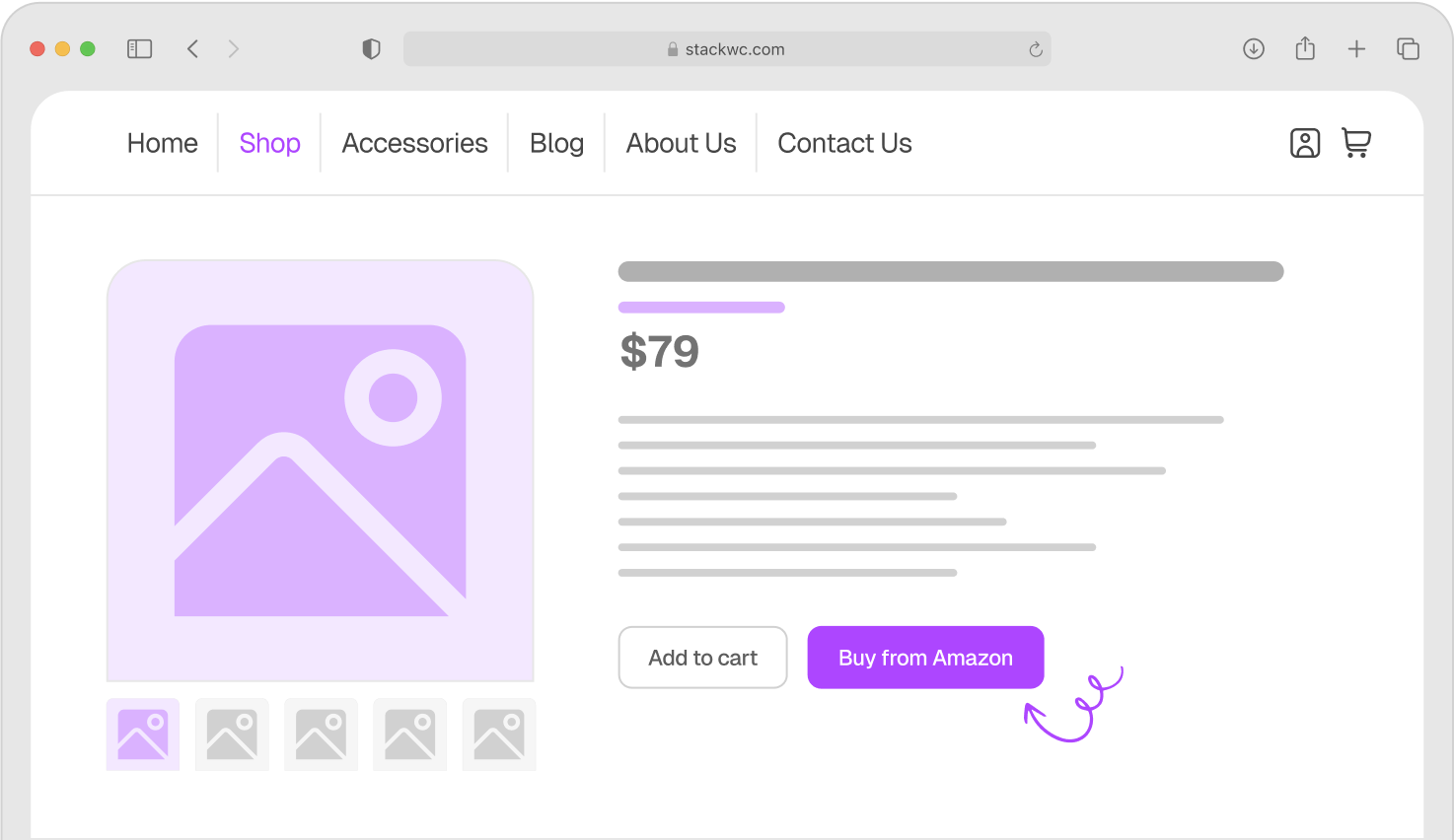
Start with the biggest friction-killer: Quick Buy Now Button for WooCommerce. This eliminates the cart page entirely for customers who want it. Install the plugin, activate it, and configure which products show the “Buy Now” button. No coding required. 14-day money-back guarantee.
Quick Buy Now Button for WooCommerce
Step 2: Audit Your Current Checkout
Visit your store as a customer. Time how long checkout takes without using Quick Buy Now. Note any confusing fields or slow page loads. Screenshot your checkout flow. You need a baseline to measure improvement.
Step 3: Enable One-Page Checkout
Go to WooCommerce Settings → Checkout. Disable multi-step checkout. This is your quickest win, implement immediately.
Step 4: Minimize Form Fields
Review every field in your checkout. Ask: “Do I absolutely need this right now?” Remove or make optional anything that isn’t essential. Keep only billing address, shipping address, email, and payment info as required.
Step 5: Add Express Checkout
Go to WooCommerce Settings → Payments. Enable Apple Pay, Google Pay, or PayPal depending on your payment processor. This takes 5 minutes and delivers huge gains.
Step 6: Optimize Page Speed
Run your checkout URL through Google PageSpeed Insights. Implement the top 3 recommendations (usually image compression, caching, and removing unused plugins). Aim for sub-2-second load times.
Step 7: Test and Measure
After implementing changes, time your checkout again. Compare against your baseline. Track conversion rates in WooCommerce analytics. Most stores see 10–25% improvements from these changes combined.
[IMAGE 8: Alt text “WooCommerce settings page showing checkout configuration options” – Screenshot of WooCommerce Settings → Checkout panel with relevant options highlighted]
Common Questions and Answers
Not at all. You keep your standard “Add to Cart” button. Quick Buy Now is optional alongside it. Customers choose their path. Those in a hurry use Buy Now. Others use the cart as usual.
Not at all. You can collect extra info post-purchase via email. Checkout isn’t the place for detailed surveys. Prioritize speed during purchase, detail-gathering afterward.
No. Guest checkout is equally secure as account-based checkout. Both use the same encryption and payment processing. Security level stays the same.
Most changes are built into WooCommerce settings (no plugin needed). But Quick Buy Now Button for WooCommerce adds features you can’t get natively, and it’s totally worth it.
Conclusion
Speed wins. When your checkout is fast, customers are happy. Happy customers buy more and come back again. Slow checkout is invisible profit loss.
The good news? You don’t need to overhaul everything. Start with the Quick Buy Now button and one-page checkout. Add express checkout and minimize form fields. These four changes alone will cut checkout time by 40–50% for most customers.
Every second you save is a potential sale saved. Every friction point you remove is a customer you keep.
Ready to speed up your checkout and boost conversions? Try Quick Buy Now Button for WooCommerce with a 14-day money-back guarantee. No risk, fully supported, no coding needed. Your customers will notice the difference immediately.