
WooCommerce stores build up a surprising amount of clutter over time old draft orders, expired coupons, guest accounts that never checked out, and product listings nobody remembers creating. Cleaning this up manually, item by item, is slow and honestly a little risky if you’re not careful about what you’re deleting. This guide walks you through how to bulk delete WooCommerce data the safe way, so you speed up your store without accidentally wiping out something you need.
Why WooCommerce Databases Get Bloated
Every order, abandoned checkout, coupon, and customer session gets stored in your database even the ones that never turn into a sale. Over months or years, this adds up to thousands of rows of data that serve no purpose. The result is slower admin screens, longer backup times, and a database that’s genuinely harder to search through when you need to find something specific. None of this is dangerous on its own, but it does mean cleanup eventually becomes necessary for any store that’s been running for a while.
What “Safe” Bulk Deletion Actually Means
“Safe” doesn’t just mean “it worked without an error.” It means you can confirm exactly what was removed, you had a way to recover it if something went wrong, and you didn’t touch anything tied to an active customer relationship or a completed transaction that you might need for accounting or tax purposes. Keeping that distinction in mind is the difference between a helpful cleanup and a support ticket nightmare.
Step 1: Back Up Your Database First
This step isn’t optional, no matter how confident you feel. Before running any bulk deletion whether through phpMyAdmin, a custom SQL query, or a plugin take a full database backup or at minimum export a CSV of the records you’re about to remove. If your host offers automatic backups, confirm the most recent one is current rather than assuming it is. A five-minute backup is far less painful than trying to reconstruct order history after the fact.
Step 2: Identify What’s Actually Safe to Delete
Not all “old” data is disposable. Generally safe candidates include:
- Checkout-draft orders that were never completed
- Failed, cancelled, or pending orders older than 30 days
- Guest orders with no follow-up activity after 90+ days
- Expired, unused coupons
- Customer accounts with zero orders
- Expired cart sessions
Data you should think twice about includes completed orders (often needed for tax records), reviews on products still for sale, and any customer account tied to a subscription or recurring order. When in doubt, filter narrowly rather than broadly.
Step 3: Preview Before You Delete Anything
Whatever method you use, always preview the exact records that match your filters before confirming deletion. A filter that looks right in your head can behave differently once it hits real data a date range might catch more orders than expected, or a “guest” filter might include an account you didn’t realize was tied to a wholesale customer. Previewing closes that gap between intention and outcome.
Step 4: Use Trash Instead of Permanent Deletion
WordPress and WooCommerce both support a trash state for most content types. Sending records to trash first, rather than deleting them outright, gives you a short recovery window if you spot a mistake. Only clear the trash once you’re confident nothing important got swept up. This one habit alone prevents most “oops” moments in bulk cleanup work.
Step 5: Automate Recurring Cleanup
Doing a one-time cleanup solves the immediate problem, but the same clutter builds back up within a few months. Setting up a recurring schedule weekly or monthly, depending on your store’s order volume keeps the database consistently lean instead of requiring another manual pass every time things slow down again.
Manual Methods vs. a Dedicated Cleanup Plugin
You can do all of this manually: exporting order lists, running WP-CLI commands, or writing careful SQL queries against staging data first. It works, but it’s time-consuming and leaves more room for error, especially the SQL route, where one missing WHERE clause can affect far more rows than intended.
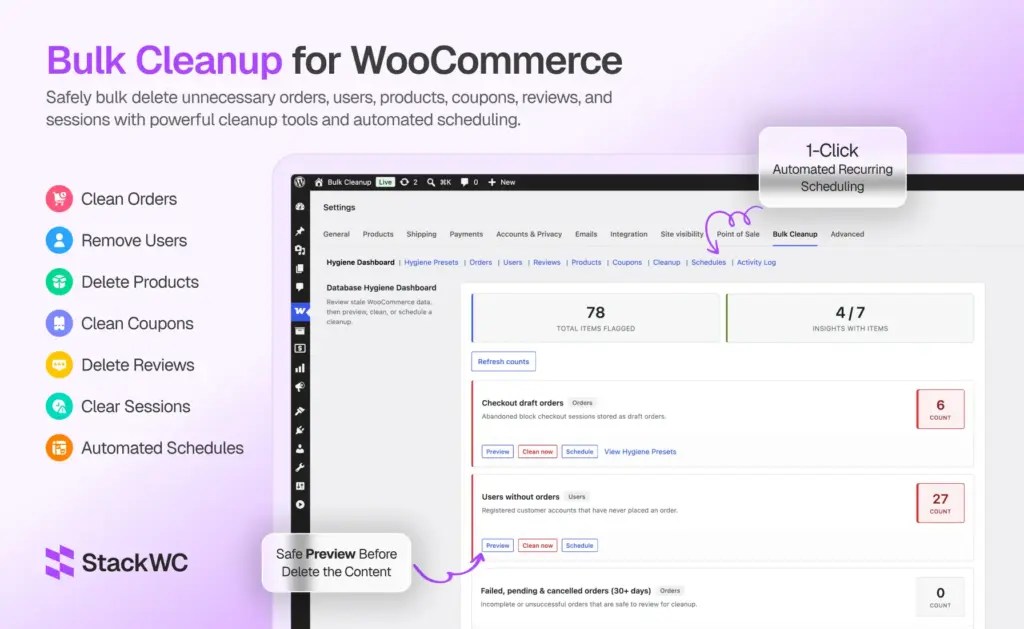
This is where a purpose-built tool like Bulk Cleanup for WooCommerce earns its place in a store owner’s toolkit. Rather than writing queries by hand, the plugin gives you a hygiene dashboard showing live counts of stale orders, expired sessions, unused coupons, and customer accounts with no order history so you can see what’s actually piling up before deciding what to remove. Each cleanup action supports filtering, a preview step, and CSV export, and most record types move to trash before permanent deletion, which lines up directly with the safe-deletion approach outlined above. It also supports scheduled cleanup on hourly, daily, weekly, or monthly intervals, which covers the recurring-maintenance step without you needing to remember to run it yourself. It’s built to work with WooCommerce’s High-Performance Order Storage (HPOS), so it stays compatible with newer WooCommerce setups.
Whether you choose the manual route or a plugin, the safety principles stay the same back up, filter carefully, preview, and trash before you delete permanently.
Common Mistakes to Avoid
- Deleting completed orders without checking local record-keeping or tax requirements first
- Running bulk actions directly on a live site without testing filters on staging
- Skipping the preview step because a filter “looks right”
- Permanently deleting instead of trashing, especially the first few times you run a cleanup
- Forgetting to refresh counts before a scheduled cleanup runs, leading to unexpected results
For more on keeping a WooCommerce store organized long-term, our related posts on the StackWC blog cover topics like coupon expiration management and product catalog hygiene in more depth.
FAQ
Deleting completed, paid orders can affect historical reporting and accounting records, so it’s best to only bulk delete failed, cancelled, or draft orders that never represented a real sale.
Only if you have a backup or CSV export from before the deletion. This is why backing up first and using trash instead of permanent deletion matters so much.
It depends on order volume, but monthly is a reasonable starting point for most stores, with weekly cleanup for high-traffic sites that generate a lot of abandoned checkouts.
Generally yes, since they represent no purchase history, but check first whether any are tied to newsletter subscriptions or other integrations you want to preserve.
Manual cleanup is possible through WP-CLI or direct database queries, but a dedicated plugin reduces risk by adding filtering, previews, and trash-before-delete safeguards that manual SQL doesn’t offer by default.
Conclusion
Bulk deleting WooCommerce data doesn’t have to be a stressful, all-or-nothing decision. With a backup in place, clear filtering, a preview step, and trash used as a safety net, you can clean up orders, coupons, customers, and sessions confidently and keep your store running faster without second-guessing what you removed. Whether you handle it manually or lean on a tool built for the job, the same core habits keep the process safe every time.