
Is Your Product Page Showing Too Much (or Too Little)?
Here’s a frustrating situation every WooCommerce store owner knows.
You sell a mix of products maybe physical items, digital downloads, and subscription boxes. But your product page shows the same tabs to everyone. A wholesale buyer sees tabs meant for retail customers. A first-time visitor gets overwhelmed by technical specs they don’t care about.
It’s messy. And it’s quietly hurting your sales.
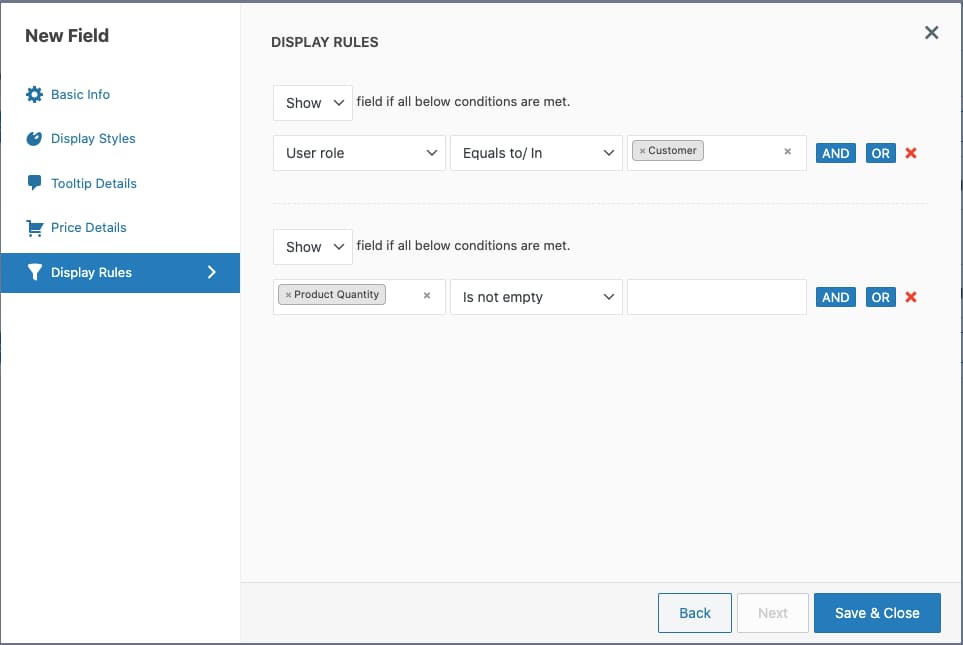
Conditional product tabs in WooCommerce solve exactly this problem. Instead of showing every tab to every visitor, you control which tabs appear based on user role, product category, stock status, or other conditions.
In this post, you’ll learn what conditional product tabs are, why they matter, and how to set them up without touching a single line of code.
Let’s dive in.
Why Generic Product Tabs Are Costing You Sales
Most WooCommerce stores use the default setup Description, Additional Information, and Reviews. That’s fine for simple shops. But once your catalog grows, those one-size-fits-all tabs start working against you.
Think about it like a physical store. You wouldn’t hand a wholesale buyer the same brochure you give a casual window shopper. You’d tailor the experience. Your online store should do the same.
Here’s what happens when you don’t use conditional tabs:
- Wholesale customers see retail pricing info they don’t need
- Logged-out visitors get membership-only content by accident
- Digital product buyers waste time reading shipping policies that don’t apply to them
- Mobile shoppers get overwhelmed by tabs stuffed with irrelevant information
According to Baymard Institute, poor product page UX is one of the top reasons customers abandon purchases. When shoppers can’t find the right information quickly, they leave.
The fix isn’t removing information. It’s showing the right information to the right people at the right time. That’s exactly what conditional product tabs do.
The Solution: Conditional Product Tabs in WooCommerce
What Are Conditional Product Tabs?
Conditional product tabs are tabs that appear or stay hidden based on specific rules you set. You decide the condition. The tab shows or hides automatically.
Common conditions include:
- User role Show a “Wholesale Pricing” tab only to wholesale customers
- Login status Show a “Members Only” tab only to logged-in users
- Product category Show a “Dimensions & Weight” tab only for physical products
- Stock status Show a “Pre-Order Info” tab only when a product is out of stock
- Specific product Show a “Size Guide” tab only on apparel items
How Product Tabs for WooCommerce Makes This Easy
Managing conditional tabs manually is a headache. You’d need custom code, a developer, and hours of testing.
Product Tabs for WooCommerce by StackWC handles all of this through a clean, beginner-friendly dashboard.
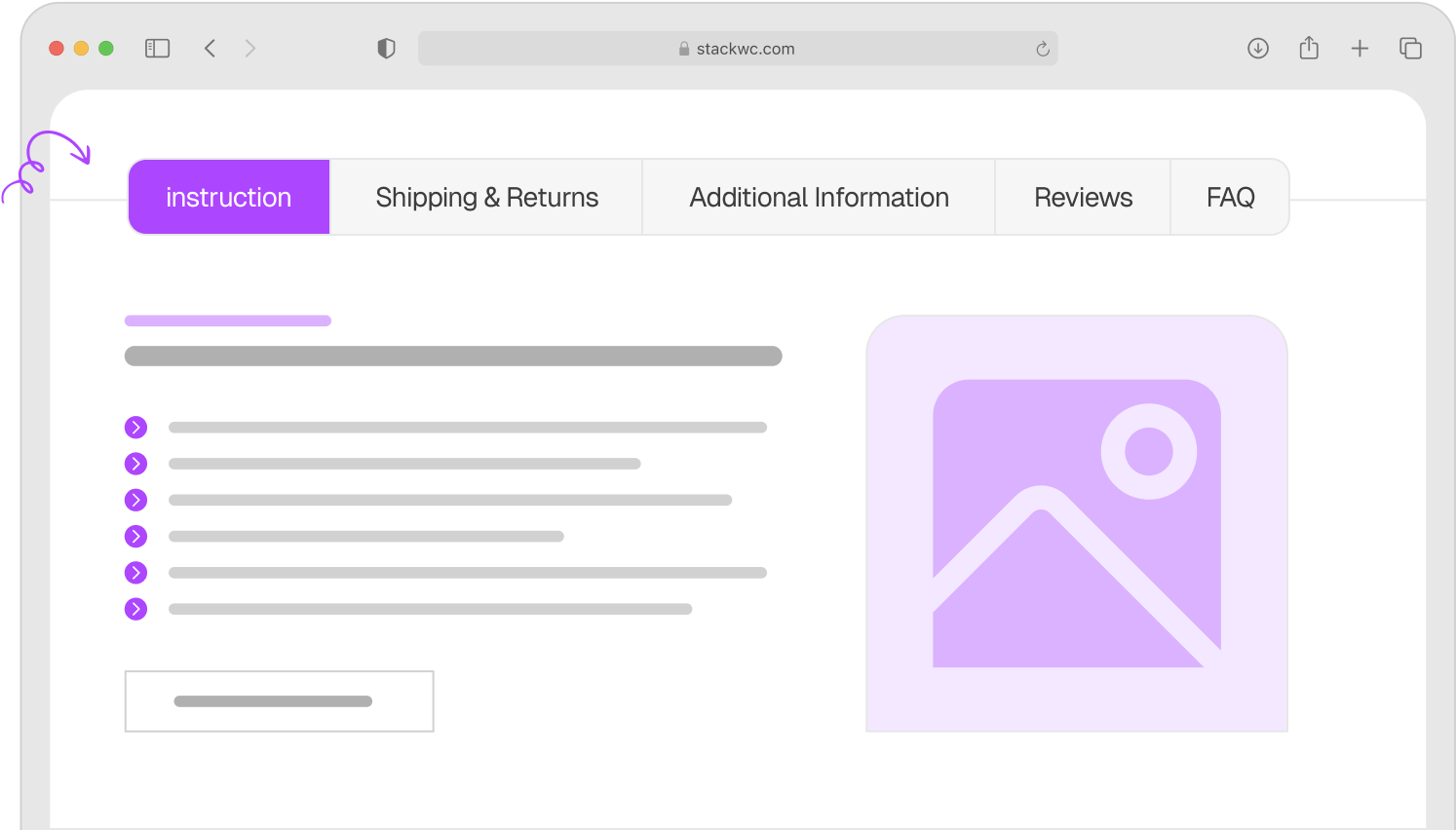
Here’s what it lets you do:
- Create unlimited custom tabs Add any tab with any content you want
- Set display conditions Control exactly who sees each tab
- Assign tabs globally or per product Apply one tab across your whole catalog, or just one item
- Reorder tabs with drag and drop No coding, no fuss
- Add rich content inside tabs Text, images, videos, shortcodes, and more
- Override default WooCommerce tabs Rename, reorder, or remove the built-in tabs
The result? A cleaner, smarter product page that adapts to each visitor automatically.
Key Benefits at a Glance:
- Better shopping experience for every type of customer
- Less confusion, more confident purchases
- Fewer support questions about irrelevant info
- Cleaner product pages on mobile
- No developer needed
Real-World Examples: Who Benefits from Conditional Tabs?
1. The Wholesale + Retail Store
Imagine you run a beauty supply shop. You sell to both everyday consumers and professional salons.
Your retail customers need the ingredient list, how-to-use tips, and customer reviews. Your wholesale customers need bulk pricing tiers, reorder minimums, and account-specific terms.
With conditional tabs, retail visitors see the standard tabs. Wholesale account holders automatically see a “Trade Pricing” tab and a “Bulk Order Terms” tab nobody else does.
This keeps your pages clean for casual shoppers while giving business buyers exactly what they need to place an order fast.
2. The Mixed Catalog Store (Digital + Physical)
You sell both printable art downloads and framed physical prints. A “Shipping & Returns” tab makes perfect sense for physical items. But showing it on a digital download? That just creates confusion.
Conditional tabs let you assign the Shipping tab only to products in your “Physical Prints” category. Digital downloads show a “Download & License” tab instead.
Customers get relevant information. Support tickets about “when will my digital file ship?” drop dramatically.
3. The Subscription Box Store
You offer both one-time purchase options and monthly subscription plans on the same product.
With conditional tabs, subscribers automatically see a “Manage Your Subscription” tab with cancellation, pause, and billing info. One-time buyers never see it no confusion, no unnecessary questions.
You could also show a “Subscribe & Save” tab only to guests or non-members to encourage sign-ups. This kind of targeted messaging can meaningfully improve conversion rates.
How to Set Conditional Product Tabs in WooCommerce: Step-by-Step
Setting up conditional tabs is simpler than you might think. Here’s how to do it with Product Tabs for WooCommerce. No coding required.
Step 1: Install and Activate the Plugin
Go to your WordPress dashboard. Navigate to Plugins > Add New, search for “Product Tabs for WooCommerce by StackWC,” install, and activate. Or grab it directly from stackwc.com/plugins/product-tabs-for-woo/.
Step 2: Open the Product Tabs Settings
After activation, find the Product Tabs menu in your WordPress dashboard. This is your control panel for all tab settings.
Step 3: Create a New Tab
Click Add New Tab. Give it a name something like “Wholesale Pricing” or “Size Guide.” Add your content using the visual editor. You can include text, images, videos, or shortcodes.
Step 4: Set Your Display Conditions
This is the key step. Look for the Visibility / Conditions section in the tab settings. Choose your condition user role, login status, product category, specific product, or stock status. Select the matching rule and save.
Step 5: Assign the Tab to Products
Choose whether this tab appears globally (all products), by category, or on specific individual products. This gives you full flexibility.
Step 6: Reorder Your Tabs
Drag and drop your tabs into the order you want them to appear. Put the most important tabs first.
Step 7: Preview and Test
View a product page while logged in as different user types. Confirm the right tabs show for the right users. Adjust conditions if needed.
Ready to try? Get Product Tabs for WooCommerce →
Common Questions About Conditional Product Tabs
Yes, absolutely. You can keep the default Description, Additional Information, and Reviews tabs. You can also rename them, reorder them, or hide them whatever works best for your store.
Yes. The tabs are fully responsive. Your product pages will look clean and work properly on smartphones and tablets, which matters because a growing share of WooCommerce shoppers are on mobile.
No. Product Tabs for WooCommerce is built to be lightweight. It won’t add noticeable load time to your product pages.
Not at all. Everything is managed through a visual dashboard. You set the conditions, assign the tabs, and the plugin handles the rest automatically. It’s designed for store owners, not developers.
Start Showing the Right Tabs to the Right Customers
Generic product pages treat every customer the same. But your customers aren’t the same and your product pages shouldn’t be either.
Conditional product tabs let you show the right information to the right person at the right moment. That means less confusion, fewer support tickets, and a smoother path to purchase for every visitor.
Here’s one final tip: start simple. Pick one tab, set one condition, and test it. Once you see how easy it is, you’ll find yourself fine-tuning the experience across your entire catalog.