

Introduction
Want to sell digital products with WooCommerce, like eBooks, courses, software, or music from your WordPress site?
You’re not alone. Thousands of creators are turning their digital products into profitable online businesses. The good news? WooCommerce makes it surprisingly easy to sell digital downloads without fancy coding or expensive platforms.
Here’s the thing: you don’t need a degree in tech to start selling digital products. Whether you’re a photographer selling presets, a teacher offering worksheets, or a musician distributing tracks, WooCommerce has you covered.
In this guide, you’ll learn exactly how to set up your store, deliver files securely, and start making sales today. No fluff, just practical steps you can follow right now.
The Challenge of Selling Digital Products Online
Selling digital downloads isn’t quite the same as shipping physical products.
You need to think about file security. How do you stop people from sharing your download link with everyone they know? What about managing file sizes and delivery speeds?
Then there’s the customer experience. People expect instant access after they pay. If they have to wait or jump through hoops, they’ll get frustrated and possibly request refunds.
According to WooCommerce’s own data, digital product stores can see abandonment rates as high as 70% when the checkout process is too complicated or delivery feels slow. That’s a lot of lost revenue.
You also need to manage updates. If you improve your eBook or fix a bug in your software, how do you get the new version to customers who already bought it?
These aren’t impossible problems to solve. But there are real concerns that can make or break your digital product business. The key is having the right setup from day one.
How WooCommerce Handles Digital Downloads
WooCommerce was built with digital products in mind. It handles everything from file delivery to download limits automatically.
Built-In Digital Product Features
When you mark a product as “downloadable” in WooCommerce, several things happen behind the scenes:
- Files are stored securely on your server
- Unique download links are generated for each purchase
- Download limits prevent unlimited sharing
- Expiration dates keep links from working forever
- Customers get instant access after payment
You don’t need extra plugins for basic functionality. WooCommerce does the heavy lifting out of the box.
Setting Up Your First Digital Product
Here’s how it works in practice.
You create a product like normal, but you check the “Downloadable” box in the product data section. Then you upload your file or paste a file URL. WooCommerce generates a unique, secure link that only works for customers who actually paid.
You can set how many times someone can download the file. Maybe you allow 5 downloads so they can grab it on different devices. You can also set an expiration, like 30 days after purchase.
The system tracks everything. You’ll know exactly who downloaded what and when. This helps with customer support and fraud prevention.
Why This Matters for Your Business
Think about it like a physical store with a really smart security system.
You wouldn’t leave expensive items unprotected. Digital products need the same care. WooCommerce’s download system ensures only paying customers get access, while making the experience smooth for legitimate buyers.
This balance is crucial. Too loose and you lose money to piracy. Too strict and you frustrate real customers who just want what they paid for.
Real-World Examples and Use Cases
Let’s look at how different businesses use WooCommerce for digital downloads.
Example 1: Online Course Creator
Sarah teaches watercolor painting and sells video courses.
She uses WooCommerce to sell courses as digital downloads. Each course includes PDF workbooks and MP4 video files. She sets download limits to 10 (so students can access files on multiple devices) and no expiration date.
When students buy a course, they immediately get an email with their unique download links. Sarah updates her courses quarterly and sends updated files to previous buyers through the “Grant access” feature in WooCommerce.
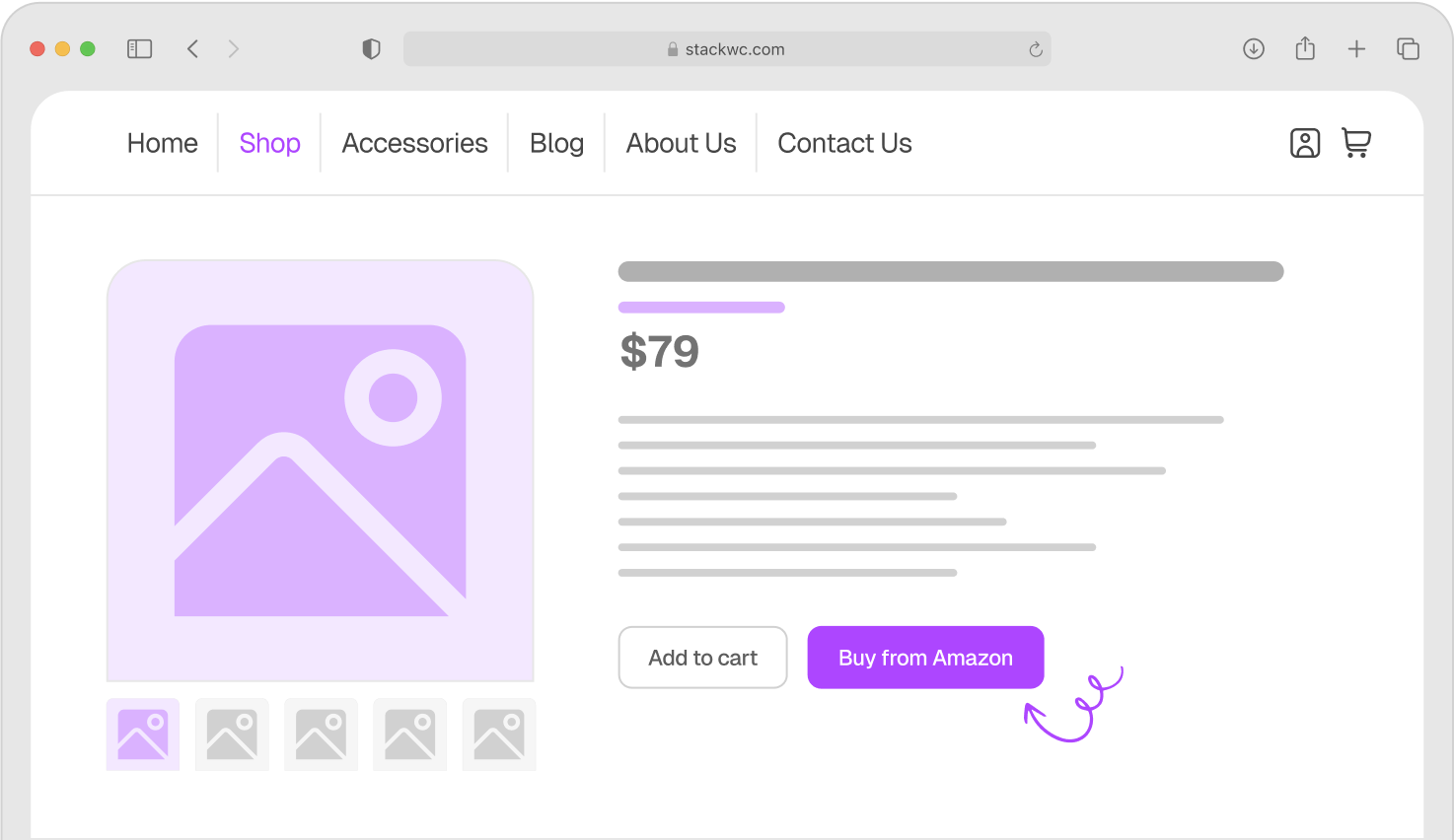
Her conversion rate improved by 35% after she added the Quick Buy Now Button for WooCommerce, which lets students skip the cart and check out instantly.
Example 2: Software Developer
Mike builds WordPress plugins and themes.
He sells license keys bundled with ZIP files containing his code. Each product has a 3-download limit and 1-year expiration (matching his support period). This encourages customers to renew annually for updates and support.
Mike uses WooCommerce’s REST API to automatically generate and validate license keys. When someone buys, they get the download file immediately and the license key in their order email.
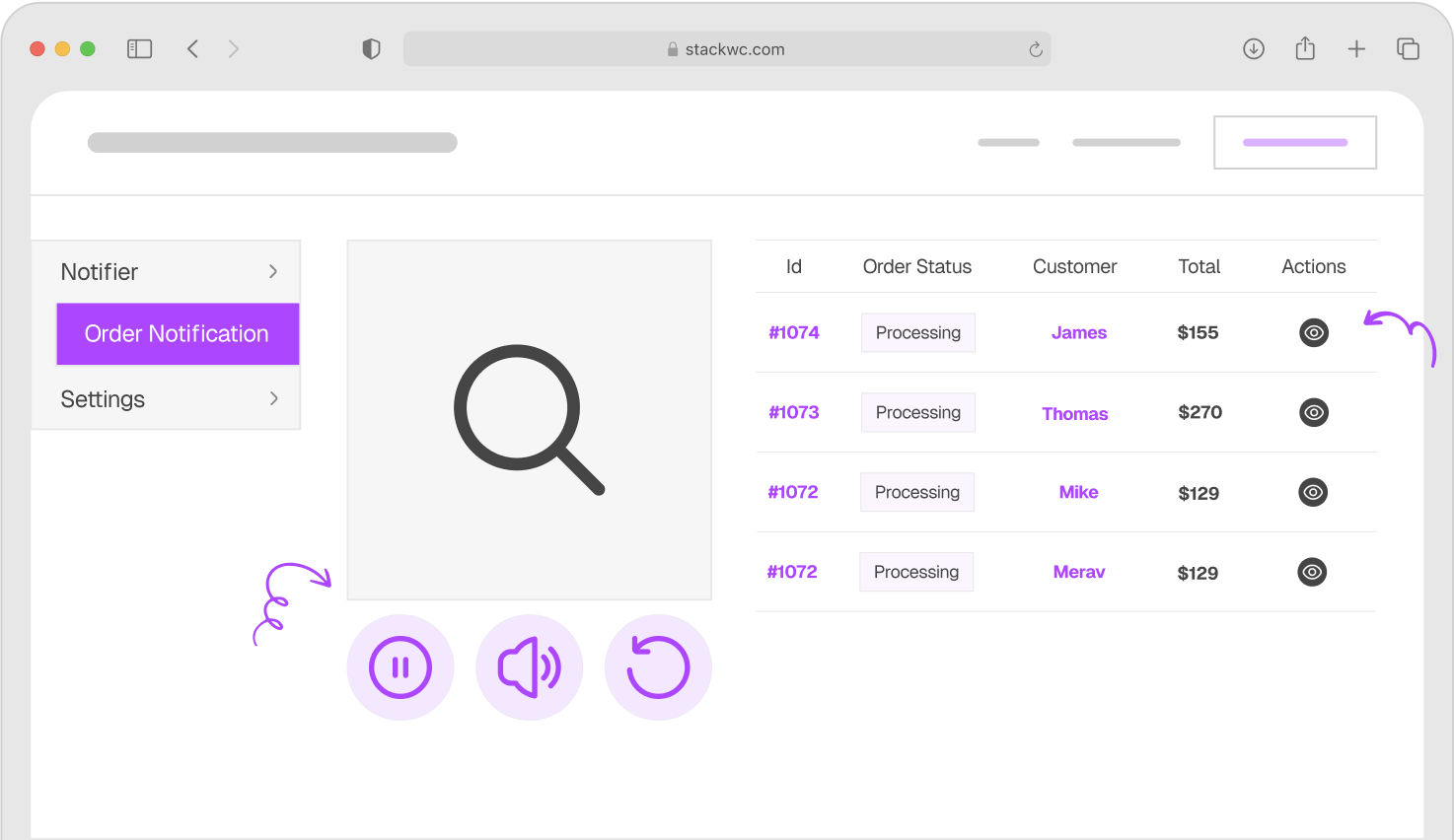
He also uses Order Notification for WooCommerce to get instant audio alerts when sales come in, so he can quickly respond to customer questions.
Example 3: Stock Photo Photographer
Lisa runs a stock photography site with thousands of images.
She organizes photos into themed packs (50 images each) as downloadable ZIP files. Customers can buy individual packs or bundles. She sets unlimited downloads with no expiration because photos don’t update.
To improve organization and help customers understand what they’re buying, she uses Product Tabs for WooCommerce. This lets her create custom tabs showing sample images, license details, and usage exam ples right on the product page.
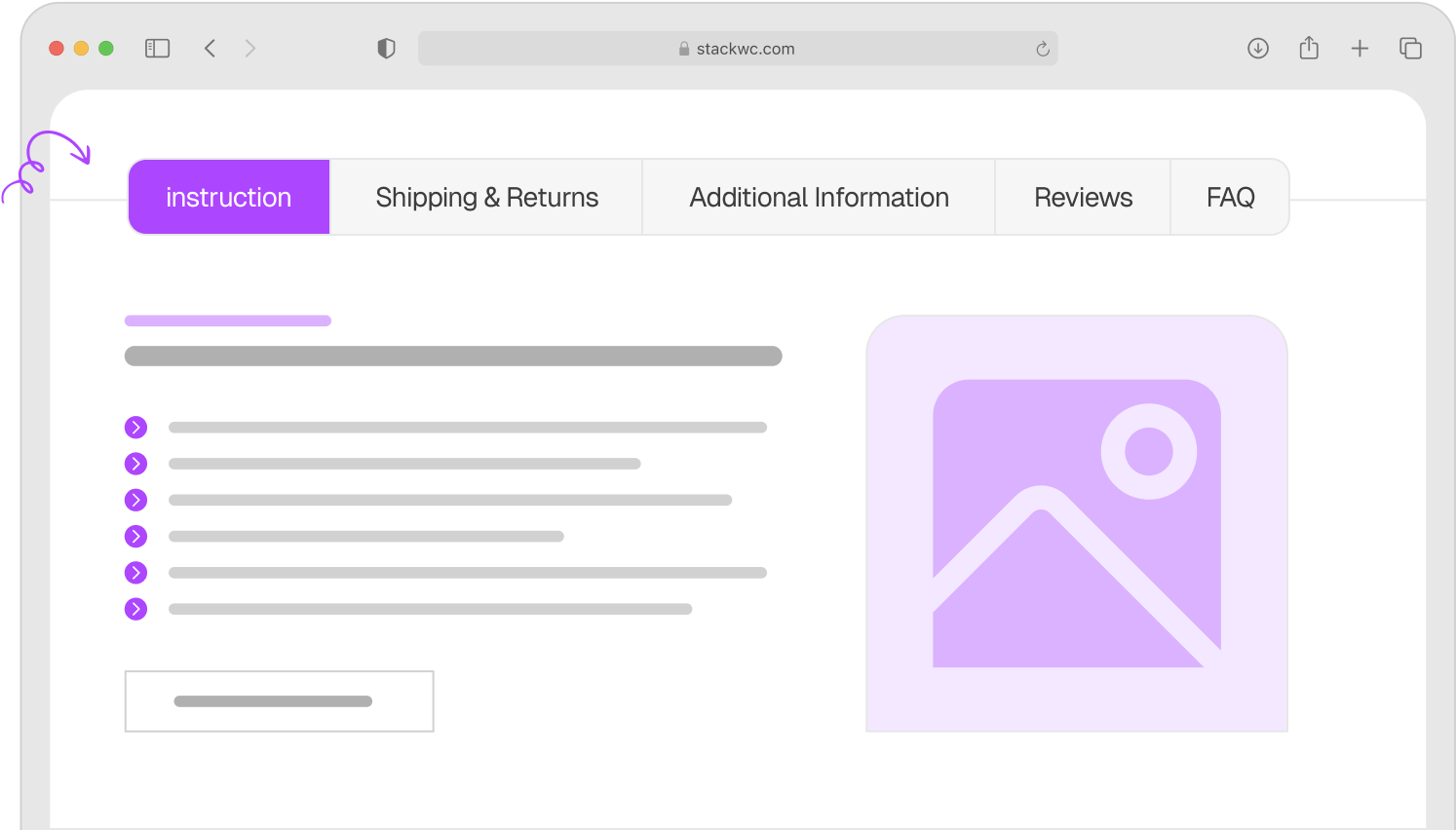
Her average order value increased because customers could clearly see what they were getting before buying.
Step-by-Step Guide: Setting Up Digital Downloads
Ready to start selling? Here’s exactly what to do.
Step 1: Install and Set Up WooCommerce
First, make sure WooCommerce is installed and activated on your WordPress site. If you haven’t done this yet, go to Plugins → Add New, search for “WooCommerce,” and click Install.
Run through the setup wizard. When asked about your business type, you can select “Downloads” or skip that question entirely. The important part is completing the basic setup.
Step 2: Create Your Digital Product
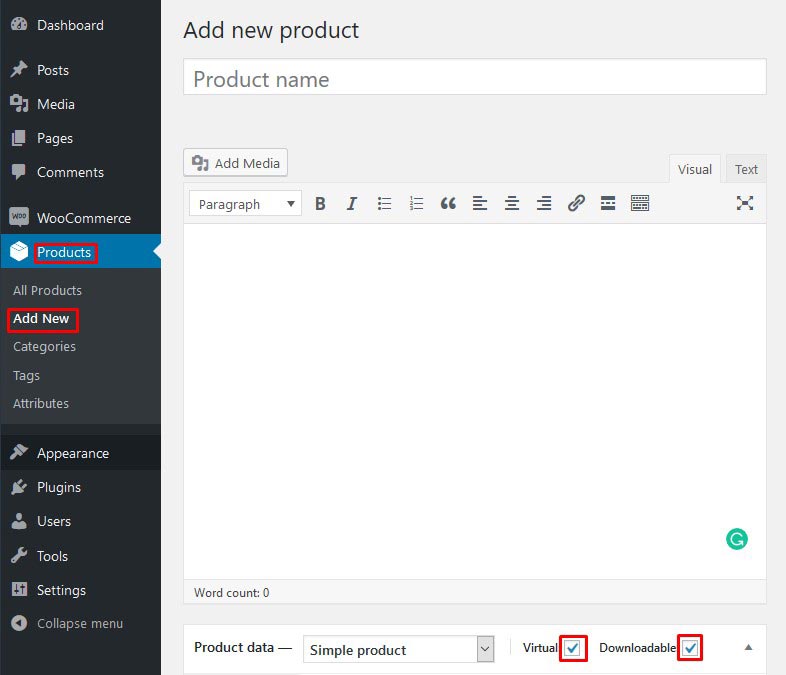
Go to Products → Add New in your WordPress dashboard.
Give your product a name and description. This is what customers will see, so be clear about what they’re getting. Use bullet points to list what’s included in the download.
Step 3: Configure Product Data Settings
In the Product Data box, check two boxes:
- Virtual (since there’s no shipping)
- Downloadable (this reveals the download options)
Step 4: Upload Your Files
Click the Downloadable tab that appeared.
Click “Add File” and either upload a file from your computer or paste a URL if it’s hosted elsewhere. Give the file a name (this is what customers will see).
Set your download limit. A good starting point is 5 downloads. Set expiration days if needed, or leave blank for unlimited access.
Step 5: Publish and Test
Click Publish to make your product live.
Then do a test purchase. Use a test payment method or a real purchase at a low price point. Check that the download link arrives in the order confirmation email and works correctly.
Make sure the file downloads completely and opens properly. This catches any file corruption or compatibility issues before real customers find them.
Step 6: Optimize Checkout for Speed
Here’s where many store owners miss an opportunity.
Digital product buyers want instant gratification. If checkout takes too long or feels complicated, they’ll abandon their cart. Consider adding the Quick Buy Now Button for WooCommerce to let customers skip the cart entirely and check out in one click.
No coding required. It installs in minutes and can boost conversions by reducing friction.
Step 7: Set Up File Security
WooCommerce automatically creates secure download URLs, but you should also:
- Use strong passwords for your WordPress admin
- Keep WordPress and WooCommerce updated
- Consider storing large files on cloud storage (Amazon S3, Google Cloud)
- Monitor your download logs for suspicious activity
Your files represent your income. Protect them accordingly.
Ready to start selling digital products? Try Open Close Store for WooCommerce if you want to control when products are available, perfect for limited releases or pre-orders. It works great for timed digital product launches.
Common Questions and Answers
WooCommerce supports any file type: PDF, ZIP, MP3, MP4, EPUB, MOBI, JPG, PNG, and more. There’s no restriction on format. Just make sure your hosting can handle the file size, especially for large video or audio files.
When you update a product file, WooCommerce doesn’t automatically notify previous customers. You’ll need to manually send them the new download link through the order details page, or use a plugin that automates this process for version management.
Yes, but you’ll need the WooCommerce Subscriptions extension. This lets you charge monthly or yearly for access to digital content, perfect for membership sites, ongoing training, or software with updates.
Check three things first: download limit hasn’t been exceeded, link hasn’t expired, and file still exists on your server. You can manually grant access or extend limits from the order details page in your WordPress dashboard.
Conclusion
Selling digital downloads with WooCommerce is easier than most people think.
You get secure file delivery, automatic download management, and complete control over your products. No monthly platform fees eating into your profits. No complex integrations or coding headaches.
The key is setting things up correctly from the start. Mark products as downloadable, upload your files securely, set reasonable download limits, and make checkout as smooth as possible for your customers.
Here’s one final tip: always test your purchase process yourself. Buy your own product, check the email, download the file, and make sure everything works perfectly. Your first customer’s experience should be flawless.
Ready to launch your digital product store? Try Quick Buy Now Button for WooCommerce with a 14-day money-back guarantee. Reduce checkout friction, increase conversions, and give customers the instant purchasing experience they expect. No risk, fully supported, no coding needed.
For more WordPress and WooCommerce tutorials, visit Tutsflow for free step-by-step guides.