

Ever visited a product page that felt like a messy drawer?
You know the feeling. You’re trying to find specific details about a product, but everything’s jumbled together. Specs are mixed with shipping info. Reviews are buried somewhere. You’re scrolling, searching, and getting frustrated.
Here’s the thing: if your customers can’t find what they need quickly, they’ll leave. And when they leave, your sales go with them.
The good news? Organizing WooCommerce product information doesn’t have to be complicated. In this post, you’ll learn exactly how to structure your product pages so customers find what they need fast. No confusion, no frustration, just a smooth shopping experience that leads to more sales.
Let’s fix those messy product pages together.
Table Of Contents
The Problem with Disorganized Product Pages
Think about the last time you shopped online. What made you click “Add to Cart”?
Chances are, you found all the information you needed quickly. You didn’t have to hunt for product dimensions. The shipping details were right there. Customer reviews were easy to find.
Now imagine the opposite. A wall of text. No clear sections. Important details hidden at the bottom. That’s what many WooCommerce store owners accidentally create.
Studies show that 88% of online shoppers are less likely to return to a website after a poor user experience. Your product page is often the last stop before checkout. If it’s confusing, customers bounce.
The real cost? Lost sales, frustrated visitors, and a higher cart abandonment rate. When people can’t quickly find size charts, ingredient lists, or technical specs, they’ll find a competitor who makes it easier.
It’s not that your products aren’t good enough. It’s that your product information isn’t organized well enough. And that’s completely fixable.
How Better Organization Actually Works
The Secret is Logical Grouping
Your brain naturally organizes information into categories. Your product pages should work the same way.
Instead of dumping everything into one description, break it into clear sections. Each section should have one specific purpose. Customers scan pages looking for what matters to them right now.
Some want technical specs. Others care about shipping times. Parents need safety information. Everyone wants to see reviews.
When you organize WooCommerce product information into dedicated sections, you help different customers find their answers fast.
What Makes a Product Page Easy to Use
Here’s what actually matters:
- Clear visual separation between different types of information
- Logical flow from general info to specific details
- Tab-based navigation so customers choose what they want to see
- Scannable headings that tell people exactly what’s in each section
- Consistent structure across all your products
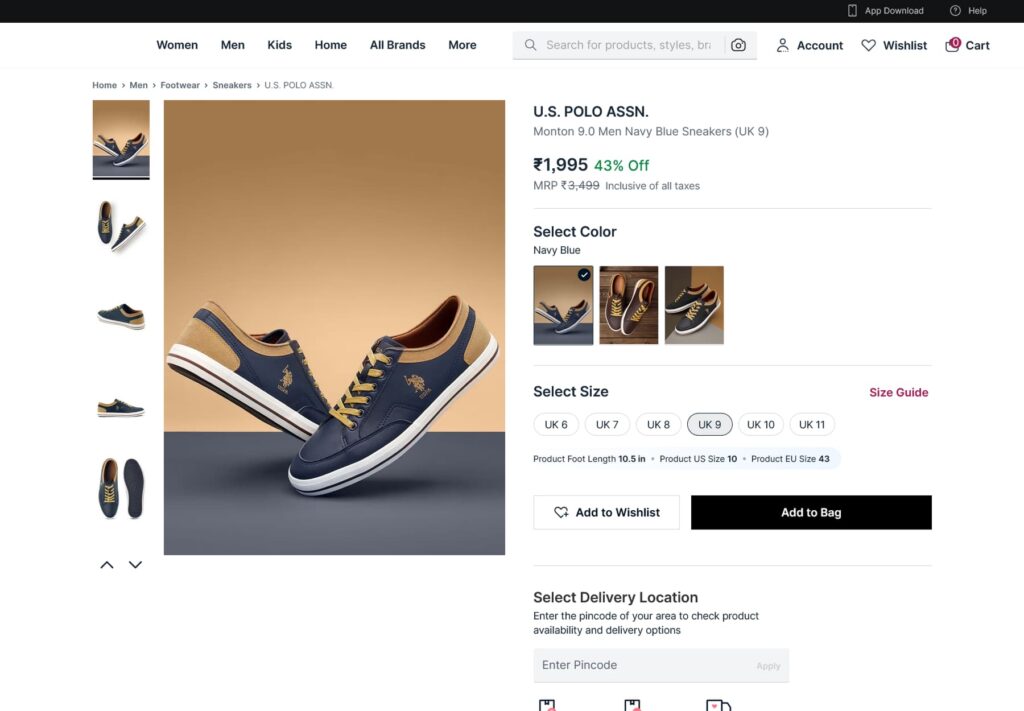
Benefits You’ll See Immediately
When you organize your product information properly, several things happen:
Customers stay longer. They’re not frustrated searching for basic details. They explore your products thoroughly because everything’s easy to find.
Your conversion rate improves. Clear information removes doubt. When people have all the facts, they buy with confidence.
Support questions decrease. If shipping info, care instructions, and specs are clearly visible, customers don’t need to email you for answers.
Your store looks more professional. Clean, organized pages build trust. Messy pages make people question your credibility.
You’re not just organizing content. You’re removing friction from the buying process.
Real-World Examples from Different Store Types
Let’s look at how different stores use smart organization:
Example 1: Fashion and Apparel Store
A clothing boutique was getting constant emails about sizing. Their size chart was buried in the main description. They reorganized their product pages with separate tabs for “Size Guide,” “Materials & Care,” and “Shipping Info.”
Result? Support emails dropped by 40%. Customers found sizing details instantly, felt confident buying, and returns actually decreased because people ordered the right size the first time.
Example 2: Electronics and Gadgets Shop
A tech accessories store had detailed specifications, but customers couldn’t find them easily. They created tabs for “Tech Specs,” “What’s in the Box,” “Compatibility,” and “Warranty Info.”
Their average time on product pages increased by 60%. More importantly, their conversion rate went up 25% because shoppers had all the technical details they needed to make informed decisions.
Example 3: Handmade and Artisan Products
A handmade jewelry store wanted to share the story behind each piece. They added tabs for “Product Story,” “Dimensions & Materials,” “Gift Packaging,” and “Customer Photos.”
This personal touch increased engagement and built emotional connection. Sales of higher-priced items increased because customers felt connected to the craftsmanship and understood the value.
Each store organized information differently because they understood what their specific customers needed most.
Step-by-Step Guide to Organize WooCommerce Product Information
Ready to clean up your product pages? Here’s exactly how to do it:
Step 1: List What Information You Actually Have
Open a notepad and write down everything currently on your product pages. Description, specs, shipping details, care instructions, FAQs, reviews, size charts, warranty info.
Don’t organize yet. Just list everything.
Step 2: Group Similar Information Together
Now create categories that make sense for your products. Common groups include:
- Product description and features
- Technical specifications or dimensions
- Shipping and delivery information
- Care instructions or how-to-use guides
- Reviews and customer testimonials
- Additional details or FAQs
- Warranty or return policy
Your categories will depend on what you sell. A bookstore needs different sections than a furniture shop.
Step 3: Install a Product Tabs Plugin
Here’s where you make it happen. You need a way to organize these groups on your product pages.
The Product Tabs for WooCommerce plugin lets you create custom tabs for any information you want. No coding required. Just install, set up your tabs, and you’re done.
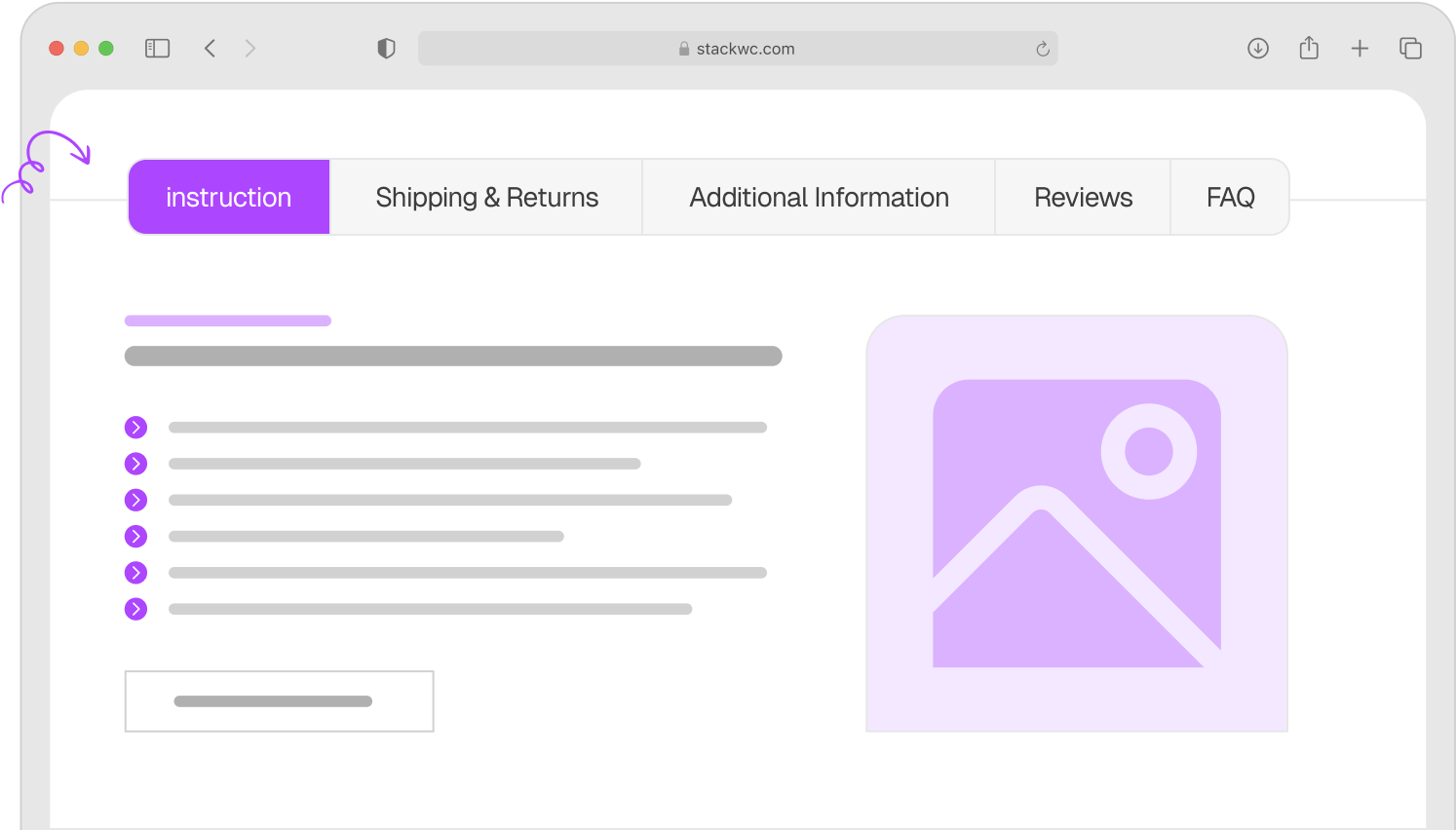
Step 4: Create Your Custom Tabs
Decide which tabs you need. Start with 4-6 tabs maximum. Too many tabs overwhelm people.
Set up each tab with a clear name. Use “Shipping Info” instead of “Info.” Be specific so customers know exactly what they’ll find.
Step 5: Move Content into Appropriate Tabs
Take the information from Step 1 and place it into your new tabs. Keep the main description short and compelling. Move detailed specs to a dedicated tab.
This is your chance to clean up messy content too. Rewrite anything that’s confusing or outdated.
Step 6: Test on Mobile Devices
Over half of your customers shop on phones. Check how your tabs look and work on mobile. Make sure everything’s readable and easy to navigate.
Step 7: Get Feedback and Adjust
Ask a friend to find specific information on your product pages. Watch where they click. If they struggle to find something, move it or rename your tab.
Ready to organize your product pages in minutes?
Try Product Tabs for WooCommerce and create a better shopping experience today.
Common Questions and Answers
Four to six tabs work best for most stores. More than that becomes overwhelming. Stick to the essential categories your customers actually need.
Not at all. Search engines can still read all your content. As long as your information is valuable and well-written, tabs actually improve user experience, which helps SEO.
Absolutely. You might need different tabs for clothing versus electronics. Good product tab plugins let you customize tabs per product or product category.
Quality tab plugins work with virtually all WooCommerce themes. They’re designed to integrate seamlessly with your existing product page layout.
Conclusion
Messy product pages cost you sales every single day.
But now you know the solution. Organize your product information into clear, logical sections. Use tabs to help customers find exactly what they need. Make your product pages easy to scan, navigate, and understand.
The result? Happier customers, fewer support questions, and more sales.
Here’s one final tip: start with your best-selling products first. Organize those pages, watch what happens, then roll out the changes to your entire catalog.
Ready to transform your product pages and boost conversions?
Try Product Tabs for WooCommerce risk-free with our 14-day money-back guarantee. No coding needed, fully supported, and you’ll see the difference immediately.
Your customers will thank you for it.