
Running an online store means constantly finding ways to attract customers and increase sales. One of the most effective strategies? Discount coupons! Whether you’re looking to reward loyal customers, clear out seasonal inventory, or entice first-time buyers, WooCommerce coupon codes are your secret weapon. The best part? You don’t need any coding skills or expensive plugins to get started.
In this comprehensive guide, we’ll walk you through everything you need to know about creating and managing WooCommerce coupons. From basic percentage discounts to advanced usage restrictions, you’ll learn how to set up professional discount codes that drive conversions and boost your revenue. Let’s dive in! 🎉
Why Use WooCommerce Coupons
Coupon codes are powerful tools for boosting sales and rewarding loyal customers. Whether you’re running a seasonal promotion or offering first-time buyer discounts, WooCommerce makes it straightforward to create and manage discount codes.
If you’re new to WooCommerce, check out our guide on what is WooCommerce and how to set it up before diving in.
Creating Your First Coupon Code
Here’s how to create a WooCommerce coupon in just a few clicks:
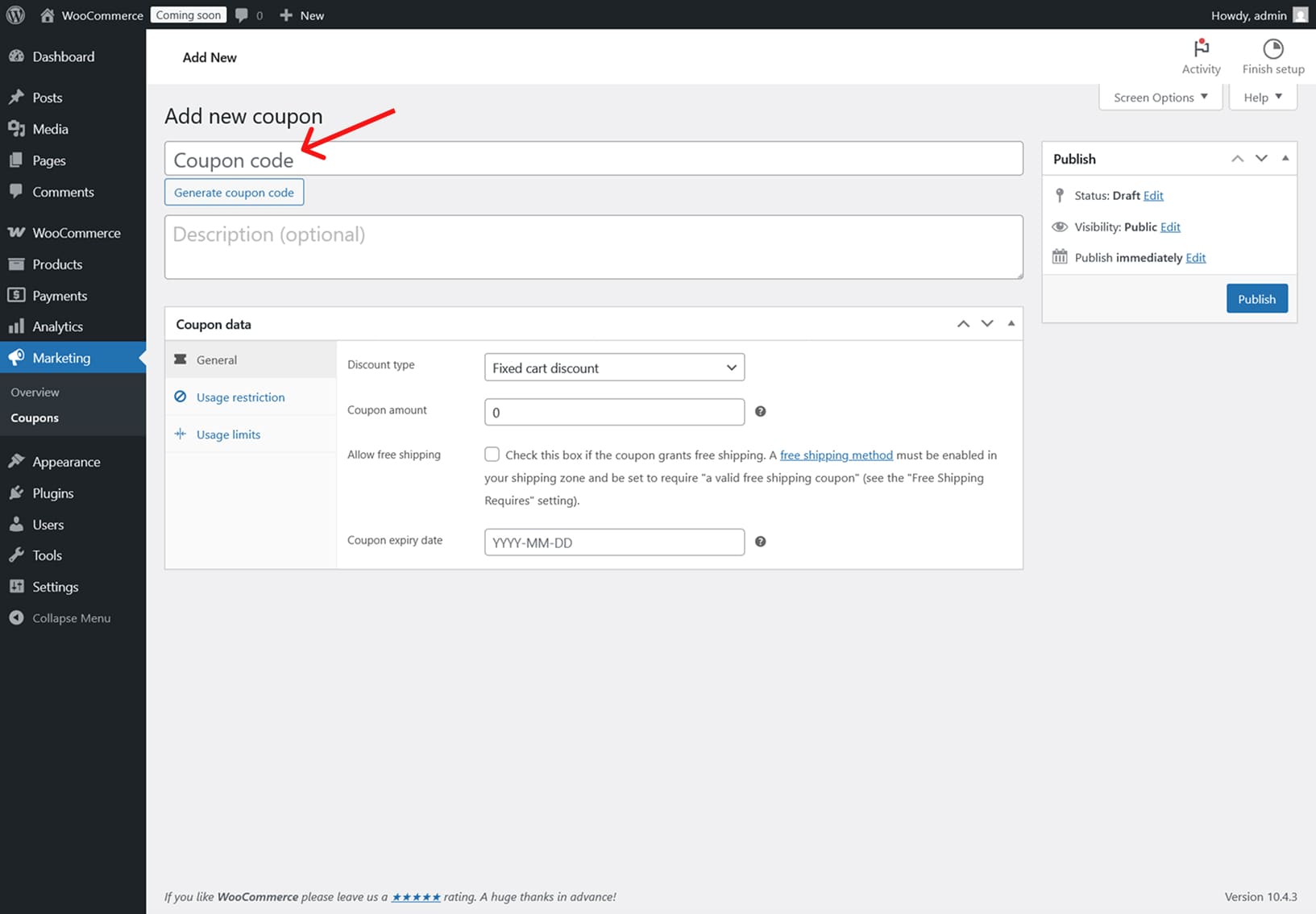
Step 1: Navigate to Marketing > Coupons in your WordPress dashboard.
Step 2: Click Add Coupon at the top.
Step 3: Enter a coupon code name (e.g., “SAVE20” or “WELCOME10”). Keep it simple and memorable!
Step 4: Add an optional description for internal reference.
Configuring Discount Settings
Once you’ve created your coupon, it’s time to set the discount parameters:
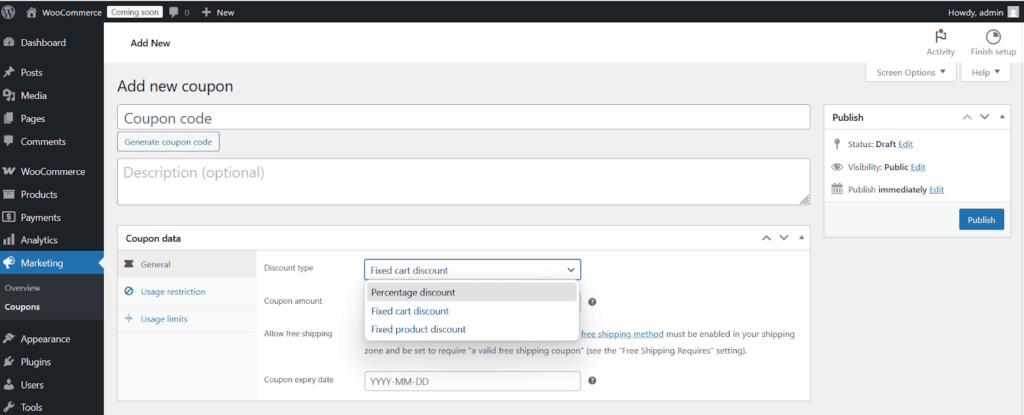
Discount Type
Choose from three options:
- Percentage discount (e.g., 20% off)
- Fixed cart discount (e.g., $10 off total)
- Fixed product discount (e.g., $5 off specific items)
Coupon Amount
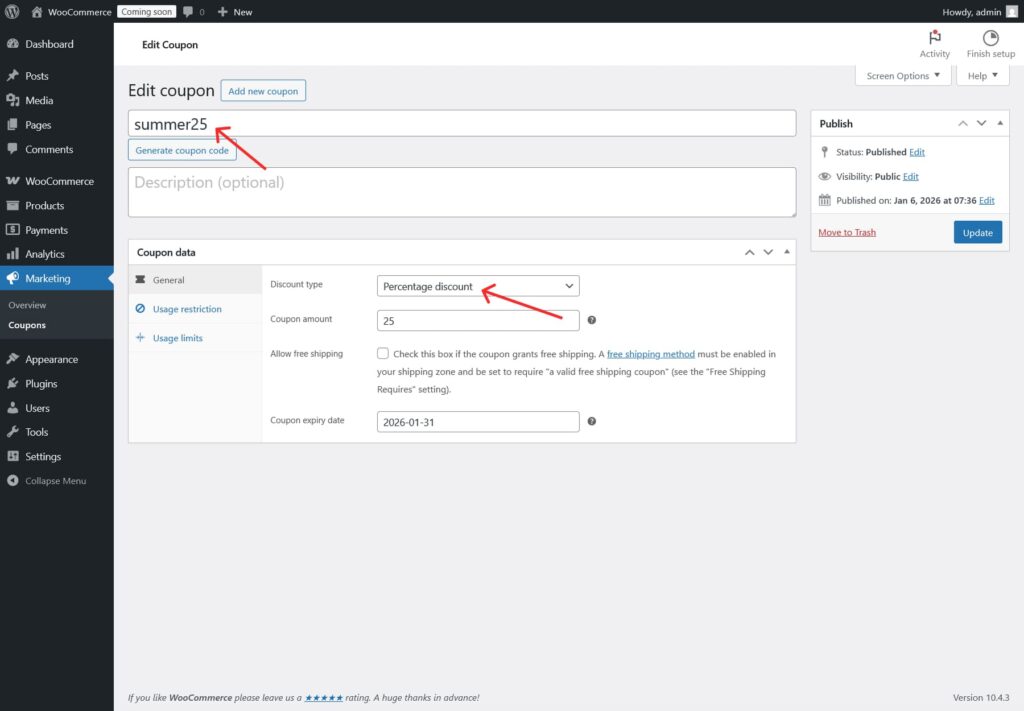
Enter the discount value. For percentage discounts, use numbers without the % symbol (enter “25” for 25% off).
Free Shipping
Enable this checkbox if you want the coupon to grant free shipping. This works great for cart abandonment campaigns!
Advanced Coupon Options
WooCommerce offers powerful restriction and usage settings:
Usage Restrictions:
- Set minimum/maximum spend requirements
- Limit to specific products or categories
- Exclude sale items from discount eligibility
- Restrict to individual use only
Usage Limits:
- Cap total redemptions per coupon
- Limit uses per customer
- Set expiry dates for time-sensitive offers
Similar to how you can set opening and closing hours for your WooCommerce store, these restrictions help you control when and how discounts apply.
Managing and Tracking Coupons
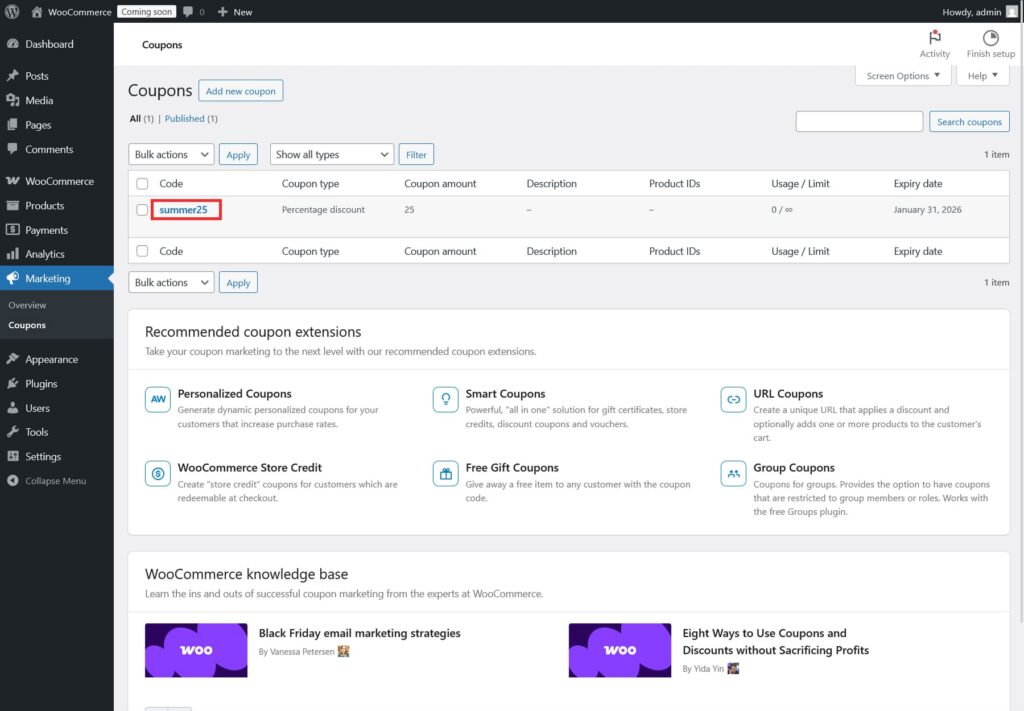
After launching your coupons, monitoring performance is essential. Check the Marketing > Coupons page to view usage statistics for each code.
Pro Tips for Effective Coupon Campaigns
Create Urgency: Set expiry dates on your coupons to encourage quick action. Limited-time offers create FOMO (fear of missing out) and drive faster conversions.
Test Different Discount Types: Some audiences respond better to percentage discounts (“20% OFF”) while others prefer fixed amounts (“SAVE $10”). Run A/B tests to find what works best for your customers.
Use Strategic Naming: Make coupon codes easy to remember and relevant to your campaign. “SPRING2026” is more memorable than “XYZ123ABC.”
Combine with Other Features: Pair your discount strategy with features like the Quick Buy Now Button to create a seamless checkout experience that reduces cart abandonment.
Frequently Asked Questions (FAQ)
There’s no limit! You can create as many coupon codes as you need for different campaigns, customer segments, or product categories.
By default, WooCommerce allows multiple coupons unless you enable the “Individual use only” option. This setting prevents customers from stacking discounts.
You can share coupons through email newsletters, social media posts, on-site banners, or during checkout. Many store owners also use coupon codes in abandoned cart recovery emails.
Yes! In the “Usage restriction” tab, you can select specific products or categories that the coupon applies to. This is perfect for promoting new arrivals or clearing slow-moving inventory.
If you’re using WooCommerce Subscriptions, coupons can apply to both initial payments and recurring charges. You can configure this in the coupon settings.
Use the usage limit features to cap redemptions per coupon and per user. You can also set email restrictions to limit coupons to specific customer emails or domains.
Final Thoughts
Creating coupon codes in WooCommerce is one of the simplest yet most powerful ways to grow your online business. With the built-in coupon system, you have complete control over discounts, restrictions, and tracking—all without touching a single line of code.
Remember, the key to successful coupon campaigns is balancing generosity with profitability. Start small, track your results, and adjust your strategy based on what drives the best ROI for your store. Happy selling! 🌟
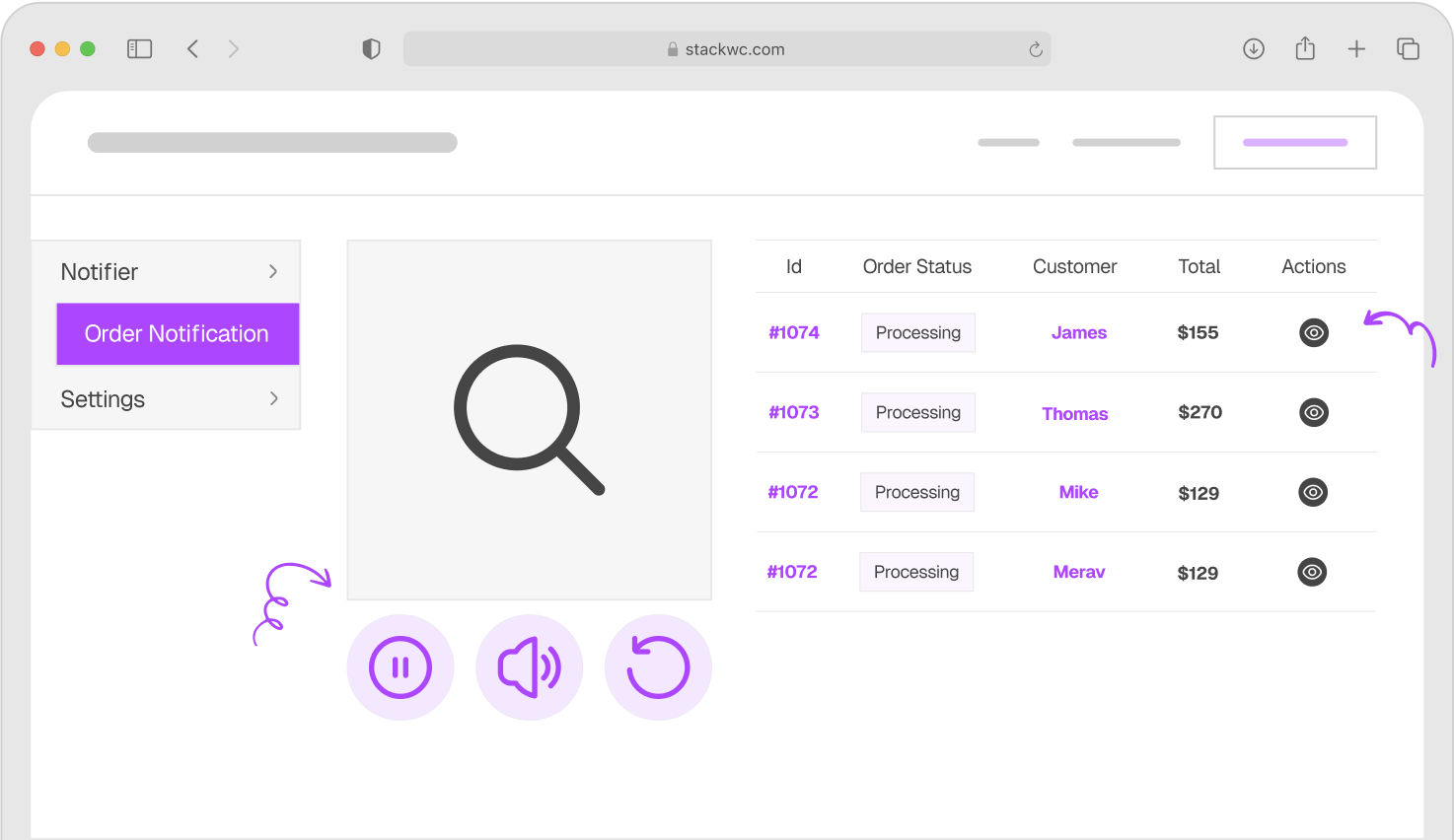
Want real-time updates when customers use your coupons? The Order Notification plugin can send instant audio alerts whenever new orders come in-helping you track promotional success as it happens.
For more advanced store management tips, explore our complete guide to WooCommerce shortcodes to display coupon information anywhere on your site.
Ready to boost your sales? Start creating coupon codes today and watch your conversion rates climb! 🚀