
Bulk Delete WooCommerce Products
If your WooCommerce catalog has grown messy over time duplicate imports, discontinued items, seasonal products, or a batch of drafts that never got published deleting products one at a time isn’t realistic. The good news is that WooCommerce gives you a few built-in ways to bulk delete products, and there are simple plugin-based options when you need more control. This guide walks you through both, step by step.
Why You Might Need to Bulk Delete WooCommerce Products
A cluttered product catalog isn’t just an eyesore in your dashboard it can slow down admin screens, make your database heavier to back up, and confuse shoppers browsing categories that still show items you meant to remove months ago. Store owners typically need to bulk delete products when they’re clearing out a failed import, retiring an entire product line, cleaning up test products from development, or doing a seasonal refresh of their catalog.
Whatever the reason, WooCommerce doesn’t make you delete hundreds of products individually you just need to know where to look.
Before You Start: A Few Precautions
Before deleting anything in bulk, take a few minutes to protect yourself from mistakes you can’t undo:
- Back up your site, or at minimum export your products list (Products → All Products → Export) so you have a record of SKUs, prices, and stock levels.
- Use Trash before Permanent Delete. WooCommerce moves products to Trash by default, giving you a window to recover anything deleted by mistake.
- Double-check filters before confirming. A category or status filter that’s slightly too broad can catch products you didn’t mean to remove.
With that safety net in place, here’s how to actually do it.
Bulk Deleting Products by Status, Category, or SKU
Bulk Cleanup for WooCommerce has a dedicated Products panel built for exactly this kind of cleanup. Instead of filtering and selecting products page by page in the default admin list, you set your criteria once, preview every match, and remove them in one pass with a CSV export and Trash step in between so nothing disappears without a chance to double-check it first.
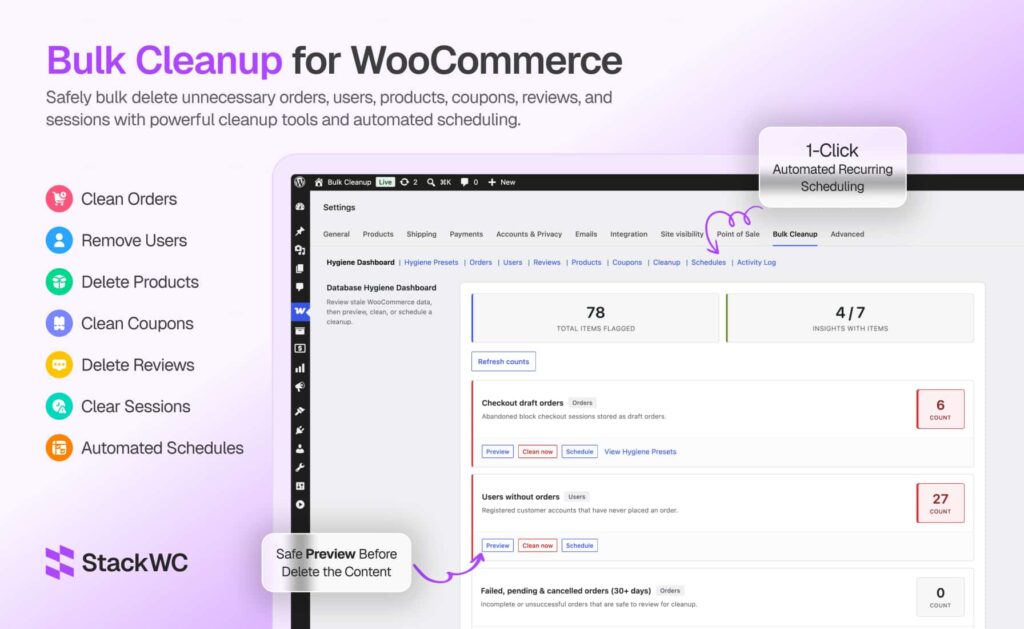
Step 1: Install and activate the plugin. Bulk Cleanup for WooCommerce requires WooCommerce to already be active. Once installed, go to WooCommerce → Settings → Bulk Cleanup.
Step 2: Open the Products tab. The plugin’s interface is organized into sub-tabs across the top Hygiene Dashboard, Orders, Users, Reviews, Products, Coupons, and so on. Click into Products to work specifically with your product catalog.
Step 3: Set your filters. Narrow down the products you want to remove using the criteria that matter for your cleanup product status (draft, published, or trashed), a specific category, or a SKU pattern if you’re targeting products from a particular import or supplier batch. You can combine these filters instead of running separate searches for each one.
Step 4: Preview the matches. Before anything is touched, the plugin shows you exactly which products match your filters. This is the step to slow down on scan the list and make sure nothing unexpected is included, especially if your category filter might pull in subcategories you didn’t intend to target.
Step 5: Export a CSV backup (optional but recommended). If you want a record of what’s being removed SKUs, titles, prices export it before deleting. This takes a minute and gives you something to reference if you ever need to recreate a product later.
Step 6: Move matches to Trash. Rather than deleting permanently right away, send the filtered products to Trash first. This keeps them recoverable while you do a final check.
Step 7: Permanently delete once you’re confident. After reviewing the trashed items, delete them permanently to fully clear them from your catalog and database.
Step 8: Set up a schedule if this is a recurring task. If your store regularly accumulates draft products, discontinued items, or test entries, the plugin’s scheduling option lets you run this same cleanup automatically on a recurring basis, so it’s not something you have to remember to do manually every time.
This workflow keeps the process both fast and safe: the filters do the heavy lifting of narrowing down hundreds of products, while the preview and Trash steps make sure a broad filter doesn’t cost you something you meant to keep.
Common Mistakes to Avoid
- Skipping the backup step. Even with Trash as a safety net, an export takes two minutes and can save hours later.
- Deleting instead of trashing. Permanent deletion removes product images from galleries too, so give yourself a review window first.
- Filtering too broadly. A category filter that includes subcategories can catch more products than intended always preview before applying a bulk action.
- Forgetting related data. Deleting a product doesn’t automatically clean up related order history or abandoned cart references; that’s a separate cleanup task if you need it.
If your workflow already touches related cleanup tasks, our guides on cleaning up old WooCommerce orders and removing customers without orders cover the same trash-first, preview-before-delete approach applied to other parts of your store.
FAQ
Only if it was moved to Trash first and you haven’t emptied the Trash yet. Once permanently deleted, a product cannot be restored, which is why the Trash step matters.
Deleting a product removes it from any product galleries it appeared in. If the image is used elsewhere on your site, check before assuming it’s gone from your media library too.
No, existing orders keep their historical product data, though the product listing itself will no longer be viewable or purchasable on your storefront.
Use the product search box (which matches SKUs) to isolate the products first, review the filtered list carefully, then move them to Trash rather than deleting immediately.
Conclusion
Bulk deleting WooCommerce products doesn’t have to be risky or repetitive. For occasional cleanup, WooCommerce’s built-in filters and bulk actions handle the job fine just remember to trash before you permanently delete. For stores that need to clean house regularly, a dedicated tool that lets you preview, back up, and schedule cleanup takes the manual guesswork out of the process entirely.